Expense Application
The Expense Application module in the HRMS system allows employees to submit and manage their official expense claims efficiently. Employees can raise a request by selecting their details, entering expense information such as expense type, mode, amount, date range, and payment method, and uploading supporting documents. The system also captures advance amounts and cash returned, ensuring accurate financial tracking. Each request is assigned a unique reference number and is routed for managerial approval. The application status (Pending, Approved, or Rejected) can be tracked in real time under the Pending and History tabs.
Uses –
– To apply for reimbursement of business-related expenses.
– To record travel, accommodation, food, and other official expenses.
– To maintain a centralized and digital record of all expense claims.
– To enable managers to review and approve/reject requests.
– To quickly search and access previous expense records.
Benefits –
– Reduces manual paperwork and administrative effort.
– Ensures transparency in expense submission and approval.
– Improves accuracy by capturing complete expense details.
– Speeds up the approval and reimbursement process.
– Helps in policy compliance and audit tracking.
– Provides a user-friendly and structured way to manage expenses.
Navigation –
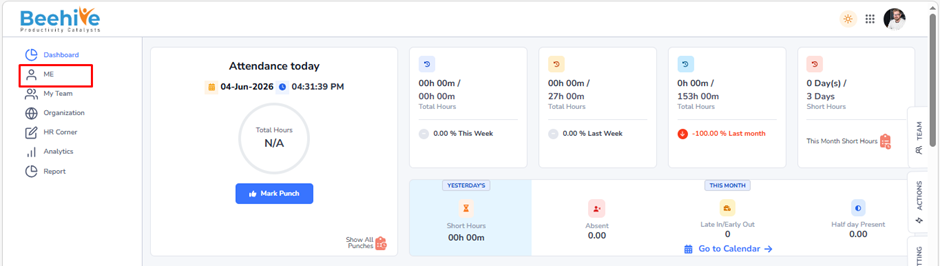
Login -> Me -> Expense Applications -> Add
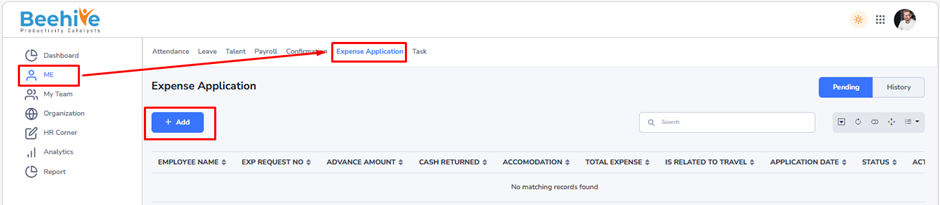
Click on the Add button to create a new expense application.
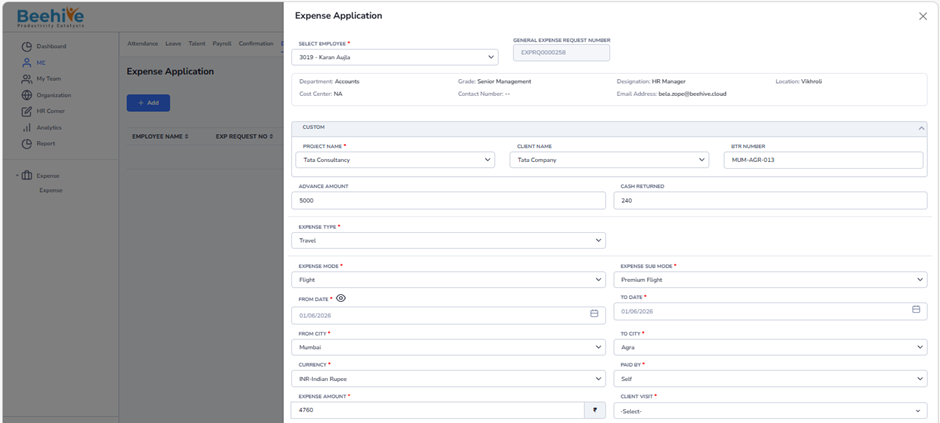
Employee must fill all required expense details including type, mode, dates, amount, currency, and payment method. If applicable, enter advance and cash returned details. Upload supporting documents, verify the information carefully, and then submit the expense application for approval.
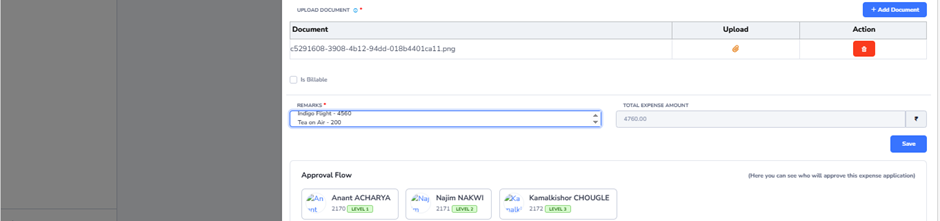
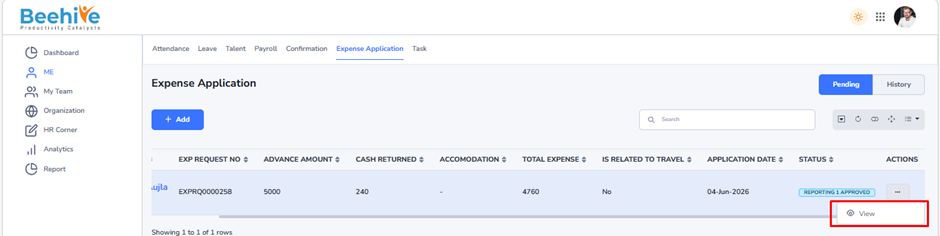
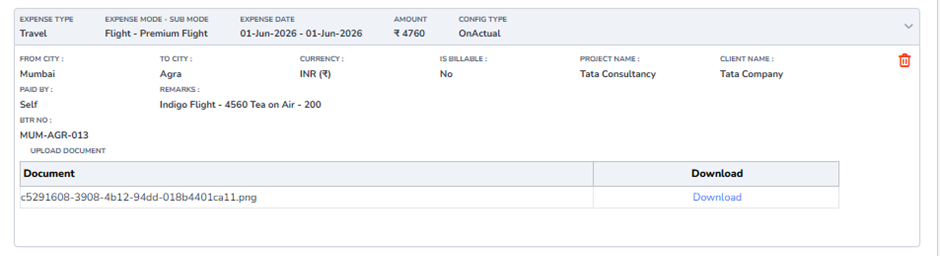
After saving expense details, saved records will be displayed as shown below.
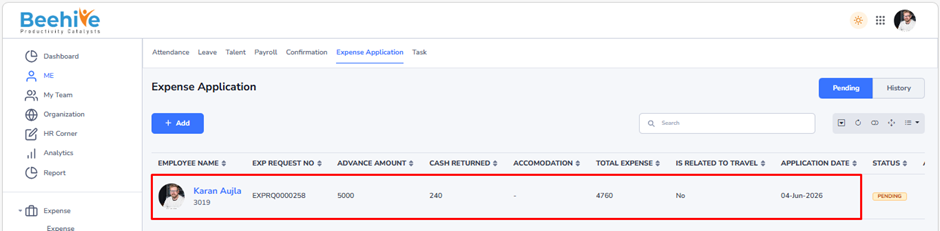
fter an employee submits an Expense Application, it is displayed on the Expense Index Page with a Pending status. The application remains visible in the Pending section until the approval process is completed. Employees can track the current status of their expense claims directly from the Expense Index Page.
To View, Edit, or Delete an existing application, navigate to the Actions column and click on the Actions Menu icon. This menu provides various options to manage your submitted applications.
If the application status is Pending, you will see the Remove & Edit option available in the menu. This allows you to delete or edit the application before it is reviewed or approved by the concerned authority.
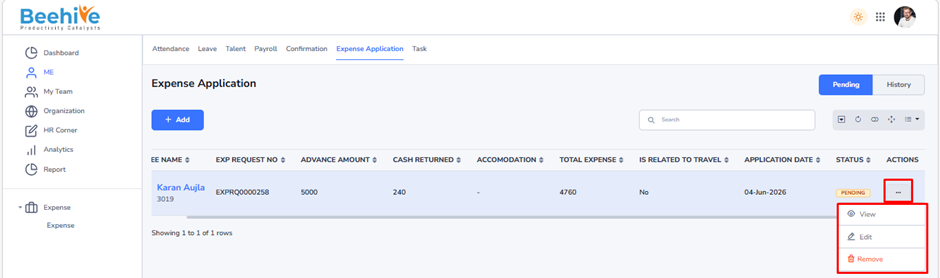
However, once the application has progressed to the Reporting 1 Approved or Reporting 2 Approved status, the Remove & Edit option will no longer be visible. At this stage, the application is already under review or approved, and hence, it cannot be deleted or modified.
This feature ensures that users can manage their applications efficiently while maintaining data accuracy and approval integrity within the system.