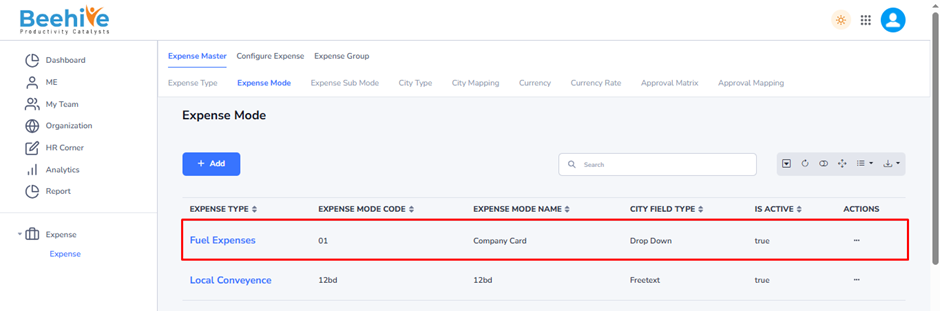
Expense Mode
Expense Mode is a master configuration used to define the method or mode through which an expense is incurred or claimed by an employee. It helps categorize expenses based on how the expenditure was made and enables better tracking, approval, and reimbursement management.
By configuring Expense Modes, organizations can monitor spending patterns, maintain accurate expense records, and ensure compliance with company reimbursement policies. Employees are required to select the appropriate Expense Mode while submitting expense claims, which helps in auditing and reporting purposes.
Navigation –
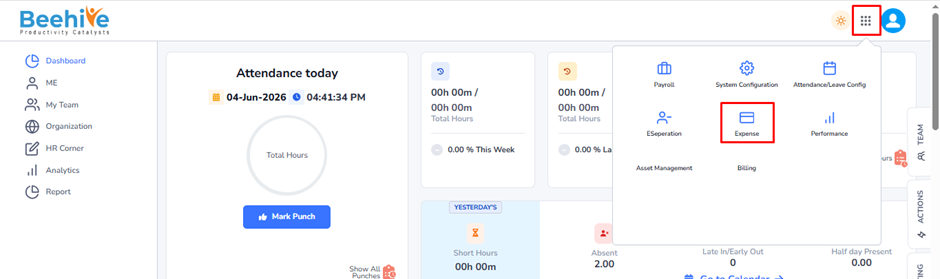
Login -> Module Box-> Expense -> Expense Master -> Expense Mode
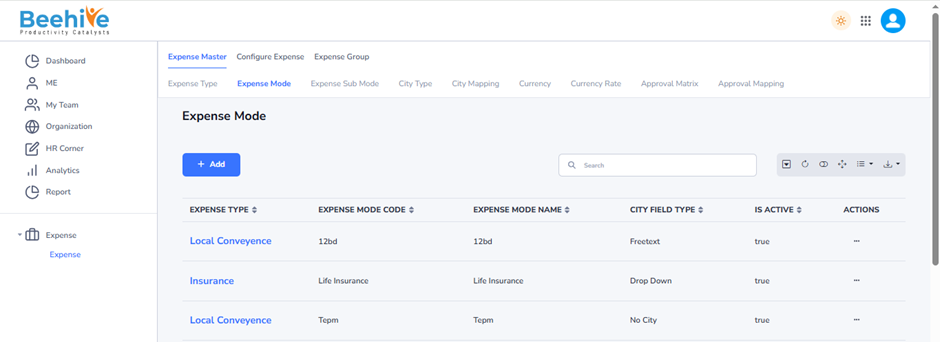
Click on Add button and Fill the details.
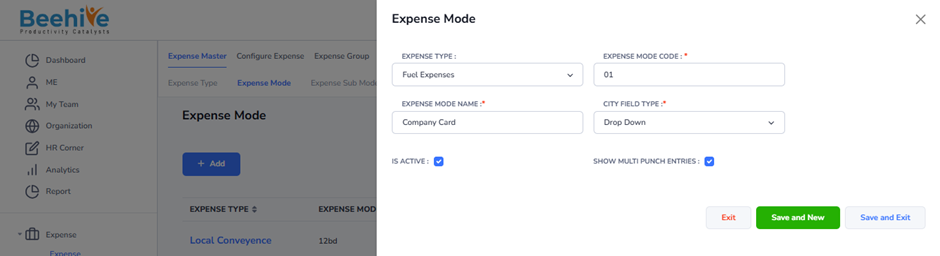
Expense Type – Select the expense category (e.g., Fuel Expenses, Travel Expenses, Food Expenses) for which the expense mode is being created.
Expense Mode Code – Enter a unique code to identify the expense mode within the system.
Expense Mode Name -Specify the name of the expense mode, such as Cash, Company Card, Debit Card, Credit Card, or UPI.
City Field Type – Defines how city information will be captured while submitting an expense claim.
– Drop Down – Users select a city from a predefined list.
– Free Text – Users can manually enter the city name.
– No City – No city information is required for the expense claim.
Is Active – Enable this option to make the expense mode available for employees while submitting expense claims.
Show Multi Punch Entries – Enable this option to allow multiple punch/location entries under a single expense claim, if applicable.
These settings help organizations control expense submission methods and capture the required location information based on their expense policies.
Created Master will be visible on the Index page.