Expense Approval
From Where Manager can Approve/Reject Expense Requests?
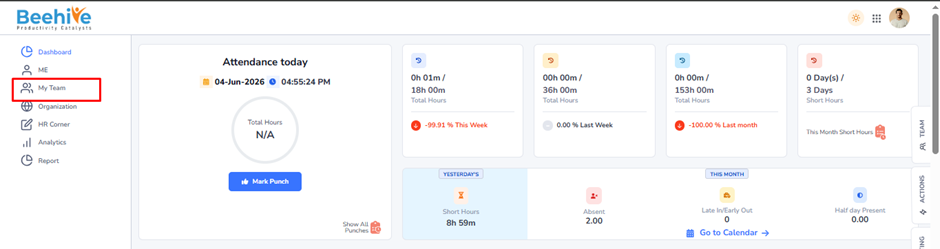
To manage Expense Request approvals, go to the My Team tab and select the Expense Approval module. The Pending tab displays all Expense Requests that are awaiting your action.
Managers can review the submitted expense details and either Approve or Reject the request directly from the list view or by opening the application to view complete expense information, attached bills, and claim details.
Once an Expense Request is approved or rejected, it is automatically moved to the History section for future reference and audit purposes.
If your organization has a two-level approval process –
– After the first-level manager approves the Expense Request, it is forwarded to the second-level (final) approver.
– The expense claim is considered fully approved only after the final approver completes the approval process.
– Once the final approval is completed, the approved expense amount becomes available for reimbursement processing as per the organization’s expense policy.
Email Notification –
– When a reporting manager approves an Expense Request, an email notification is sent to the next-level reporting manager.
– When the final approver approves the request, an email notification is sent to the employee.
– If a reporting manager rejects the request, the employee receives an email notification with the updated status.
– Employees can also track the current status of their Expense Requests from the Expense Application page.
Navigation –
Login -> My Team -> Expense Approval
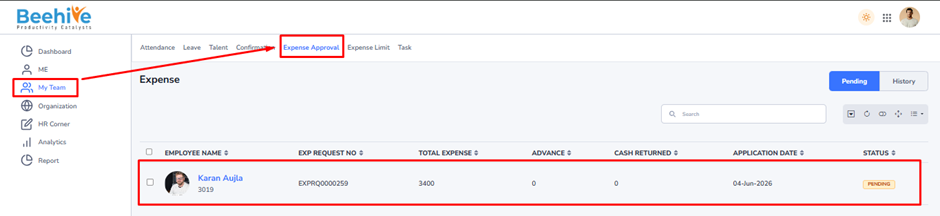
Note – Expense applications that exceed the configured expense limit will not appear in the regular Expense Approval page. Such applications are automatically routed to the Expense Limit Approval page, where authorized approvers can review and approve expenses that exceed the defined limits as per the organization’s expense policy.
When a manager clicks on an Expense Request from the Pending list, the complete Expense Approval screen is displayed. This page provides all information related to the submitted expense claim, allowing the approver to review and take appropriate action.
The approver can view –
– Employee details such as Name, Department, Designation, Grade, and Location.
– Expense Request Number and Application Status.
– Expense Purpose entered by the employee.
– Expense summary including –
– Paid by Employee
– Paid by Company
– Paid by Client
– Advance Amount
– Total Expense
– Balance/Refund Amount
– Detailed expense information such as Expense Type, Expense Date, Amount, Project Name, Client Name, Payment Mode, Currency, and Remarks.
– Supporting documents and bills uploaded by the employee, which can be downloaded and verified before approval.
Actions Available to Approver –
After reviewing the expense details, the manager can perform any of the following actions –
– Approve – Approves the expense claim and forwards it to the next approval level (if applicable) or marks it as approved.
– Reject – Rejects the expense claim. The employee is notified about the rejection.
– Send Back – Returns the application to the employee for correction or additional information. The employee can modify and resubmit the request.
– Print – Generates a printable version of the expense application for record-keeping.
– Exit – Closes the approval screen without taking any action.
Approved/Refundable Amount –
The approver can enter or modify the Approved/Refundable Amount based on company policy and supporting documents submitted by the employee. This amount will be considered for reimbursement processing after final approval.
Approver Remarks –
The Approver Remarks field is mandatory and should be used to provide comments, approval notes, rejection reasons, or any additional instructions related to the expense claim. These remarks are visible in the approval history and help maintain transparency in the approval process.
Note – It is recommended to verify all supporting documents and expense details before approving the claim to ensure compliance with the organization’s expense policy.
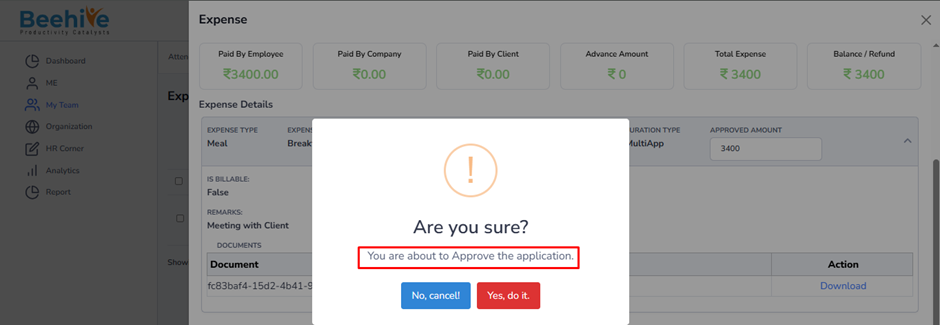
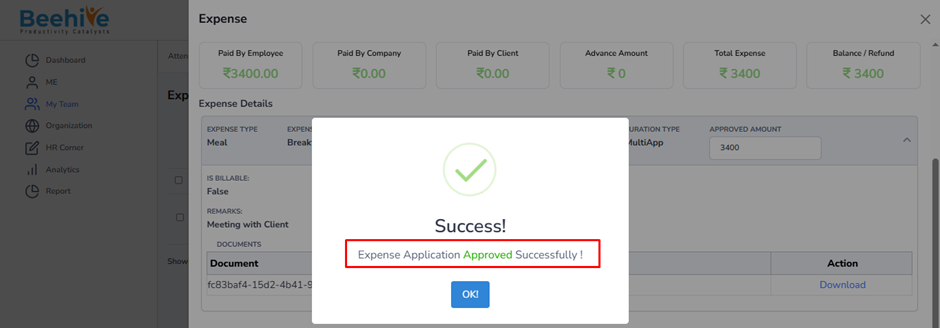
After the approver clicks the Approve button, a confirmation pop-up message is displayed indicating that the Expense Application has been approved successfully.