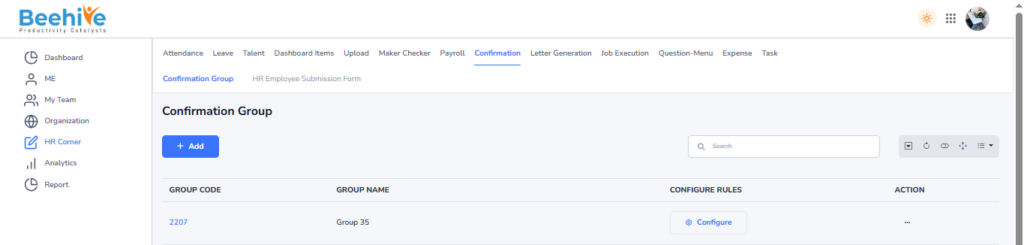
Confirmation Group Setup
Confirmation Group.
Confirmation Group is a feature used to manage and track employee confirmation processes after the completion of the probation period. It helps HR and management define confirmation-related rules, approval workflows, and employee groups for confirmation activities. Employees can be assigned to specific confirmation groups based on department, designation, location, or company policies. The system allows authorized users to review employee performance, probation status, and eligibility before confirming employment. Once the confirmation process is approved, the employee’s status is updated from probation to confirmed employee status in the system. This feature helps organizations maintain a structured, transparent, and standardized employee confirmation process.
Path to Add Group – Click on HR Corner –> Click on Confirmation –> Click on Confirmation Group Tab –> Click on Add Button –> Enter Details of Group Code and Name –> Click on Save Button.
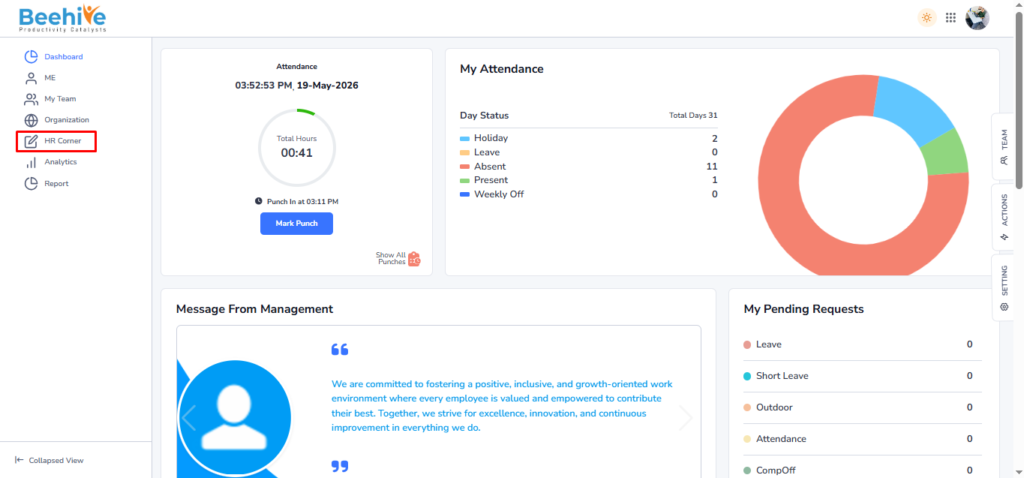
Click on HR Corner.
Click on Confirmation.
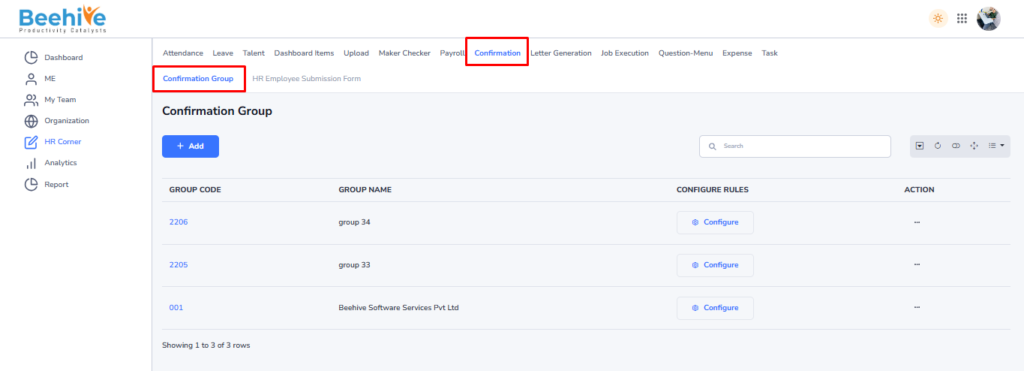
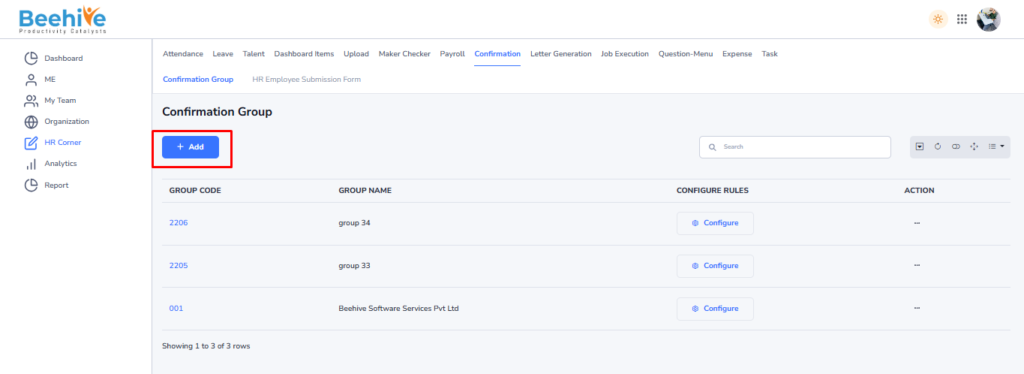
Click on Confirmation Group Tab and Click on Add button.
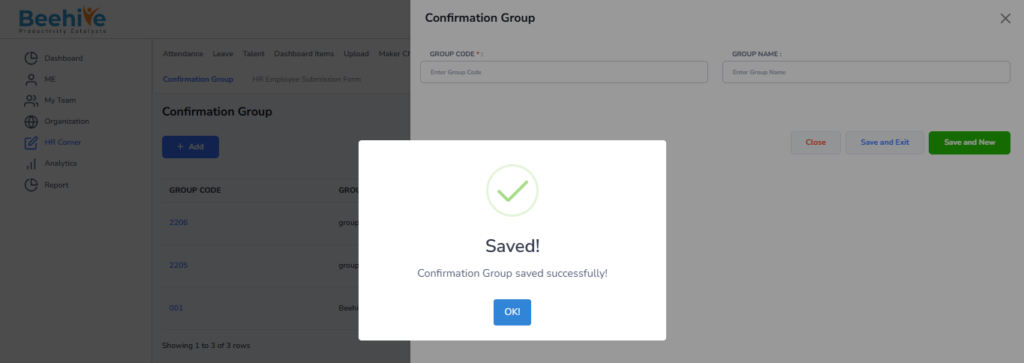
After clicking on the Add button, a screen will appear to create a new confirmation group. Users need to enter the Group Code and Group Name in the provided fields. Once the details are entered, the group can be saved successfully in the system.

Click on Save Button and Created Group is visible on the Index Screen.
Now further Configure the Group as per the requirements.