
Confirmation Configurations
Confirmation Configurations.
Confirmation Configuration is used to define and manage the employee confirmation process. It allows organizations to set rules and criteria for confirming employees after the completion of their probation period. Through this configuration, HR users can assign confirmation groups, define approval workflows, set confirmation timelines, and configure notification settings. The system helps track employee probation status, confirmation due dates, and approval stages efficiently. Authorized users can review employee performance and approve or reject confirmation requests based on organizational policies. This feature ensures a structured, transparent, and standardized employee confirmation process across the organization.
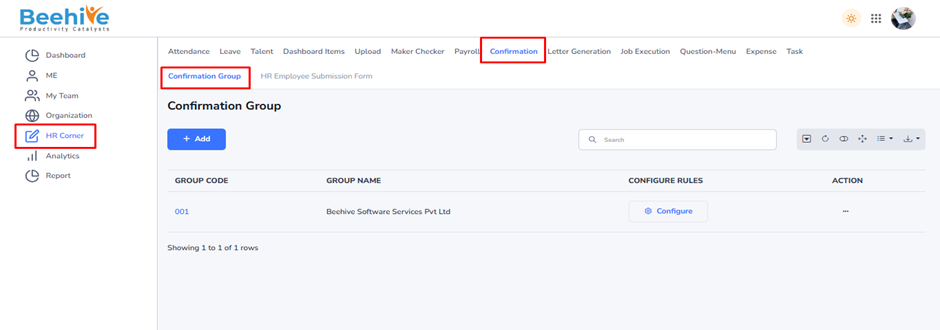
Configure Rules.
General Tab.
Set Prior days to open “Confirmation Form –

This configuration is used to control when the confirmation form becomes available before an employee’s confirmation date. Once the setting is enabled, the system will open the confirmation form based on the number of days entered in the “Mail Before” field. For example, if an employee’s confirmation date is 03-02-2025 and the value entered is 1 day, the form will become accessible on 02-02-2025. This allows the confirmation process to begin in advance and ensures timely completion of required actions. The configuration helps managers and employees prepare and complete confirmation activities without delays. Depending on the workflow setup, the confirmation form may appear in different sections of the system. These sections include Confirmation Application, Confirmation Approval, Employee Confirmation Form, and Manager Confirmation Form. Overall, this feature improves process efficiency and ensures smooth handling of employee confirmations.
Enable this configuration “To Show Document Upload field” –

This configuration is used to enable the visibility of the Document Upload field during the employee confirmation process. Once the setting is activated, the document upload option will appear at the stage of confirmation approval by the final reporting manager. It allows managers or authorized users to upload necessary supporting documents related to employee confirmation. This helps maintain proper records and ensures that all required documents are submitted within the process. The feature improves documentation management and supports a more organized approval workflow. Overall, enabling this configuration enhances efficiency and completeness in the employee confirmation process.
Enable this to open Confirmation form in “Employee Confirmation Form” –

This configuration enables the Employee Confirmation Form for employees during the confirmation process. When turned on, employees will be able to access and open the confirmation form from the “Employee Confirmation Form” section. It is useful for organizations that require employees to submit confirmation-related details or acknowledgments. Once enabled, the system allows employees to complete and submit the form as part of their employment workflow. If the configuration is disabled, employees will not see or access the confirmation form. This setting helps streamline the employee confirmation and approval process within the system. It ensures that all required confirmation information is collected in a structured and standardized manner.
Enable this to allow “Employee Fill his Goal & Achievements” –

This configuration allows employees to enter and update their Goals and Achievements within the Employee Confirmation Form. It is designed to help organizations capture employee performance details and accomplishments during the confirmation process. When enabled, employees can provide information about their completed goals, key achievements, and overall contributions. This supports managers and HR teams in evaluating employee performance more effectively. The configuration is useful for maintaining a structured and transparent confirmation review process. This feature improves employee participation by allowing self-assessment as part of the confirmation workflow. This configuration only works when “Enable this to open Confirmation form in ‘Employee Confirmation Form’” is already enabled in the system.
Actions Tab.
Restrict Extension more than one time –

This configuration is used to restrict an employee confirmation extension from being applied more than one time. When enabled, the system allows only a single extension for the confirmation period of an employee. This helps organizations maintain better control over the employee confirmation process and avoid repeated extensions. It ensures that managers and HR teams complete confirmation decisions within the allowed timeframe. The setting also supports consistency and policy compliance across the organization. If the configuration is disabled, multiple confirmation extensions can be provided whenever required. This feature helps streamline confirmation management and reduces unnecessary delays in employee confirmation decisions.
Eligibility Tab.
Confirmation process applicable to Status-
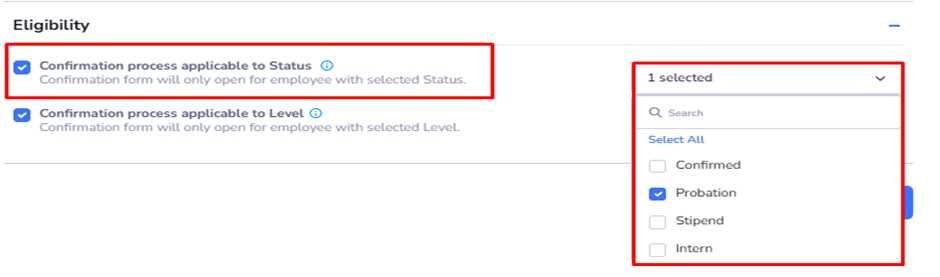
This configuration is used to define which employee statuses are eligible for the confirmation process within the system. When enabled, the confirmation form will only be available for employees whose status matches the selected values. Organizations can select from multiple status conditions such as Confirmed, Probation, Stipend, Intern, or any custom statuses created in the Employee Status Master. This provides flexibility to control the confirmation workflow based on different categories of employees. It helps HR teams ensure that only relevant employees participate in the confirmation process. The configuration also supports better process management by preventing unnecessary confirmation actions for unrelated employee statuses. If an employee’s status is not included in the selected list, the confirmation form will not be accessible to them. This feature helps organizations maintain a structured and policy-driven employee confirmation process.
Confirmation process applicable to Level-
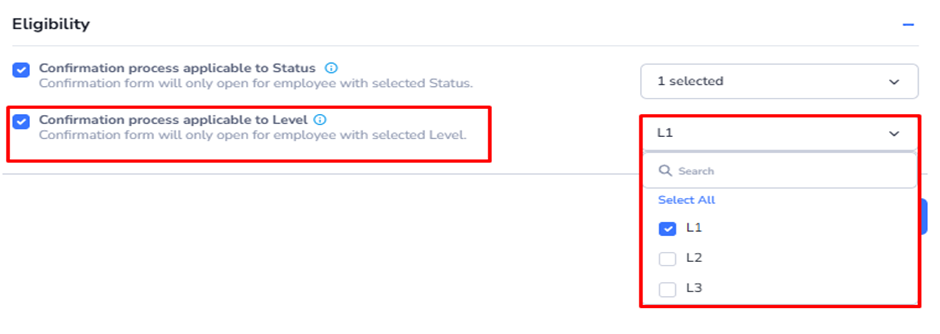
This configuration is used to define which employee levels are eligible for the confirmation process within the system. When enabled, the confirmation form will only be accessible to employees whose level matches the selected values. Organizations can select from multiple levels such as L1, L2, L3, or any custom levels created in the Level Master. These levels are generally categorized based on designation hierarchy and organizational structure. This configuration helps HR teams manage the confirmation workflow according to employee grade or designation level. It ensures that the confirmation process is applied only to relevant employees based on predefined level criteria. Employees whose levels are not included in the selected list will not be able to access the confirmation form. This feature supports a more structured, flexible, and policy-driven employee confirmation process across different organizational levels.
Questionnaire Tab.
Questionnaire Mapping
Questionnaire Mapping is a configuration used to assign specific questionnaires to a particular process, module, employee category, or workflow within the system. It helps organizations define which set of questions should be displayed to users based on predefined conditions or business requirements. Through this configuration, administrators can map questionnaires for activities such as employee confirmation, appraisal, on boarding, feedback, surveys, or evaluations. This ensures that the correct questionnaire is shown to the right employees or users at the appropriate stage of the process. Questionnaire Mapping also helps maintain consistency, standardization, and process-specific data collection across the organization. Different questionnaires can be mapped based on factors like employee status, level, department, designation, or workflow stage. This feature improves process automation and reduces manual effort by automatically displaying the relevant questionnaire wherever required.
Reporting Level-
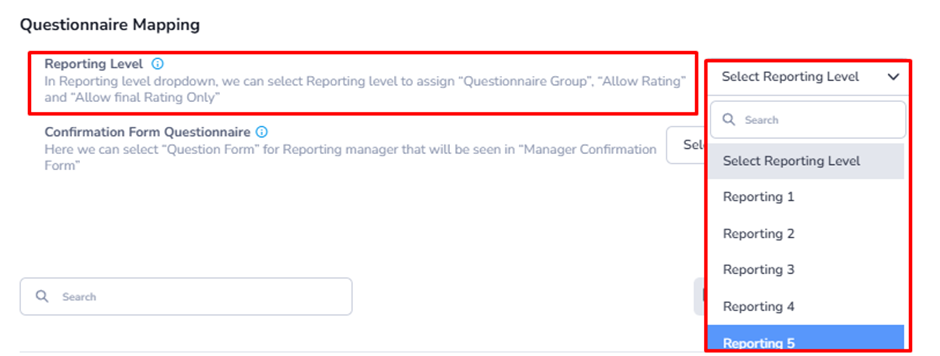
This configuration is used to define the Reporting Level for questionnaire mapping within the employee confirmation process. In the Reporting Level dropdown, administrators can select the appropriate reporting hierarchy level to assign settings such as “Questionnaire Group”, “Allow Rating”, and “Allow Final Rating Only”. The data available in this dropdown comes from the Discrete Attribute tab under the “ReportingLevel” configuration, such as Reporting Level 1, Reporting Level 2, and other defined levels. Additionally, the system also includes an Employee dropdown used for Employee Questionnaire Mapping, which is visible at the employee end during the Employee Confirmation Form. This ensures that employees can view and respond to the assigned questionnaires as per configuration. Multiple reporting levels can be selected based on organizational hierarchy created in the Level Master. The configuration helps align evaluation and feedback processes with proper reporting structures. It ensures a structured and controlled approach to questionnaire assignment, rating permissions, and employee participation in the confirmation workflow.
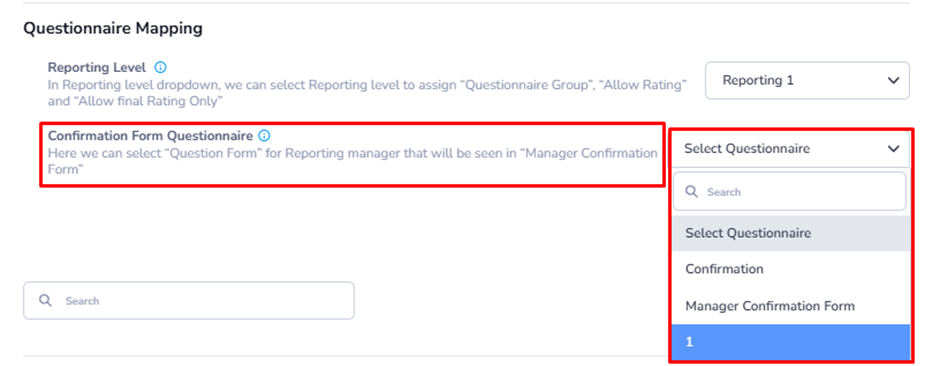
Confirmation Form Questionnaire –
This configuration is used to assign a specific questionnaire form for the reporting manager within the confirmation process. It allows administrators to select a “Question Form” that will be displayed in the Manager Confirmation Form. The data available in the dropdown comes from the Questionnaire Module, specifically from the Confirmation Form Questionnaire setup. This ensures that only predefined and approved questionnaires are used in the process. Once configured, the selected form becomes visible to the reporting manager during employee confirmation activities. It helps standardize the evaluation process by ensuring consistent questions are used across managers. This configuration also supports better data collection and structured feedback from managers. Overall, it ensures that the manager’s confirmation review is aligned with the organization’s defined questionnaire framework.
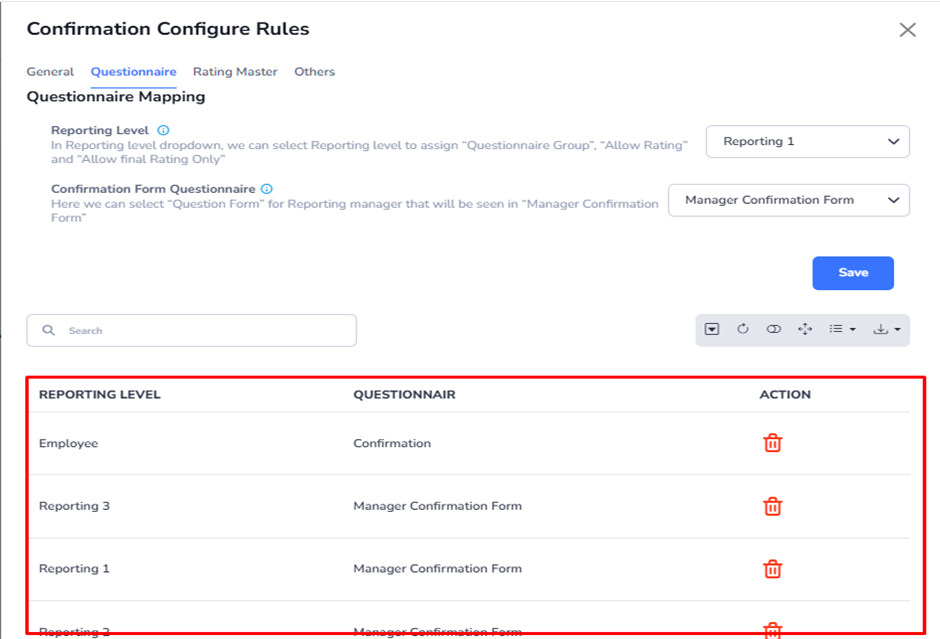
And the Configuration we set or whatever Combination is select in the Drop Down is visible below.
Rating Master Tab.
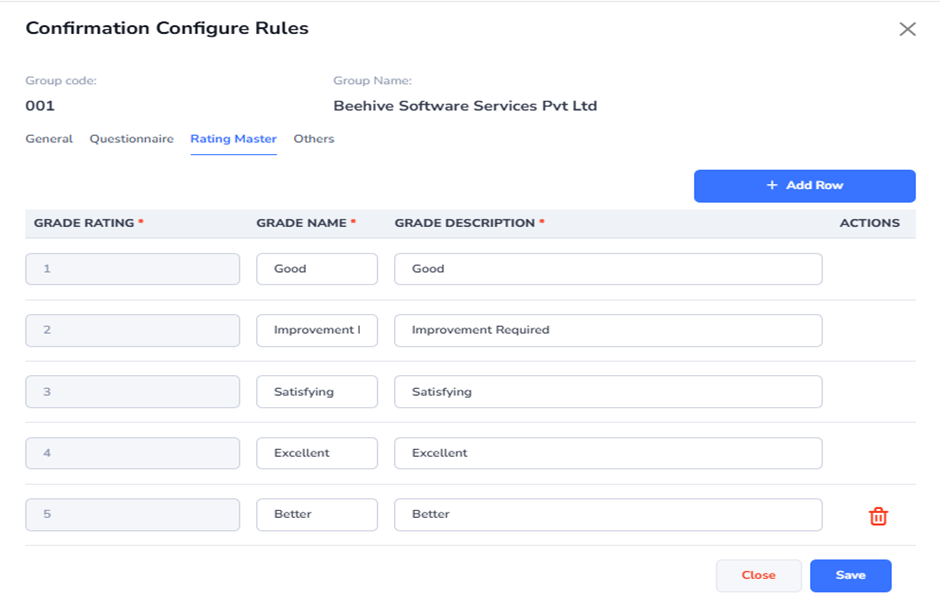
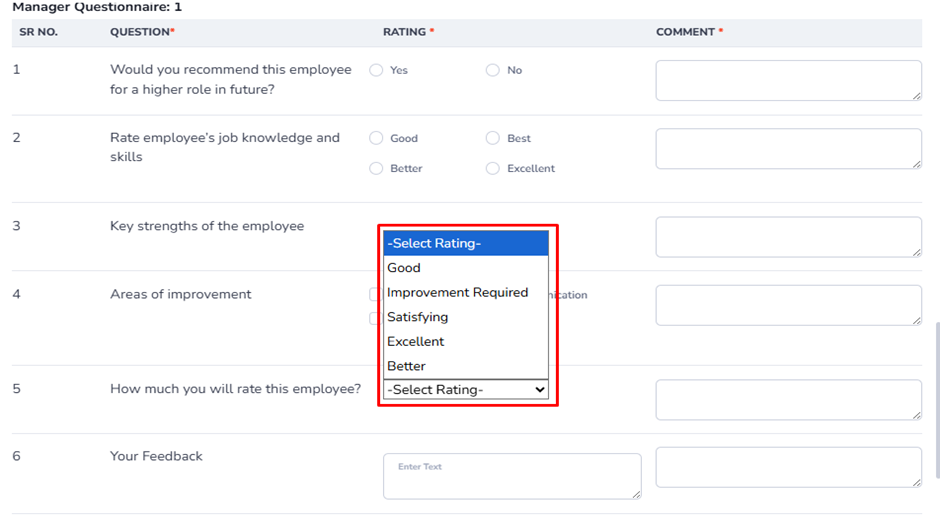
The “Rating Master” configuration under Confirmation Configure Rules is used to define the rating scale for the employee confirmation process. The highlighted section represents the setup of grade-based ratings, which includes fields such as Grade Rating, Grade Name, and Grade Description. Each entry defines a specific performance level like Good, Improvement Required, Satisfying, Excellent, and Better, which helps standardize employee evaluation criteria. The “Add Row” option allows administrators to add additional rating grades as per organizational requirements. This configuration serves as the master data for all rating options used across questionnaires. The defined ratings are mapped into the system to ensure consistency in evaluation standards. These ratings will be visible in the Manager Configuration Form as dropdown values against each questionnaire. This enables reporting managers to select appropriate ratings while assessing employee performance during the confirmation process.
These dropdown ratings allow reporting managers to select consistent evaluation scores during the confirmation process.
Others Tab.
Email.
Send Reminder Emails to Reporting Manager to fill Confirmation Form-
This configuration is used to send automated reminder emails to reporting managers for completing the Employee Confirmation Form. It ensures that managers are notified in advance about pending confirmation tasks so that deadlines are not missed. Administrators can configure the number of prior days before the due date when reminder emails should be triggered. Based on this setup, the system automatically alerts the reporting manager to complete the confirmation form within the required timeframe. This helps improve timely completion of the confirmation process and reduces delays in employee evaluations. It also ensures better accountability and tracking of pending confirmations. The configuration supports a proactive communication approach by sending reminders before the actual due date. It can be adjusted based on organizational policies and urgency levels. Overall, it streamlines the confirmation workflow by ensuring timely manager action.

Example: If the prior day is set to 1, the reporting manager will receive a reminder email one day before the confirmation form submission deadline, prompting them to complete and submit the form on time.
Send Reminder Emails to Employee to fill his/her Confirmation Form-
This configuration is used to send automated reminder emails to employees for completing their Employee Confirmation Form. It ensures that employees are notified in advance about pending confirmation tasks so they can complete their form on time. Administrators can define the number of prior days before the due date when these reminder emails should be triggered. Based on this setup, the system automatically sends reminders to employees to fill out their confirmation details. This helps improve employee participation and timely submission of confirmation forms. It also reduces delays in the overall confirmation process. The configuration supports better workflow management by keeping employees informed of pending actions. Overall, it ensures smooth and timely completion of employee confirmation activities within the system.

Example: If the prior day is set to 1, the employee will receive a reminder email one day before the confirmation form submission deadline, prompting them to complete and submit their confirmation form on time.
Send Confirmation Email to Employees in “To” List-
This configuration is used to send confirmation approval emails to employees listed in the “To” field. It allows administrators to define specific employee email IDs who should receive notification once the confirmation is approved. When a reporting manager or HR approves an employee’s confirmation, the system triggers an email to the configured recipients. This ensures that selected employees are informed about the confirmation status update in a timely manner. The email IDs must be entered manually in the configuration to define the recipients. It helps in maintaining proper communication between HR, managers, and employees. The configuration ensures that only relevant employees receive confirmation-related notifications. Overall, it streamlines the communication flow during the employee confirmation process. Multiple emails can be added by using Comma separated formatted.

Example: If the email address “bella.zope@beehive.cloud” is added in the “To” list, then after approval of confirmation by the reporting manager or HR, a confirmation email will be automatically sent to the mentioned email address.
Send Confirmation Email to Employees in “CC” List-
This configuration is used to send confirmation-related emails to additional recipients in the “CC” list. It allows administrators to specify email IDs of employees who should receive a copy of the confirmation notification. When a reporting manager or HR approves an employee’s confirmation, the system sends the main email to the “To” recipient and copies the configured “CC” recipients. This ensures transparency and keeps relevant stakeholders informed about confirmation updates. The email IDs must be manually added in the CC configuration field. It is useful for keeping HR, supervisors, or other concerned employees in the communication loop. This configuration helps maintain proper visibility of confirmation activities across the organization. Overall, it supports better communication and tracking during the employee confirmation process.

Example: If the email address “sohail.hussain@beehive.cloud” is added in the “CC” list, then after approval of the employee’s confirmation by the reporting manager or HR, a copy of the confirmation email will also be sent to sohail.hussain@beehive.cloud along with the main recipient in the “To” list.
Send Email to Report Manager on Confirmation Extension-

This configuration is used to notify the reporting manager when an employee’s confirmation period is extended. When enabled, the system automatically sends an email to the reporting manager informing them about the extension of the employee’s confirmation timeline. This ensures that managers remain updated about any changes in the employee’s confirmation status. It helps maintain transparency in the confirmation workflow and keeps the reporting hierarchy informed. The email notification is triggered whenever a confirmation extension is approved or processed in the system. This allows managers to take necessary follow-up actions if required. It also supports better tracking of employee confirmation progress. Overall, this configuration improves communication and accountability during confirmation extensions.
Letters tab.
Send Confirmation Letter Only-

This configuration is used to control the distribution and access of the employee confirmation letter. When enabled, the confirmation letter is sent only to the employee after the confirmation process is completed. It ensures that no additional stakeholders automatically receive the confirmation letter through the system. At the same time, HR is provided access to download the confirmation letter directly from the HR Confirmation Form under the History section. This helps maintain proper document control and confidentiality of employee records. It ensures that confirmation documents are securely shared with the intended recipient only. HR can still retain a copy for record-keeping and audit purposes. Overall, this configuration streamlines confirmation letter handling while maintaining security and controlled access.
Send Confirmation letter with review letter-

This configuration is used to send the employee confirmation letter along with the review letter as an email attachment. When enabled, the system automatically triggers a combined email containing both documents to the employee after confirmation completion. It ensures that the employee receives complete feedback documentation in a single communication. Additionally, HR is provided access to download both the confirmation letter and review letter from the HR Confirmation Form under the History section. This helps maintain proper record-keeping and easy retrieval of documents. Overall, it streamlines communication by sending consolidated confirmation and review details while ensuring HR has full access for reference.
Select Confirmation letter template from dropdown-
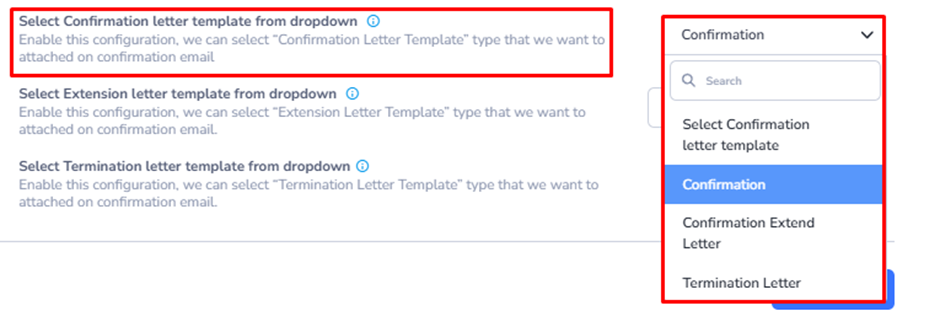
This configuration is used to select the required Confirmation Letter Template from a dropdown list during the employee confirmation process. The dropdown contains three options: Confirmation, Confirmation Extend Letter, and Termination Letter. When the configuration is enabled, users can choose the appropriate template type that needs to be attached to the confirmation email. The Confirmation option is used for permanent employee confirmation communication. The Confirmation Extend Letter option is used when the employee probation period is extended. The Termination Letter option is selected when employee services are discontinued or terminated. This feature helps automate template attachment, ensures accurate communication, and maintains standardized HR email processes.
Select Extension letter template from dropdown –
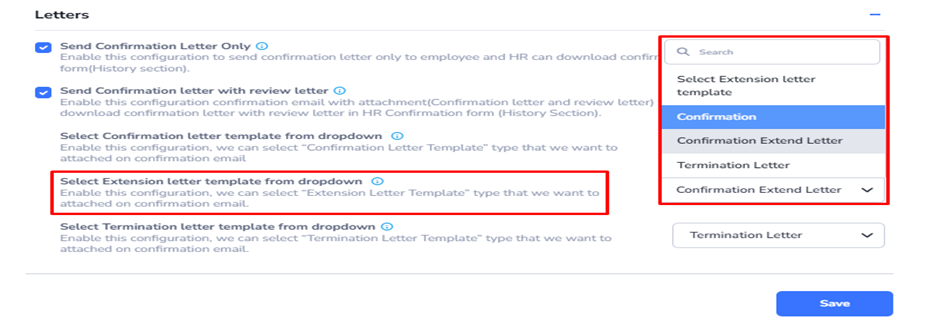
This configuration is used to select the required Extension Letter Template from a dropdown list during the employee confirmation process. The dropdown contains three options: Confirmation, Confirmation Extend Letter, and Termination Letter. When the configuration is enabled, users can choose the appropriate template type to be attached to the confirmation email. The Confirmation option is used when sending a standard employee confirmation communication. The Confirmation Extend Letter option is used when the employee probation or confirmation period is extended. The Termination Letter option is selected when employee services need to be discontinued or terminated. This feature helps automate document attachment, ensures correct template usage, and maintains consistent HR communication processes.
Select Termination letter template from dropdown-
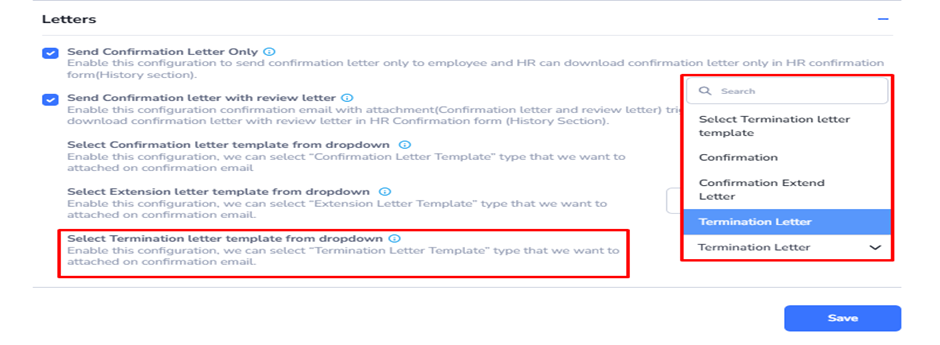
This configuration is used to select the required Termination Letter Template from a dropdown list during the employee confirmation process. The dropdown contains three options: Confirmation, Confirmation Extend Letter, and Termination Letter. When the configuration is enabled, users can choose the appropriate template type to attach to the confirmation email. The Confirmation option is used for employee confirmation, while Confirmation Extend Letter is used for probation extension cases. The Termination Letter option is selected when employee services are being terminated or discontinued. This feature helps ensure correct template attachment, improves communication accuracy, and maintains a standardized HR email process.