Employee Confirmation Flow
Confirmation Flow.
The Confirmation Process in the HRMS domain is used to confirm an employee after completing their probation period. When a new employee joins, the HRMS records the joining date and probation duration. The system automatically calculates the confirmation due date. During probation, the employee’s performance, attendance, behaviour, and productivity are monitored. Before the probation ends, the HRMS sends reminders to managers and HR teams. The reporting manager evaluates the employee using a review or appraisal form. Based on the evaluation, the manager may recommend confirmation, probation extension, or termination. The recommendation goes through an approval workflow involving HR and higher management. Once approved, the employee status is updated from “Probation” to “Confirmed” in the system.
We Need to Execute the Job to Open the Confirmation Form – “exec Proc_ConfirmationEmail”
The form opens at the employee end after the job execution process is completed. Employees can then access and complete the required confirmation activities in the system.
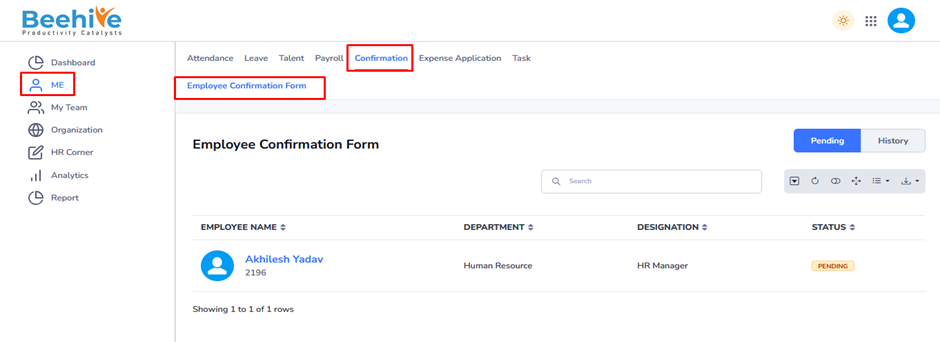
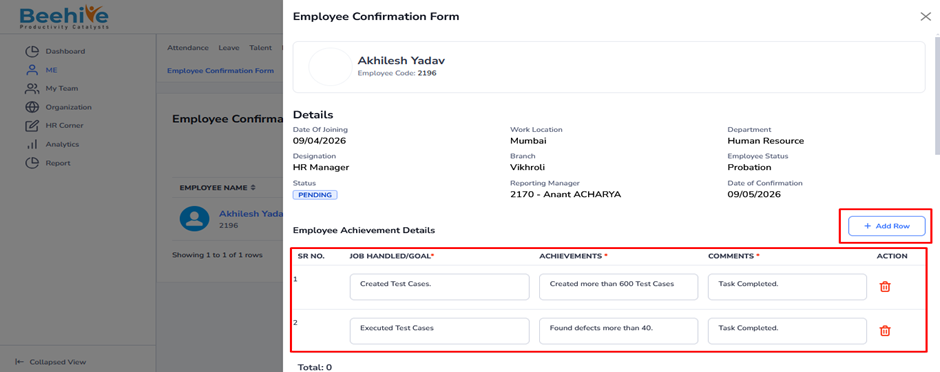
Click on the Employee Code from the index page to open the employee details screen. Then click on the Add button to insert a new row. Additional rows will appear below the section for entering employee goals and achievements. Users can add multiple goals and achievement details for the selected employee.
Then Scroll down below and Employee questionnaire will be visible, the questionnaire added from Questionnaire group and the group mapped from the Confirmation Configuration.

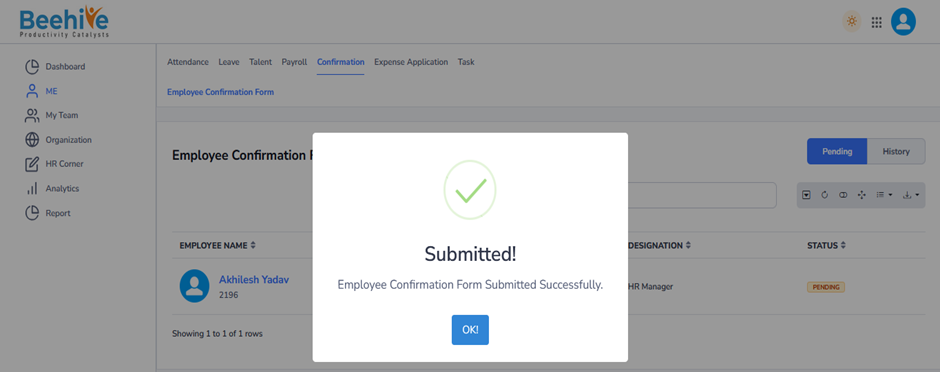
Visible in History tab of an Employee.
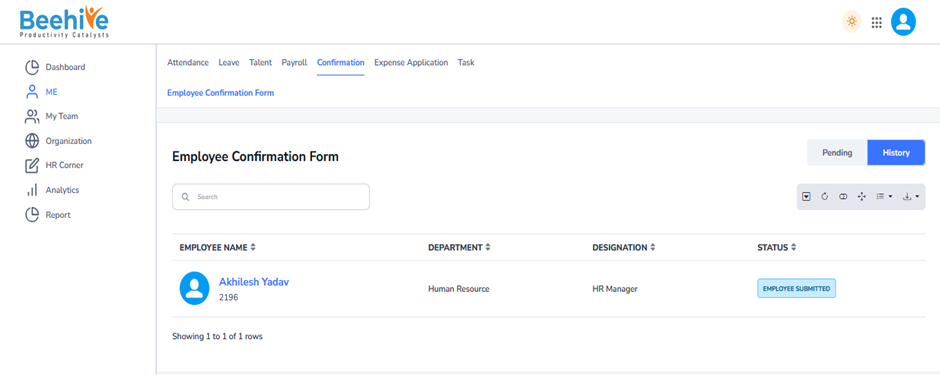
After Submission of Employee Confirmation form, Form will be visible at Reporting Manager end.
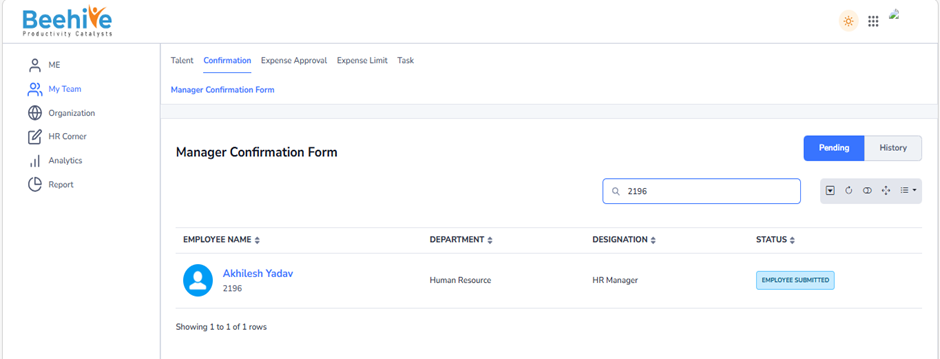
Reporting Manager can Approve, Extend or Terminate the Confirmation Application.
Details Submitted by an Employee is Visible at Reporting Manager End.
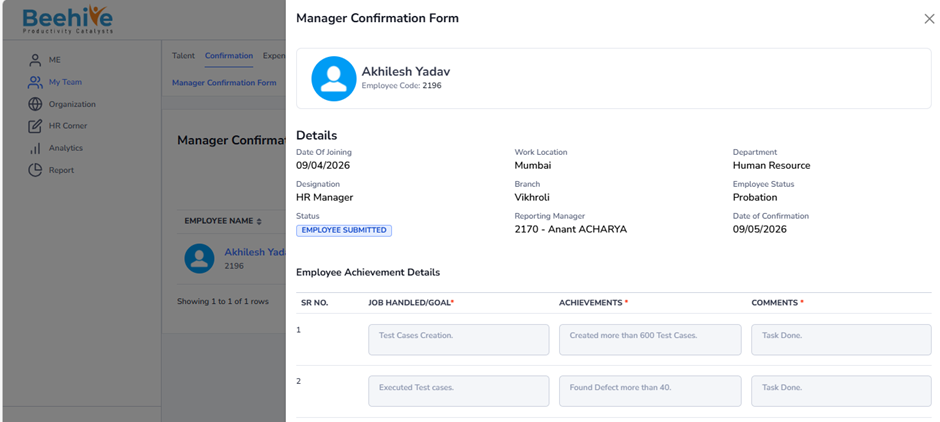
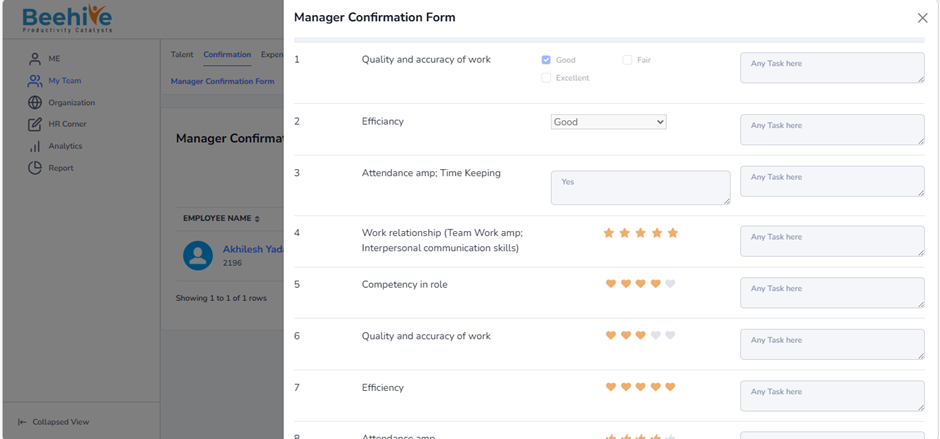
Questionnaire which is Created from Questionnaire Module and mapped from Confirmation Configuration is visible to Reporting Manager while approval of Confirmation Form.
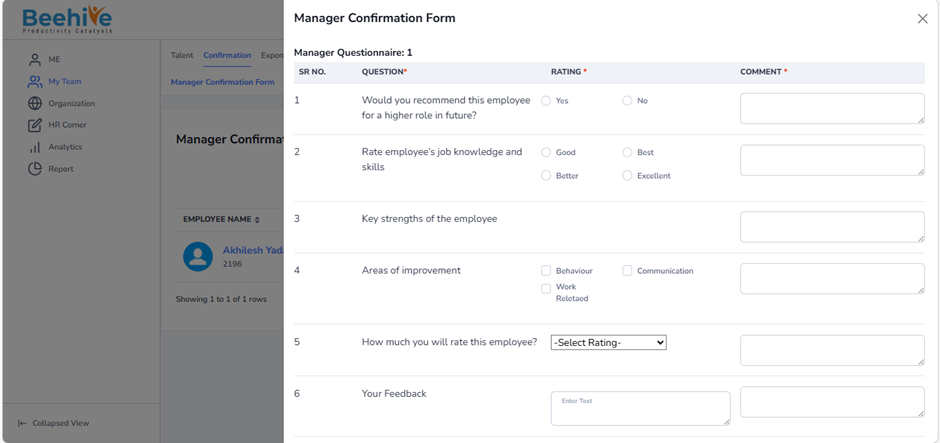
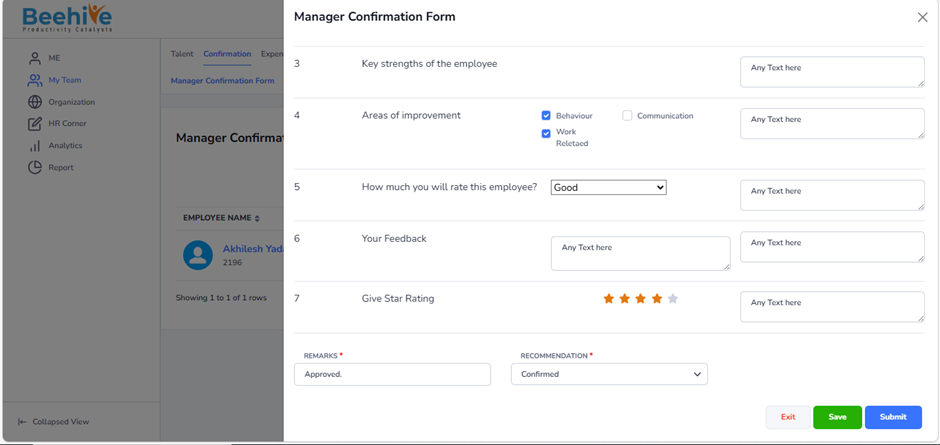
Manager fill all the details of Confirmation form and then Approves the confirmaton form. Where Reporting can just save the application and update it later by using Save button.
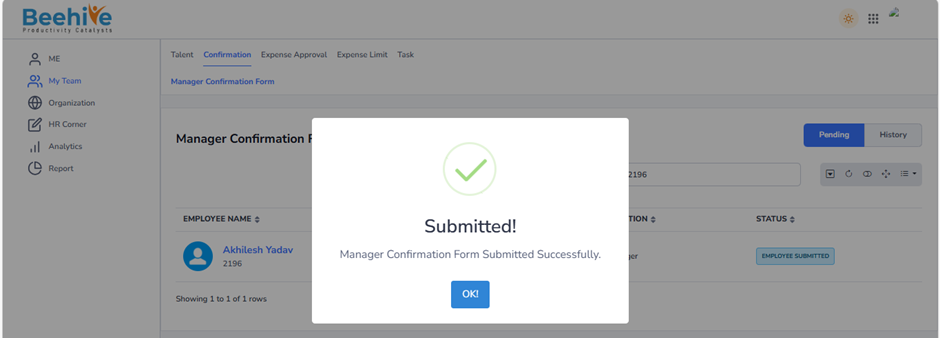
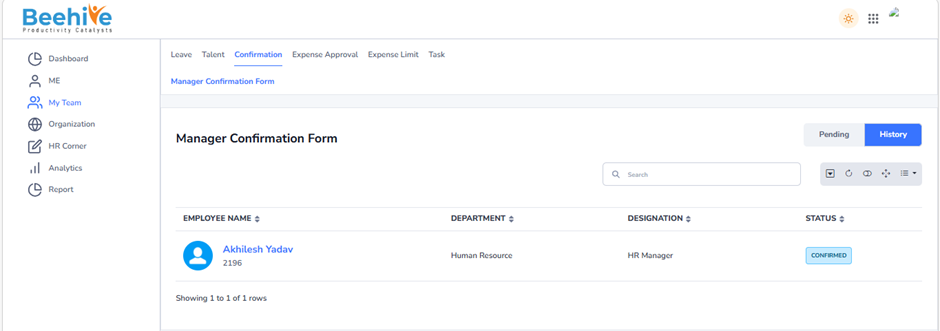
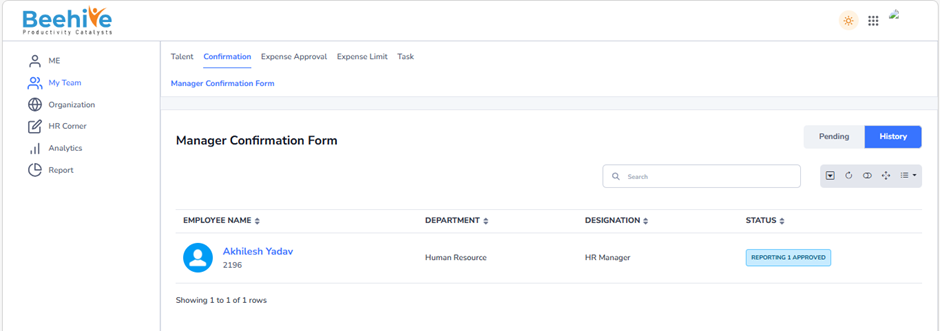
After Submission of confirmation form, Form is visible in the History tab of Reporting Manager.
After Approval of Repoerting Manager 1, form starts visible at Final Reporting Manager.
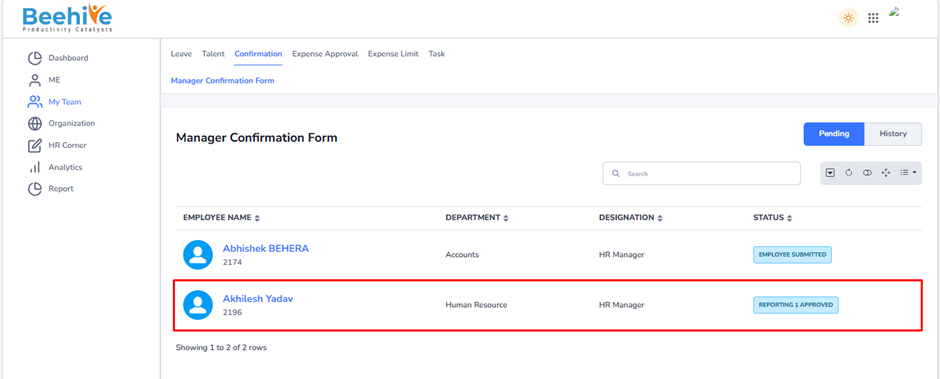
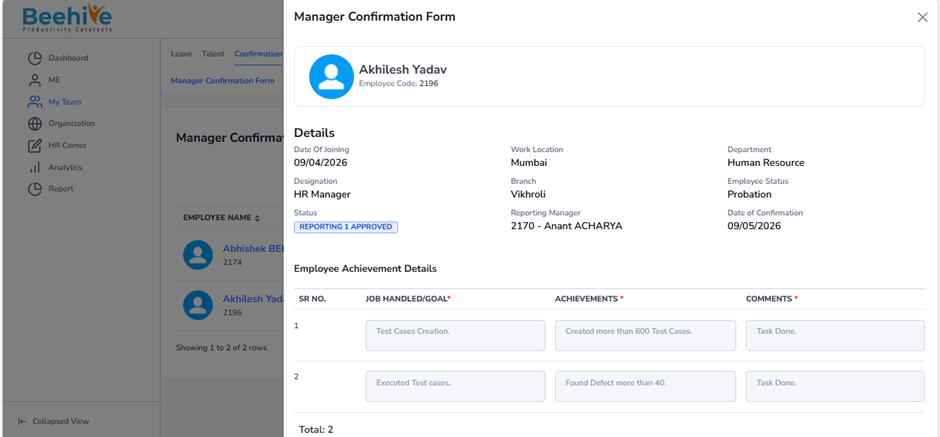
All details submitted by Employee and Reporting manager 1 is visible at Final Reporting Managers confirmation Form.
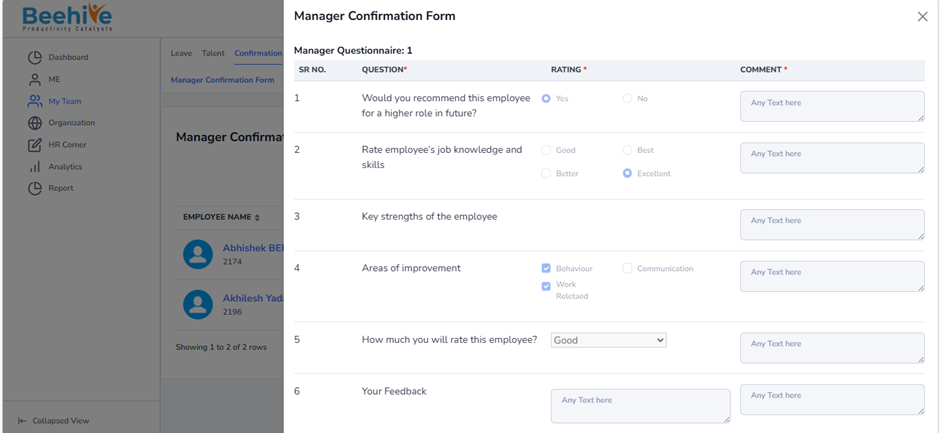
Questionnaire which is Created from Questionnaire Module and mapped from Confirmation Configuration is visible to Final Reporting Manager while approval of Confirmation Form.
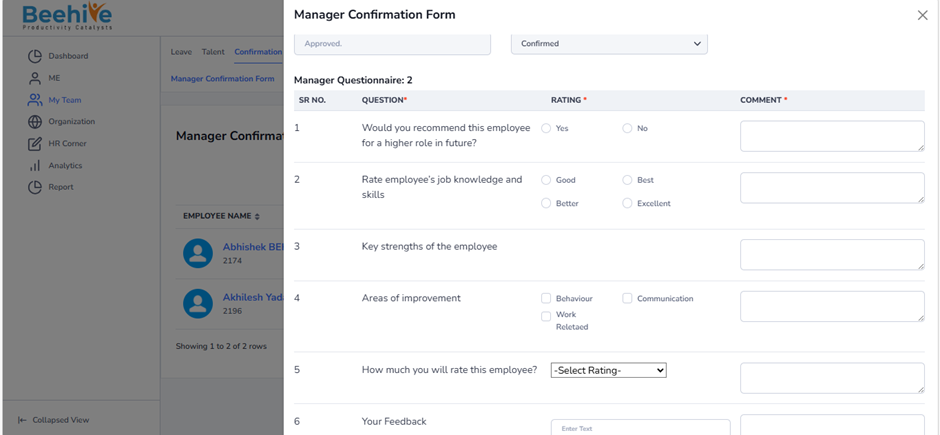
Manager fill all the details of Confirmation form and then Approves the confirmaton form.
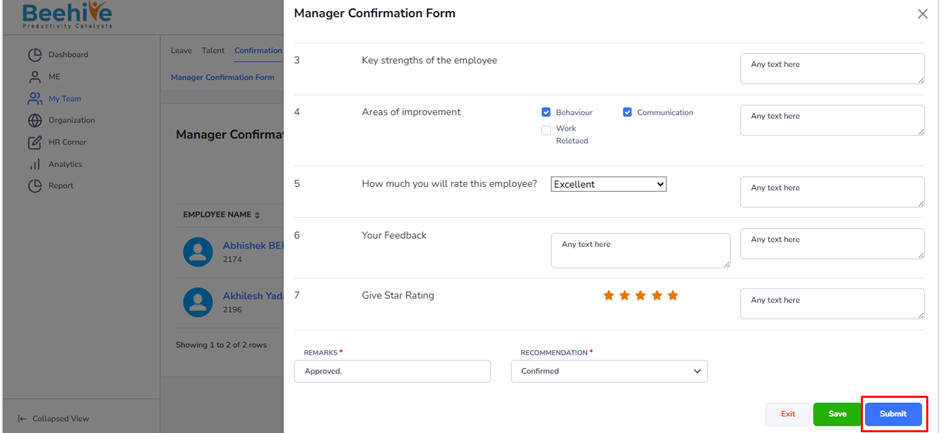
After Submission of confirmation form, Form is visible in the History tab of Final Reporting Manager and Status Changed as Confirmed.