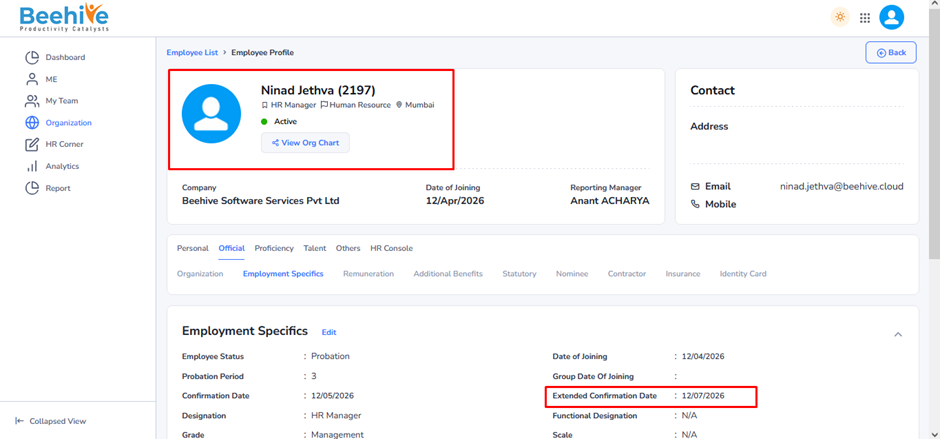
How to Extend Employees Probation ?
The Confirmation Extension Flow is a process used to extend or continue a service, request, or approval after receiving user confirmation. It typically begins when a system prompts the user to verify their intention before proceeding with an extension action. Once the confirmation is received, the system validates the request details and checks eligibility or applicable conditions. After successful validation, the extension is processed automatically or forwarded for approval depending on the workflow design. Notifications or acknowledgments are then sent to the user to confirm that the extension has been completed successfully. This flow helps improve accuracy, avoid unintended actions, and ensure smooth continuation of services or processes.
Form Opens at Employee End.
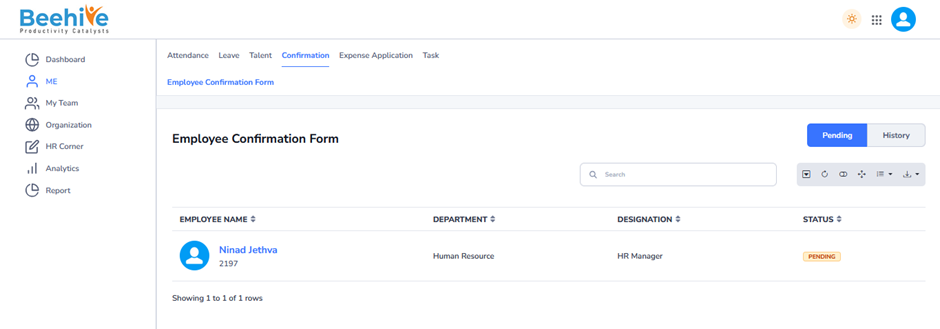
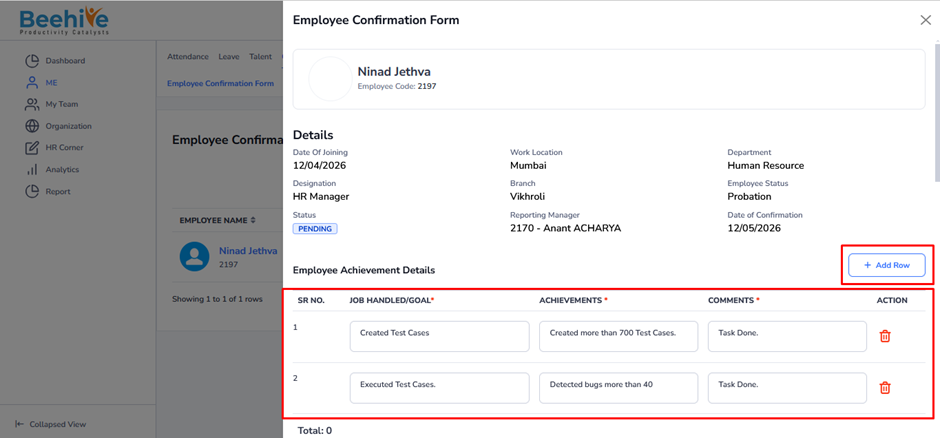
Click on Employee Code on the Index page, and then Click on Add button then rows will get added below to add goals and achievements of an Employee.
Then Scroll down below and Employee questionnaire will be visible, the questionnaire added from Questionnaire group and the group mapped from the Confirmation Configuration.
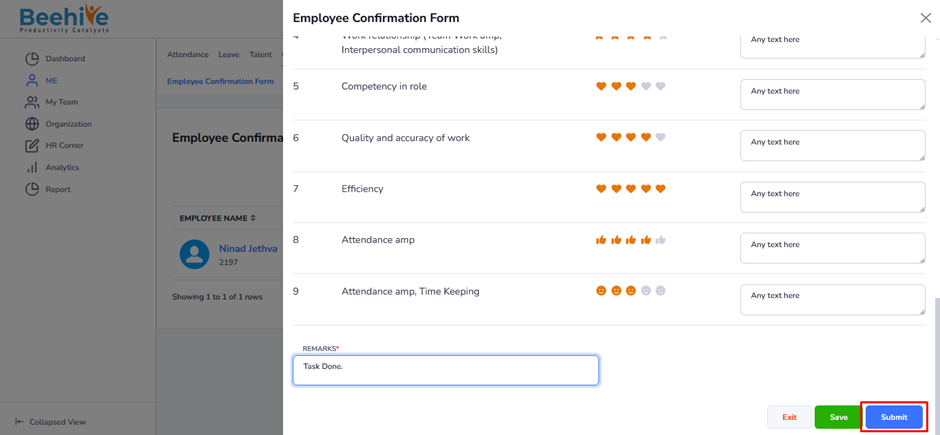
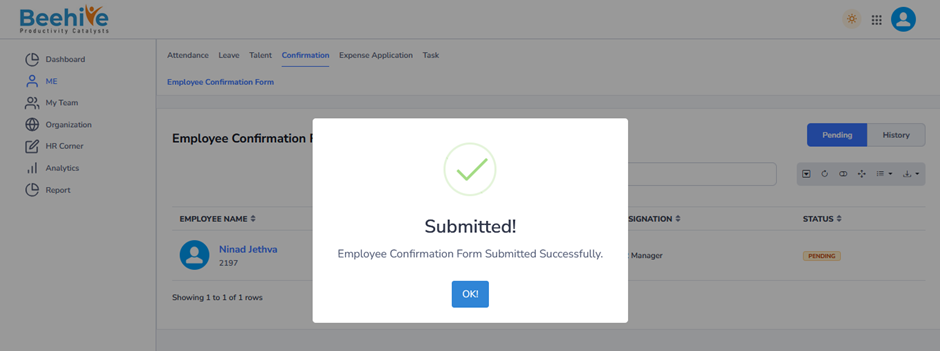
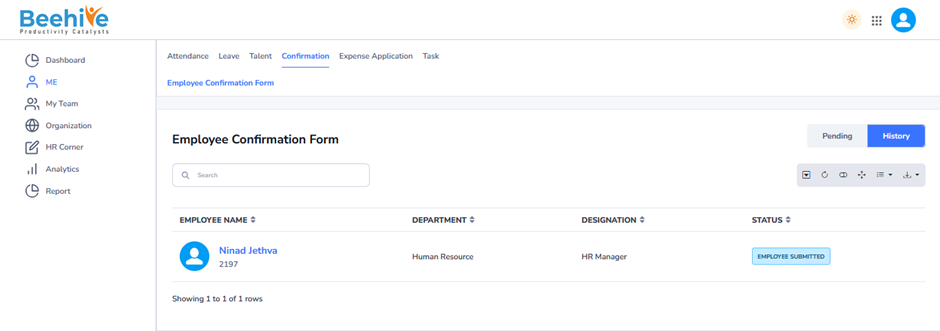
Visible in History tab of an Employee.
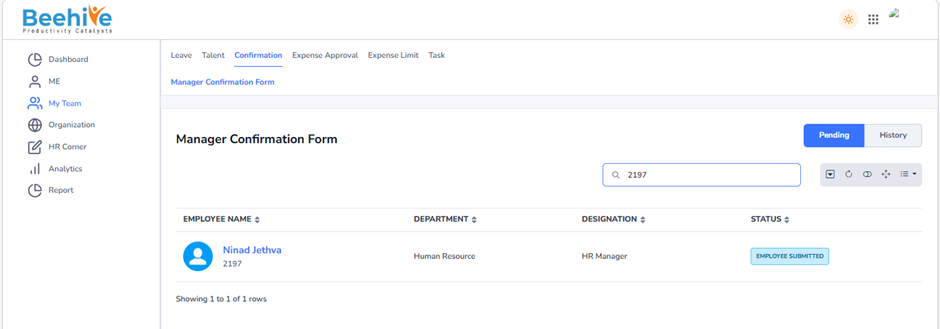
After Submission of Employee Confirmation form, Form will be visible at Reporting Manager end.
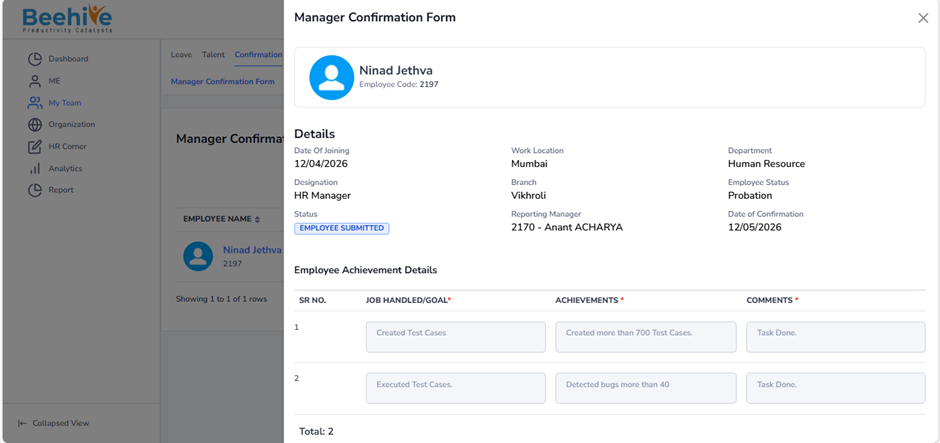
Details Submitted by an Employee is Visible at Reporting Manager End.
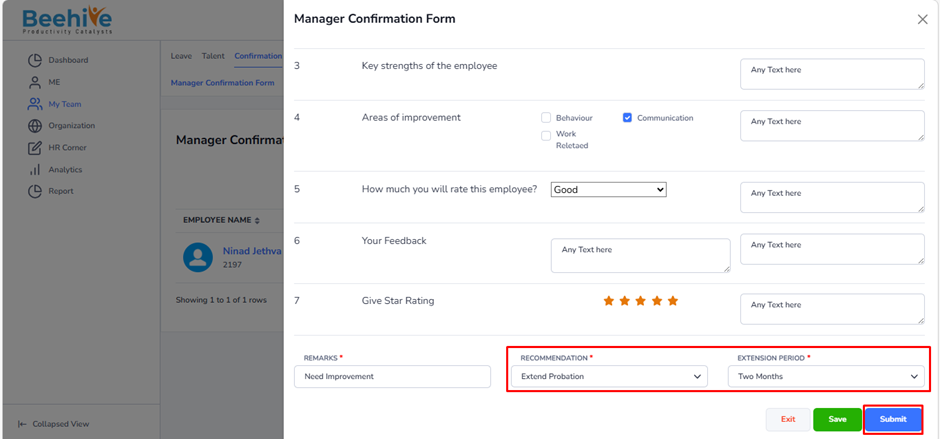
Reporting manager Extended Confirmation by two Months.
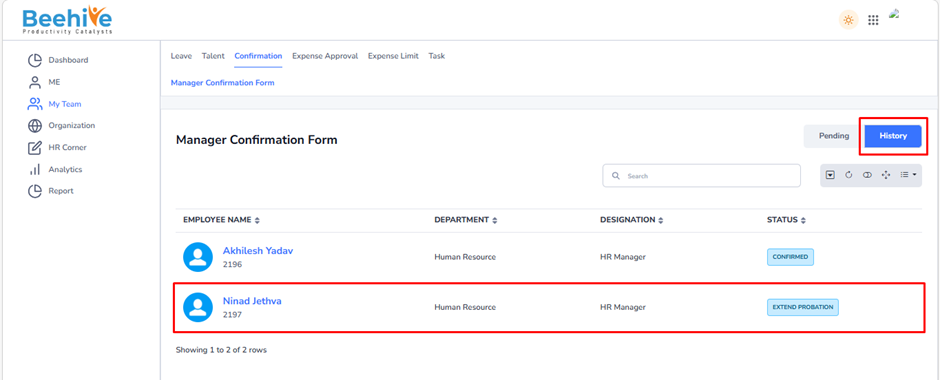
After Extention, Status will be “Extend Probation”
Extended probation Date will be reflected on the profile of an Employee.