
E-Separation Configuration
E-Separation Configurations refer to the setup and rules defined to manage the employee exit process. It includes configuring workflows like resignation approval, notice period, clearance steps, and exit interviews. Admins can set sequences, assign roles, and define which actions or approvals are required at each stage. This ensures the exit process is automated, consistent, and aligned with company policies.
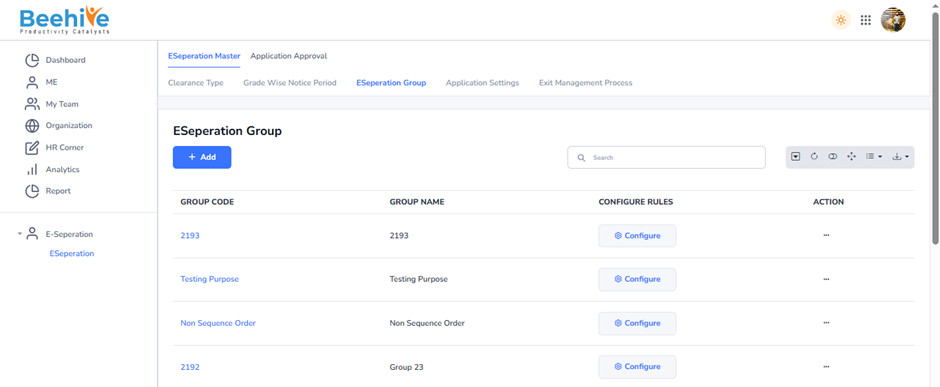
Is count days from next days

“Is count days from next day” is a configuration used to calculate the notice period starting from the day after the resignation date. It means the system will not include the resignation submission day in the notice period calculation. Instead, counting begins from the next day onwards. This helps ensure accurate and policy-compliant notice period calculation.
For example, an employee submits a resignation on 1st June with a 30-day notice period. If the “Is count days from next day” option is enabled, the system starts counting from 2nd June instead of 1st June. So, the last working day will be 1st July instead of 30th June. This ensures the full notice period is counted correctly as per policy.
Is Allow Manager To Extend Last Working Date

“Is Allow Manager To Extend Last Working Date” is a configuration that allows the reporting manager to modify the employee’s last working day during resignation approval. When enabled, the manager can extend the last working date based on business or project needs. This helps ensure proper knowledge transfer and task completion. It provides flexibility while still maintaining control over the exit process.
For example, an employee submits a resignation with a last working date of 30th June. If the “Is Allow Manager To Extend Last Working Date” option is enabled, the reporting manager can extend it to 15th July due to project requirements. This gives extra time for knowledge transfer and task completion. The updated last working date is then saved and followed in the exit process.
Employee Exit Interview Feedback form questionnaire

Employee Exit Interview Feedback Form Questionnaire is used to collect structured feedback from employees during their exit process. In this setup, the admin selects a Questionnaire Group that contains a set of predefined questions. These questions are then assigned to the employee of the selected company for answering during the exit interview. This helps organizations gather consistent feedback and analyse reasons for employee separation.
Restrict Requested Relieving Date on a Holiday/WeeklyOff

“Restrict Requested Relieving Date on Holiday/WeeklyOff” is a configuration in HRMS used to control employee exit dates. When this option is enabled, employees cannot select a relieving date that falls on a holiday or weekly off. The system automatically restricts or validates such dates during resignation submission. This ensures that relieving dates align with working days and company policies.
For example, if an employee tries to set their relieving date as Sunday (a weekly off) or 25th December (a holiday), the system will not allow it when this option is enabled. Instead, it will prompt the employee to choose the next working day, such as Monday or the next business day. This ensures that the relieving process happens only on working days.
Restrict Approval of Back Dated Last Working Date

“Restrict Approval of Back Dated Last Working Date” is a configuration that prevents managers or HR from approving a last working date that is earlier than the current system date. When this option is enabled, the system does not allow backdated updates to an employee’s exit date.
For example, if today is 10th April and an employee tries to set the last working date as 5th April, the system will restrict this approval. Instead, only current or future dates like 10th April or later will be allowed. This ensures proper compliance and avoids retrospective changes in the exit process.
Restrict Resignation Application beyond shift timing

“Restrict Resignation Application beyond shift timing” is a configuration that prevents employees from submitting resignation requests outside their defined working shift hours.
For example, if an employee’s shift timing is 9:00 AM to 6:00 PM, and this option is enabled, the system will not allow them to submit a resignation at 8:00 PM or late night after shift hours. They will only be able to apply during their working shift time. This ensures proper control and timely processing of resignation applications.
Restrict Resignation Application on WeeklyOff/Holiday’s

“Restrict Resignation Application on WeeklyOff/Holiday’s” is a configuration that prevents employees from submitting resignation applications on holidays or weekly offs. When this option is enabled, the system only allows resignation submission on working days.
For example, if Sunday is a weekly off or 25th December is a holiday, an employee will not be able to submit their resignation on these days. They will need to apply on the next working day, such as Monday. This ensures resignation requests are processed only during official working days.
Is Leave Rollback

“Is Leave Rollback” is a configuration that allows previously approved or applied leave to be reversed or cancelled from the system. When this option is enabled, the leave balance is restored back to the employee after rollback.
For example, if an employee had taken 2 days of leave from 10th to 11th April, but later it was found to be incorrect or not required, the HR/Admin can use leave rollback. Once rolled back, those 2 leave days are added back to the employee’s available leave balance. This helps maintain accurate leave records.
Release Exit Feed Back from before enter days

“Release Exit Feedback from before enter days” is a configuration that controls when the exit feedback form becomes available to an employee before their last working day.
If it is set to 6 days, the system will open the exit feedback form 6 days before the employee’s Last Working Day (LWD). This allows the employee to fill out the feedback in advance.
For example, if an employee’s LWD is 30th April, the exit feedback form will be released on 24th April. From that date, the employee can access and submit their exit feedback form in the system.
Send Resignation Mail to HR in CC

“Send Resignation Mail to HR in CC” is a configuration that automatically sends a resignation email to the HR team when an employee submits their resignation. When this option is enabled, HR is kept informed in real time along with the reporting manager. This ensures transparency and faster processing of the resignation. It also helps HR track and manage employee exits efficiently.
Send Reminder Before Exit

“Send Resignation Mail to HR in CC” is a configuration that automatically sends a copy of the resignation email to the HR team when an employee submits their resignation. This ensures HR is immediately informed along with the reporting manager for quicker processing of the exit request.
For example, if an employee submits a resignation and the system is configured with a 4-day notice handling rule, the resignation email is sent instantly, and HR receives it in CC on the same day. From there, HR can start the exit process and track the case within the defined timeline.
Allow Sequential Approval Process

“Allow Sequential Approval Process” is a configuration that enables resignation approvals to happen in a fixed order, one after another. When this option is enabled, each approver must complete their approval before the request moves to the next level.
For example, if a resignation requires IT → HR → Admin, the system will first send it to the Manager. Only after Manager Approval, it will go to HR, and then to Admin. This ensures a proper step-by-step approval flow without skipping any level.

When “Allow Sequential Approval Process” is disabled, the resignation workflow does not follow a fixed order. Instead, the approval requests can be sent simultaneously or in a non-sequential manner to all configured approvers.
For example, if IT, HR, and Admin are set as approvers, all of them may receive the resignation request at the same time. Each can act independently, and the process does not wait for one approval to complete before moving to the next. This makes the process faster but less strictly controlled compared to sequential approval.
Sent mail to employee with SOP.

“Sent mail to employee with SOP” is a configuration where a standard process document (SOP) is attached to the resignation email. This SOP contains details about resignation rules, notice period, and exit procedures. When an employee submits a resignation, the system automatically triggers an email along with this attachment. It ensures the employee is informed about the complete exit process and company policies.
Configure Rules.
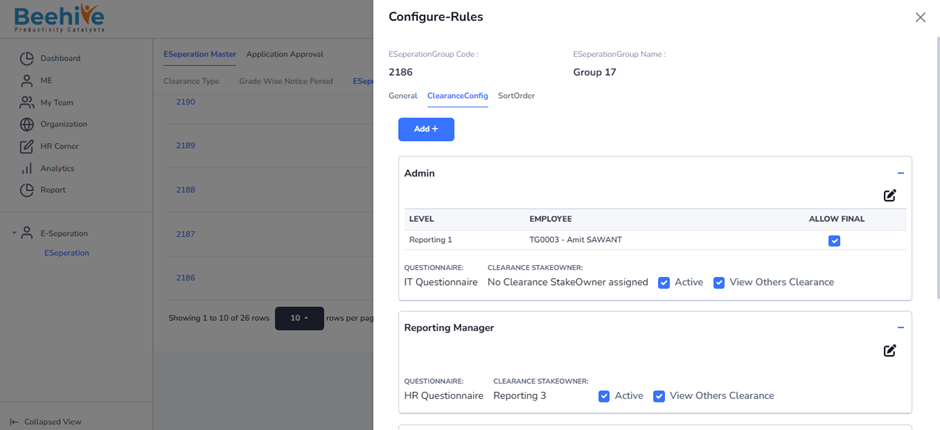
This Screen shows where exit process workflows are defined for E-Separation Group 17 (Employee Code – 2186). In this configuration, the organization sets up how employee clearance will happen during resignation or exit.
- Different clearance levels, such as Admin and Reporting Manager, are defined with assigned responsibilities in the E-Separation process.
- Under the Admin section, a specific employee (TG0003 – Amit Sawant) is mapped at Reporting Level 1 for clearance activities.
- The Allow Final option is enabled, which means this level can participate in the final approval process.
- An IT Questionnaire is assigned for completion during clearance, while settings like Active Status and View Others Clearance help manage process visibility and enable the workflow properly.
Similarly, in the Reporting Manager section, an HR Questionnaire is assigned along with a clearance stakeholder (Reporting 3). This defines what checks or approvals the reporting manager must complete during the exit process. Overall, this screen helps HR configure a structured, multi-level clearance workflow to ensure all departments (like IT, HR, Admin) properly validate and approve an employee’s exit before final settlement.
Sort Order Flow
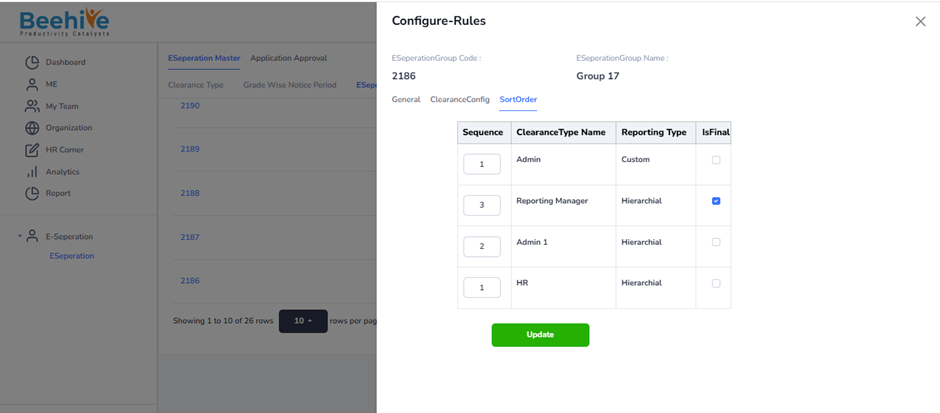
The Sort Order section, the sequence defines how the resignation approval will move step by step.
First, the process starts with HR (Sequence 1), HR gives the final approval in the system. After HR completes their action, the request moves to Admin (Sequence 1), then to Admin 1 (Sequence 2), and finally to the Reporting Manager (Sequence 3) is marked as final.
Because Allow Sequential Approval Process is enabled, the system follows this exact order and does not skip or parallelize any step. Each approver must complete their approval before the next person receives the request. This ensures the resignation is handled in a proper and controlled flow from HR to other stakeholders.