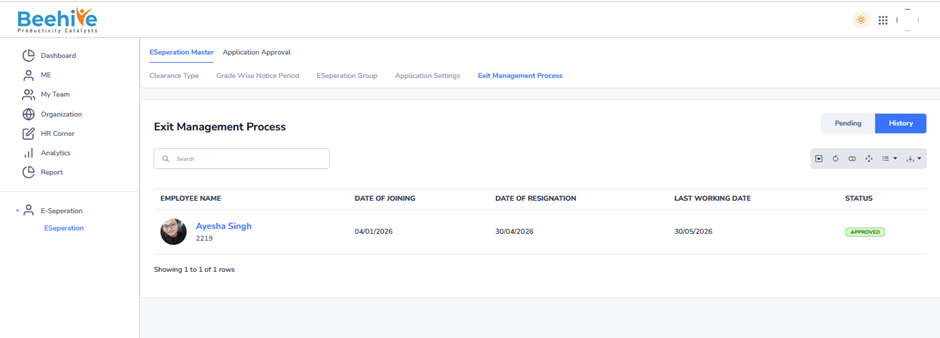
Clearance Flow – Without Sequence
E-Separation Clearance Flow is the process followed after an employee’s resignation or separation request is approved in the system. It ensures that all departments involved in the employee exit process complete their assigned clearance activities. Departments such as Reporting Manager, HR, Admin, IT, Finance, and others review and verify pending tasks, assets, or responsibilities. Each clearance level can approve, reject, or provide remarks based on the completion status of assigned activities.
The system tracks the clearance progress at every stage to ensure a smooth and transparent separation process. Once all clearances are completed successfully, the employee separation process is finalized, and the employee status is updated in the system.
Configuration.
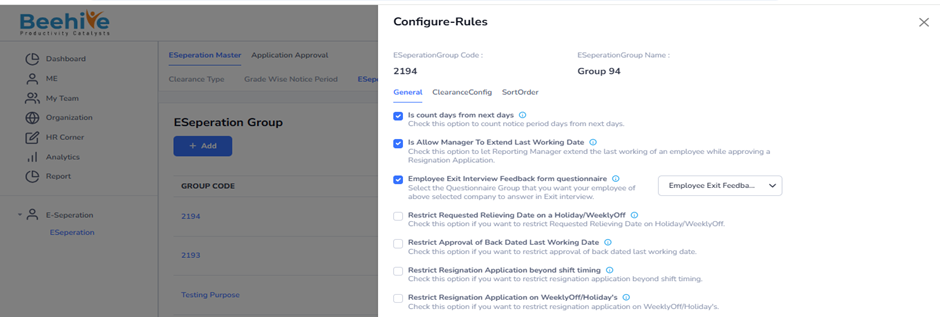
Clearance Configuration. – Set Stakeholders from this Configuration page.
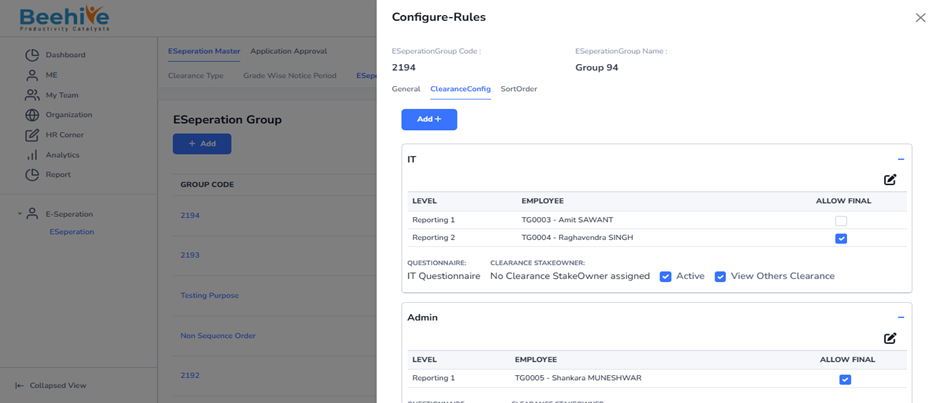
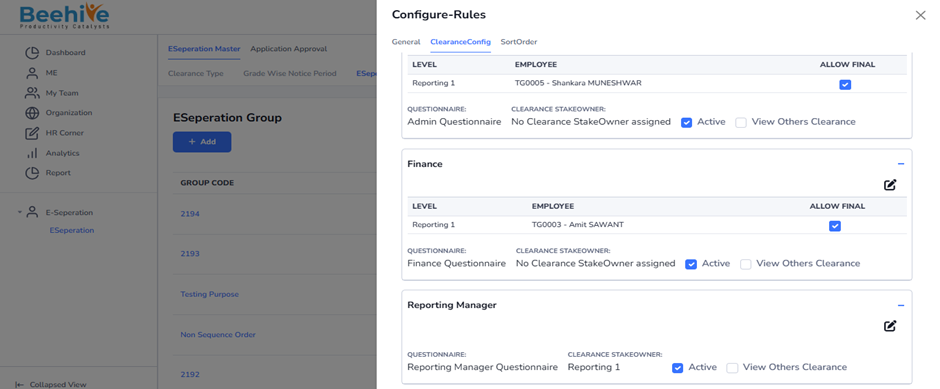
The above Group and E-Separation Configuration are mapped to the employee profile in the system. This mapping helps define the separation workflow and approval process for each employee. Based on the configured group settings, resignation and clearance activities function accordingly. It ensures that the E-Separation process follows the correct workflow, approvals, and clearance levels for the employee.
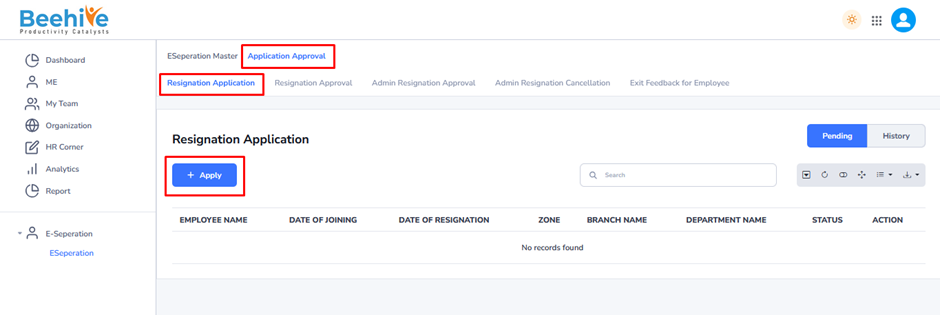
Resignation Application Raised by an Employee.
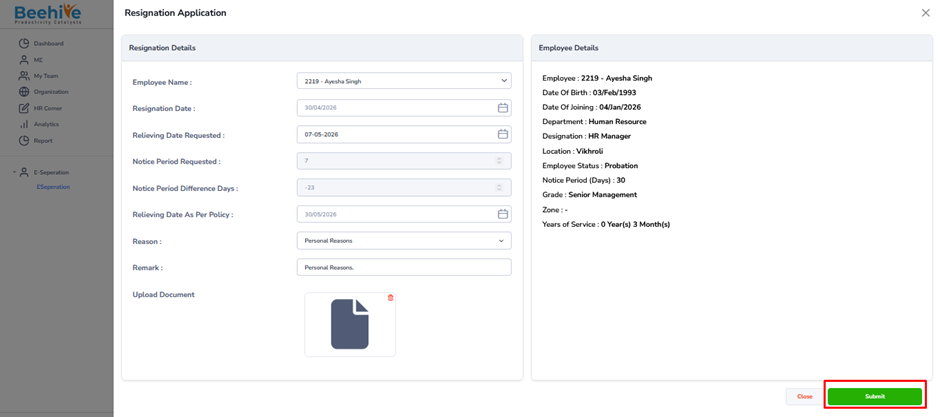
Fill the Resignation Application details.
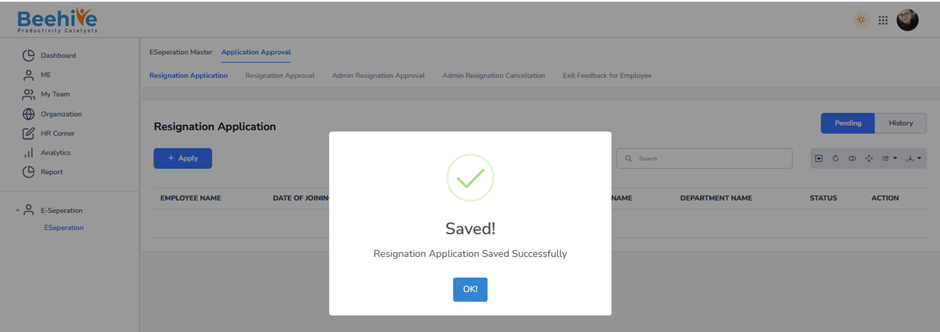
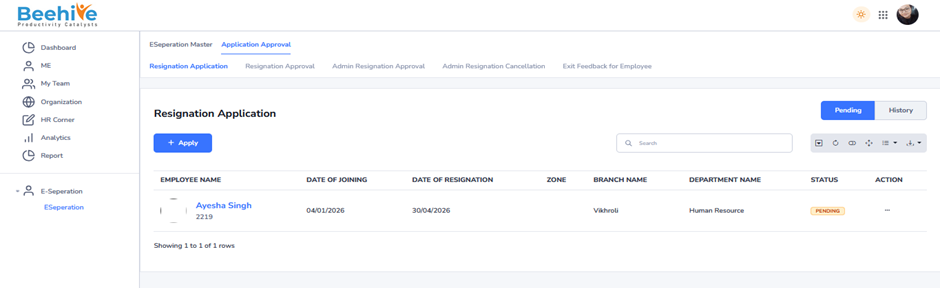
Applied Application is Visible in the Pending Tab of an Employee.
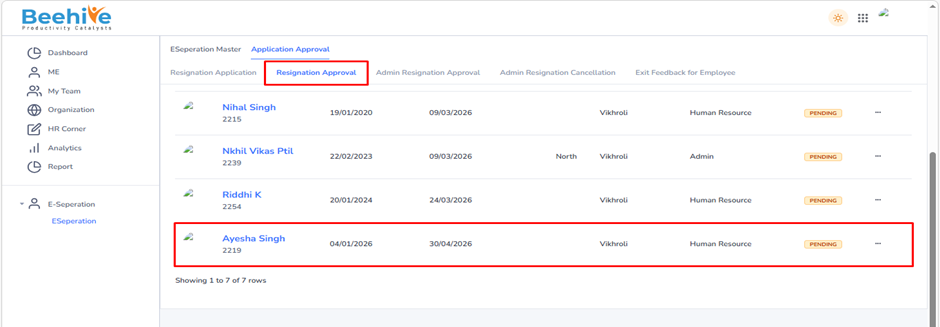
Application Visible at Reporting Manager.
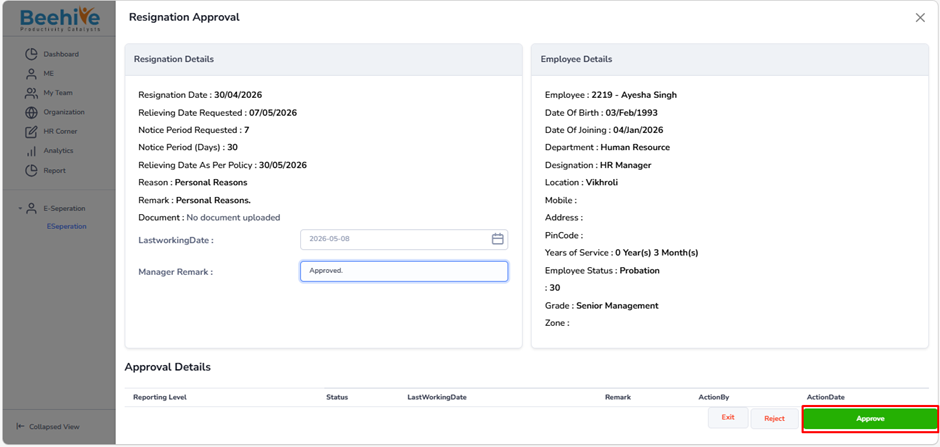
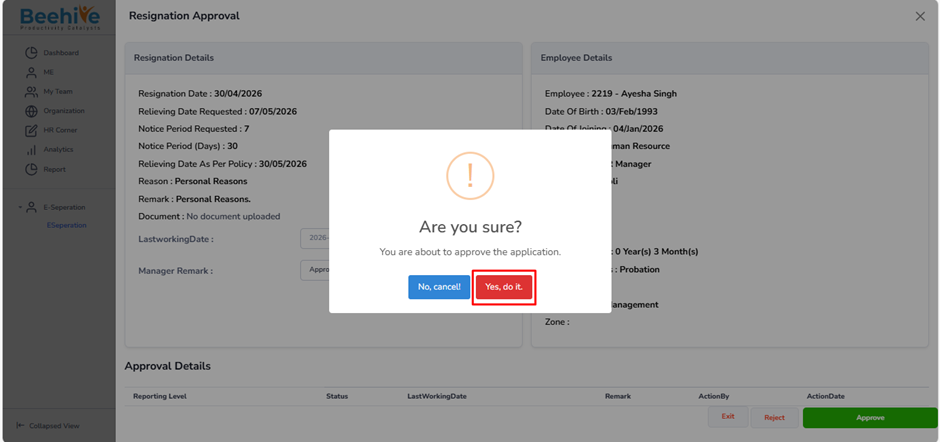
Application Approved by Reporting Manager.
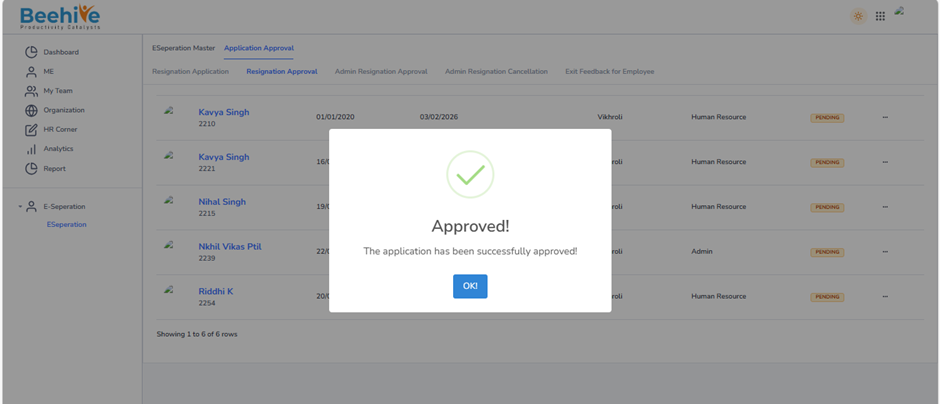
After Approval, Approved application visible in the History tab of Reporting manager.
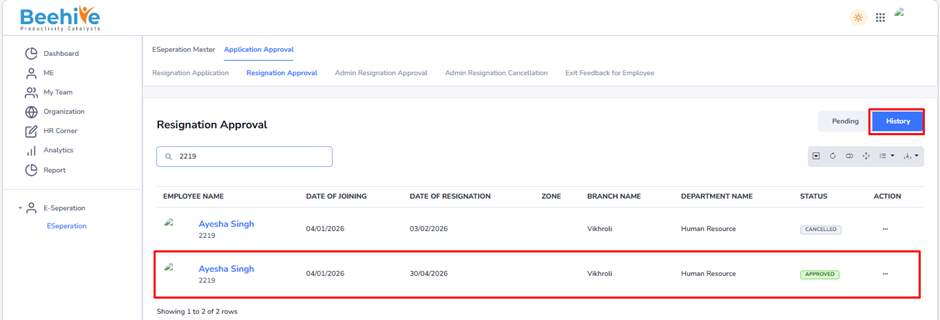
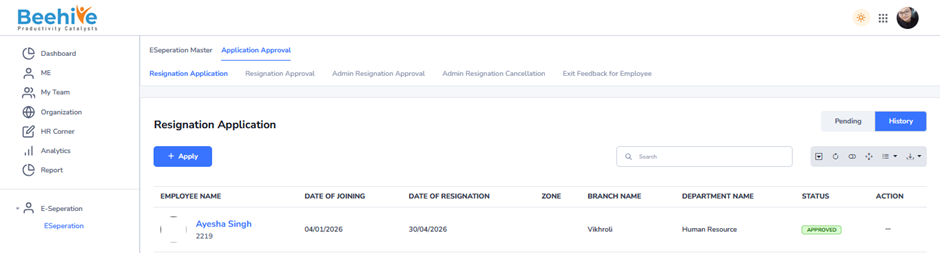
And Also at Employee End.
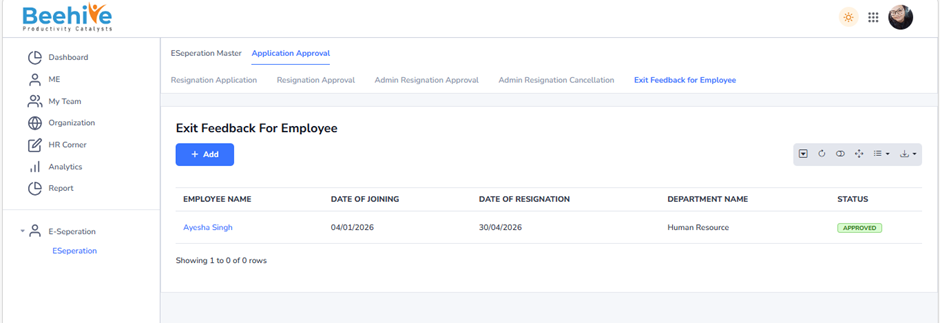
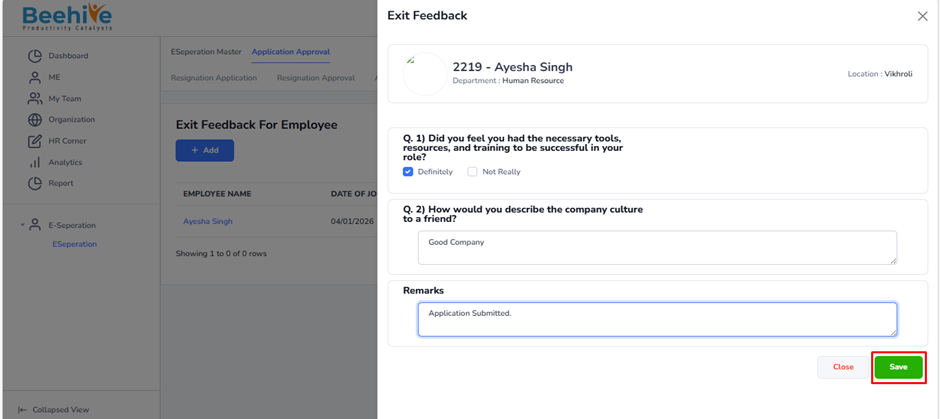
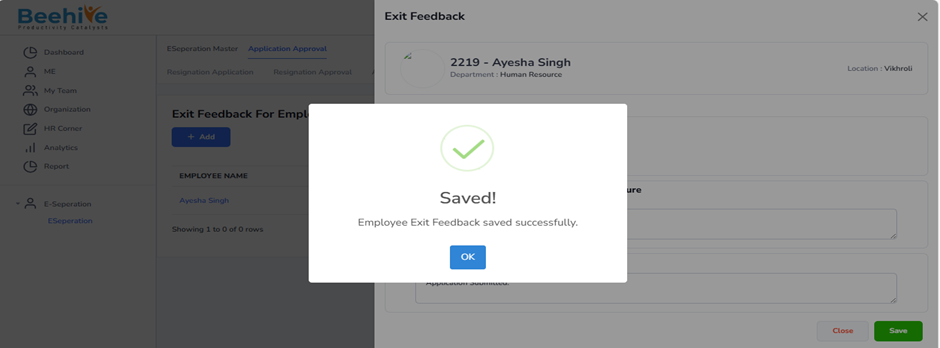
After Approval, Employee Exit Feedback Form.
Application Approved by IT Stakeholders.
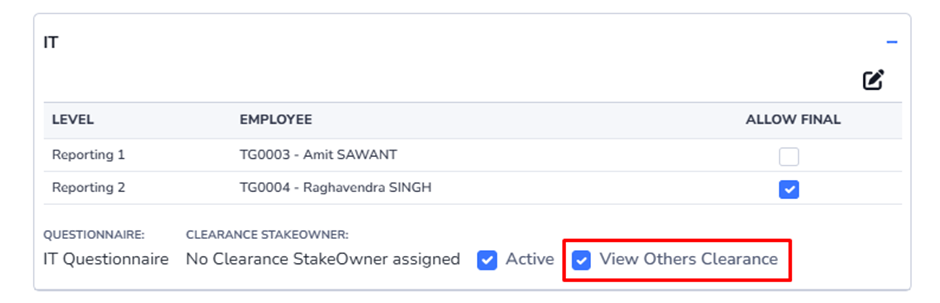
We have defined two stakeholders for IT Clearance: Reporting One and Reporting Two (Final Clearance Stakeholder). The workflow will function accordingly—IT Clearance will be considered complete only after approval from Reporting Two.
In terms of email functionality, notifications will be triggered sequentially. Once Reporting One approves the clearance, an email will be sent to the second stakeholder (Reporting Two) for final approval.
As we set checkbox enabled for ‘View Others Clearance’, IT Stakeholder will be able to only see the Clearance status and information of others.
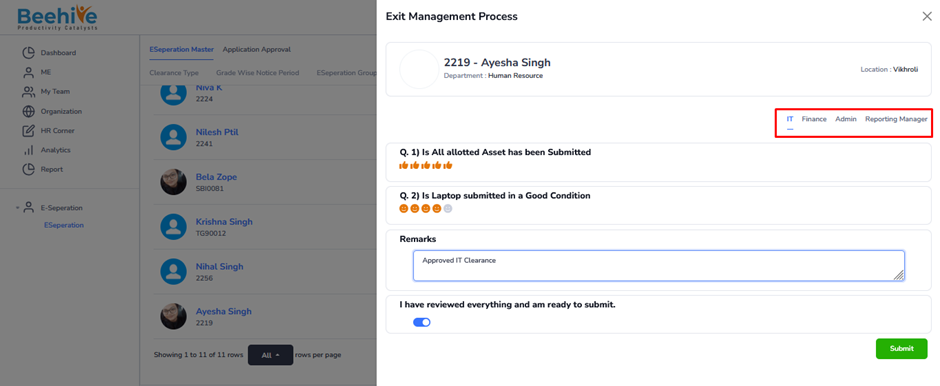
Clearance Form Visible to TG0003, 1 – 1st Stakeholder.
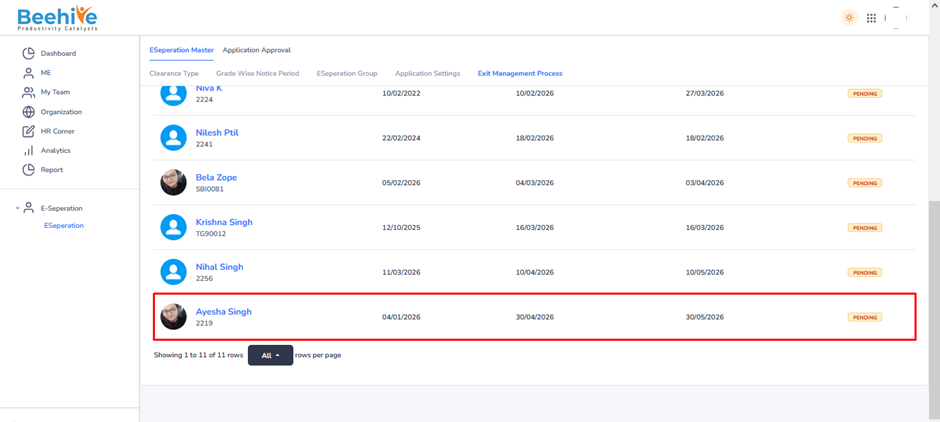
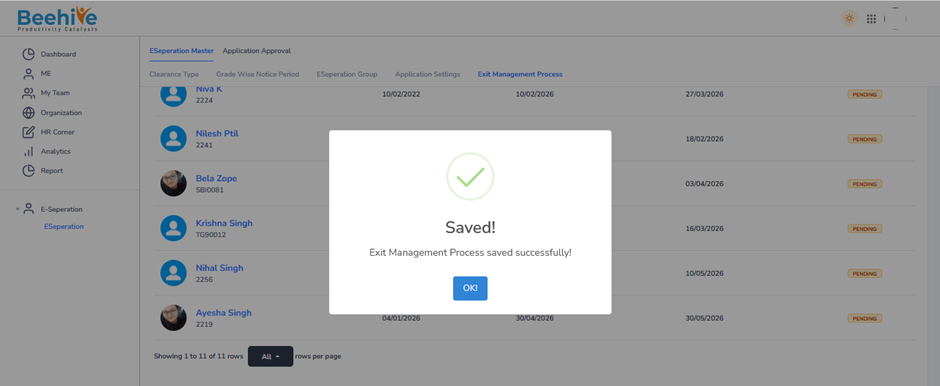
Approved data visible in the tab of History.
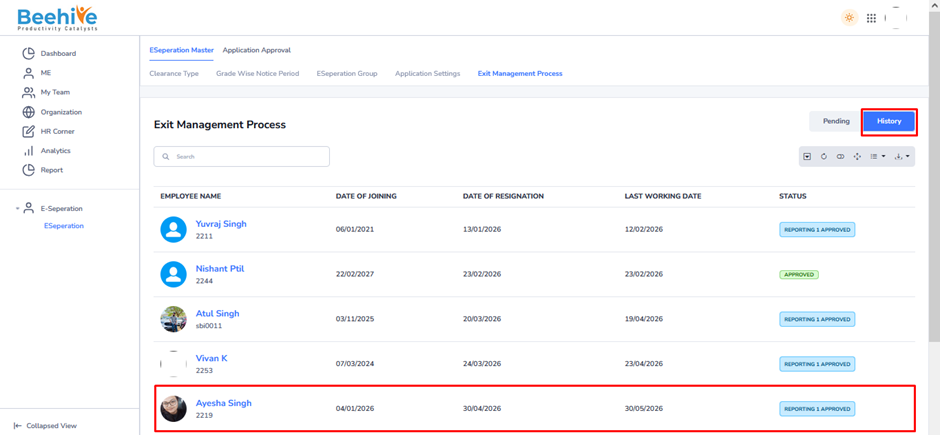
Form Clearance to Final Stakeholder.
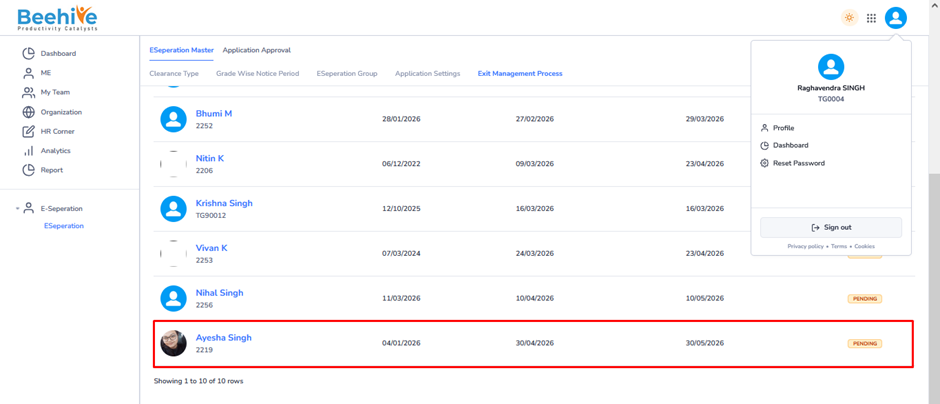
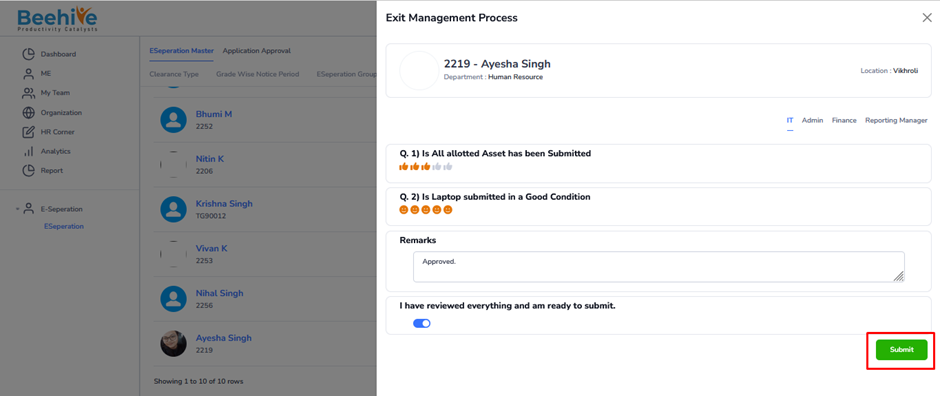
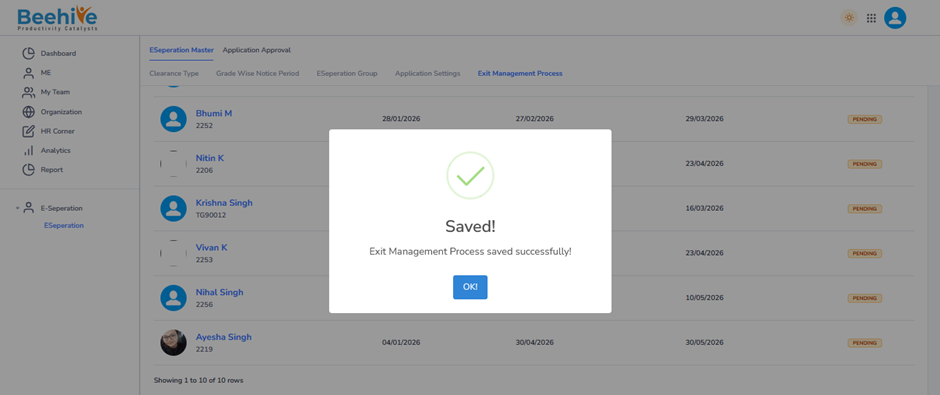
Data visible in the History tab.
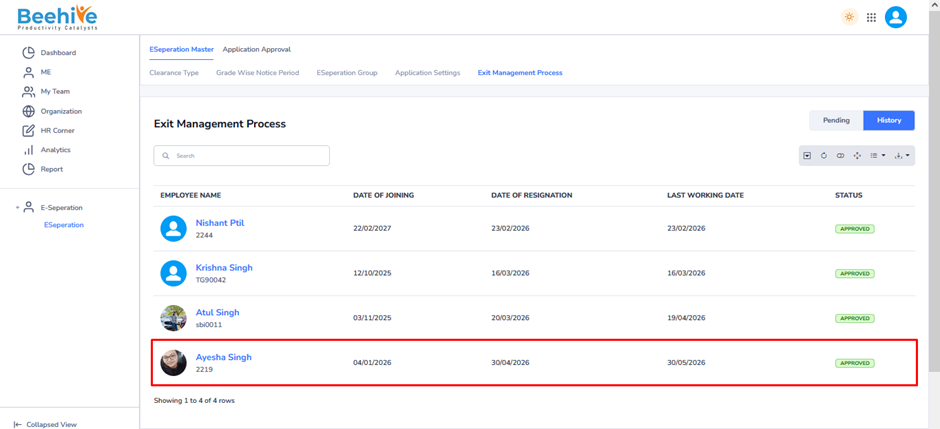
Admin Clearance.
Form Visible at Admin end. And Approval by Admin Stakeholder.
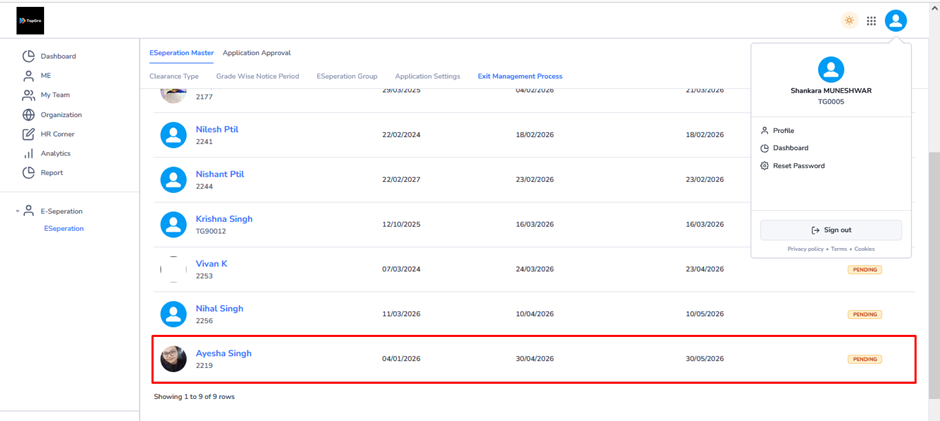
Admin Clearance.
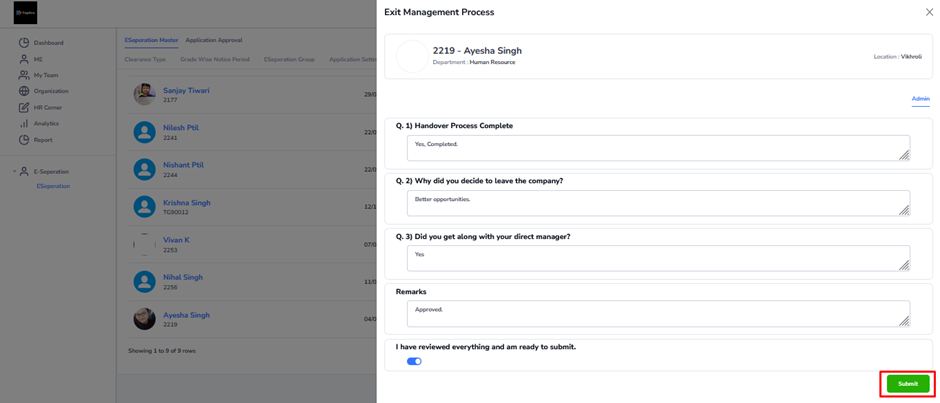
Data Visible in the History Tab.
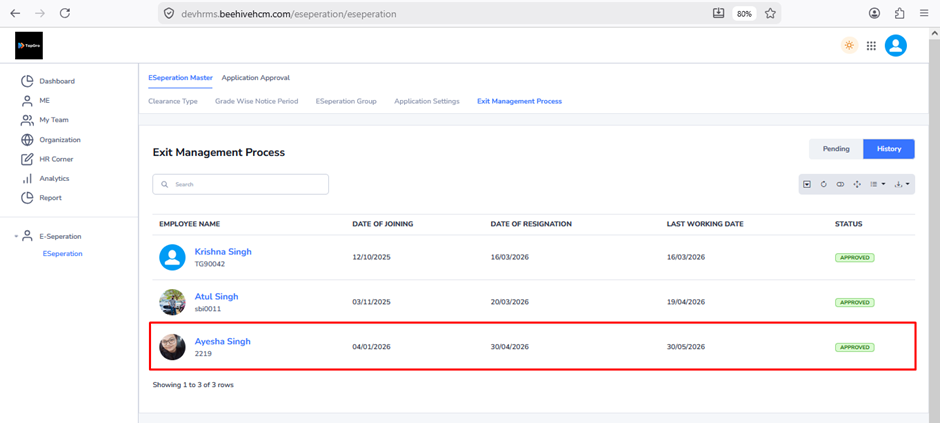
Finance Clearance.
Form Visible at Admin end. And Approval by Finance Stakeholder.
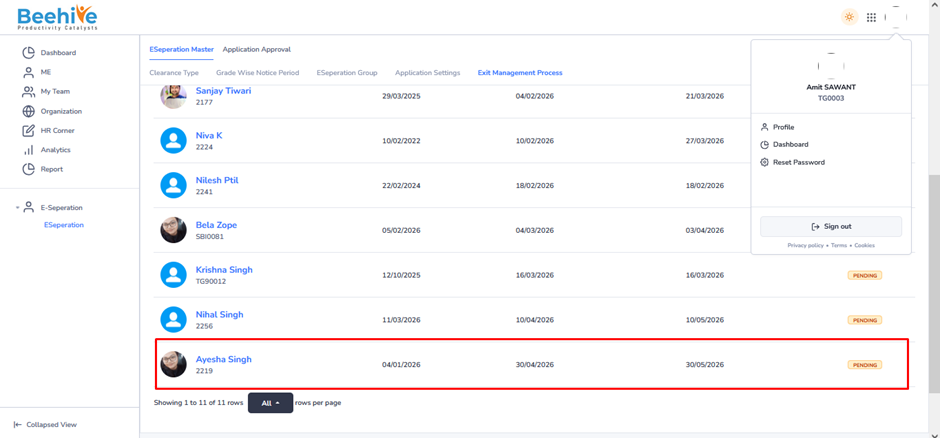
Finance Clearance.
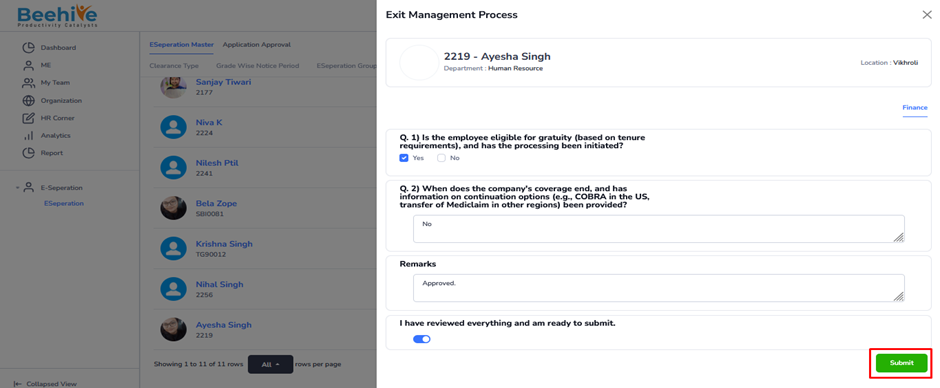
Data Visible in the History Tab.
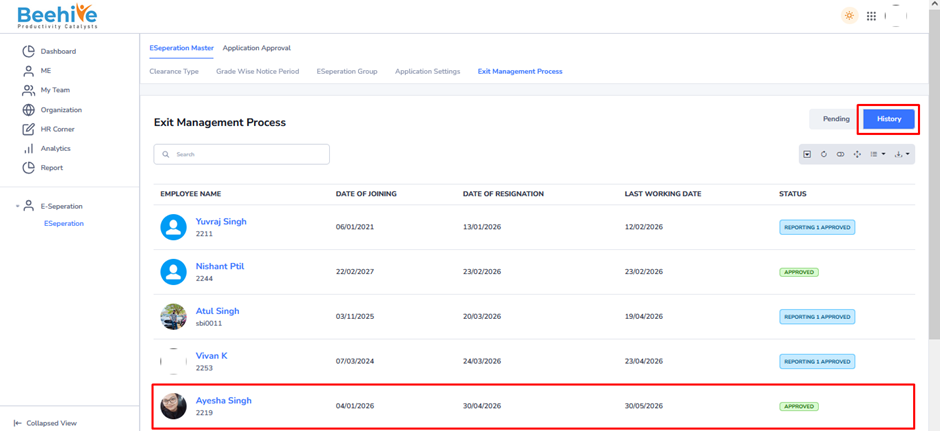
Reporting Manager Clearance.
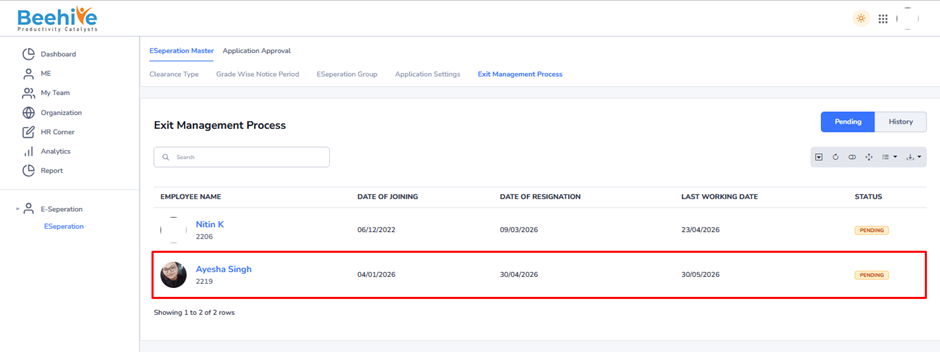
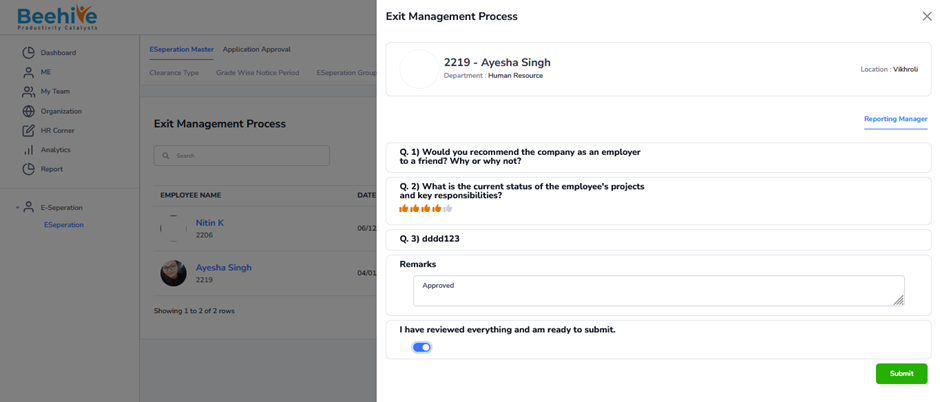
Data Visible in History Tab.