
Salary Group
A Salary Group is used to manage payroll settings for a group of employees. Earlier, payroll was configured based on Company and Division, but now payroll processing is handled through Salary Groups, making payroll management easier and more organized.
Steps to Create a Salary Group:
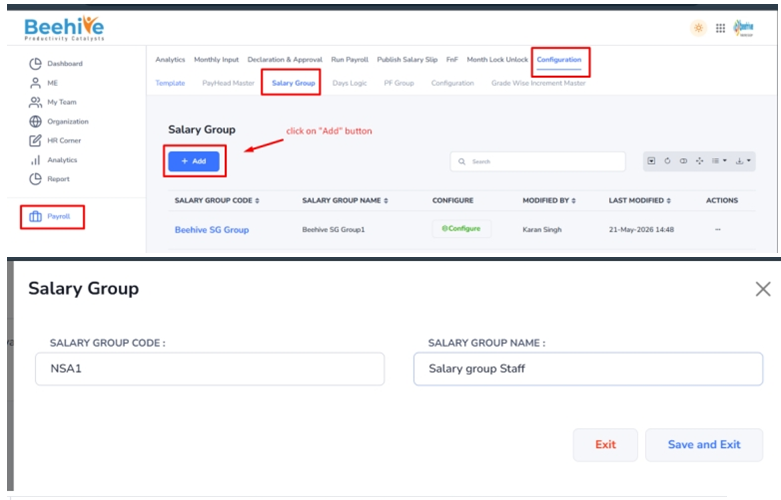
- Go to Payroll → Configuration → Salary Group.
- Click Add New.
- Enter the Salary Group Code & Name.
- Save the record.
Configure Salary Group
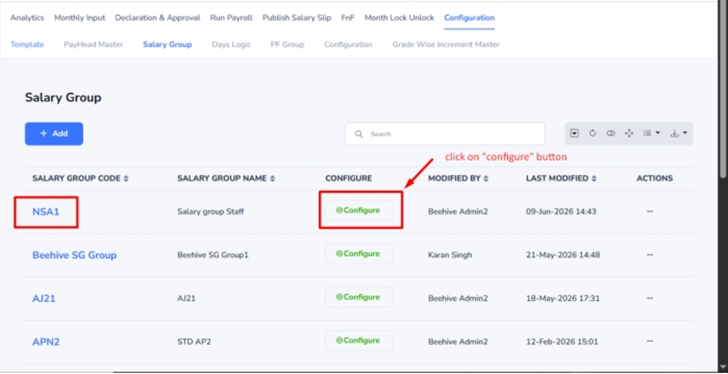
After creating a Salary Group, complete the following configurations before processing payroll.
1. Pay Head Configuration
This configuration is used to define the earning and deduction pay heads applicable to the Salary Group.
Steps:
- Open the Salary Group –> Click on Configure
- Click + Add Pay Head.
- Select the required pay head.
- Click Add.
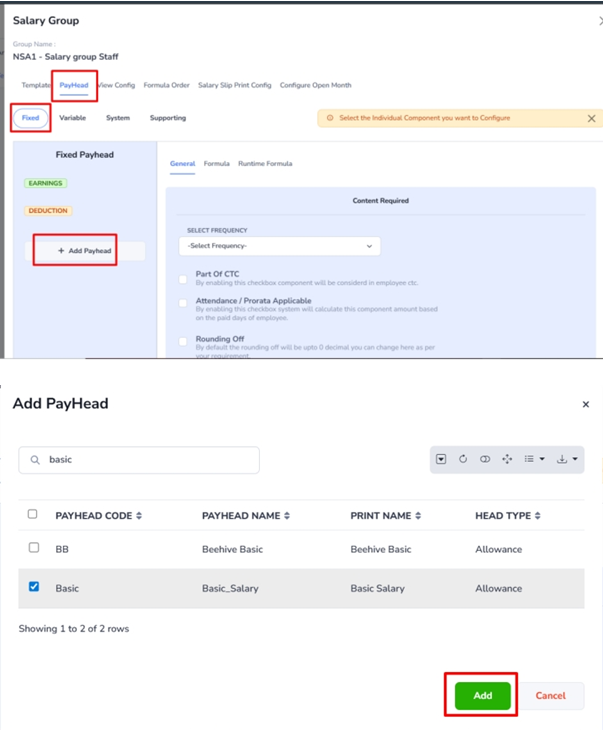
Pay Heads are available under different categories:
- Fixed Pay Heads – Basic Salary, HRA, Conveyance, etc.
- Variable Pay Heads – Incentive, Bonus, Overtime, etc.
- System Pay Heads – Auto-generated pay heads used in payroll calculations.
- Supporting Pay Heads – Used for calculation and reporting purposes.
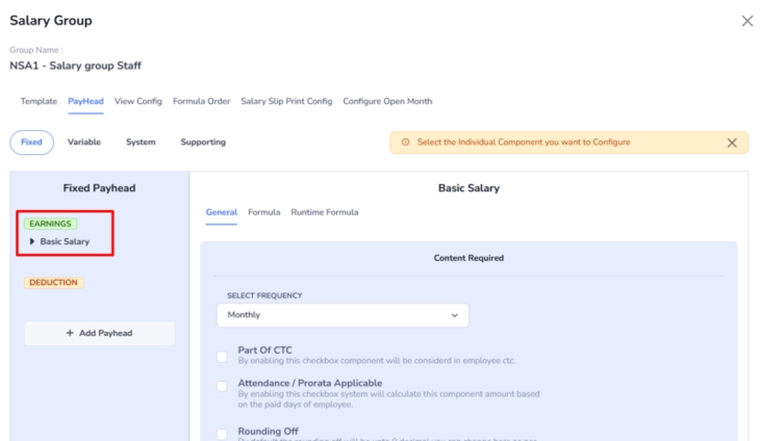
Note: Once added, the pay head will appear under its respective category section.
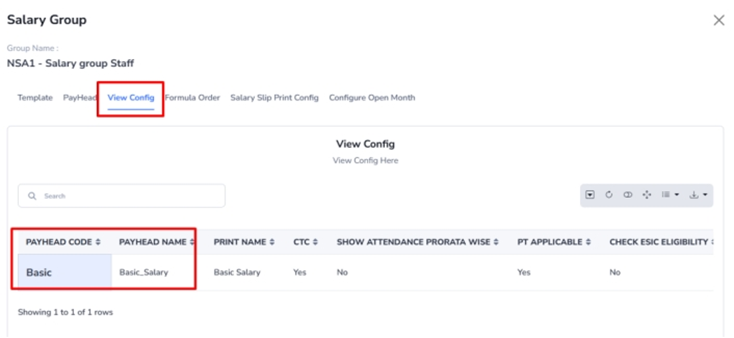
2. View Configuration
This option allows users to control and review how pay heads are displayed in payroll screens from a single place.
Benefit: Easy management of all configured pay heads without visiting multiple pages.
3. Formula Order Configuration
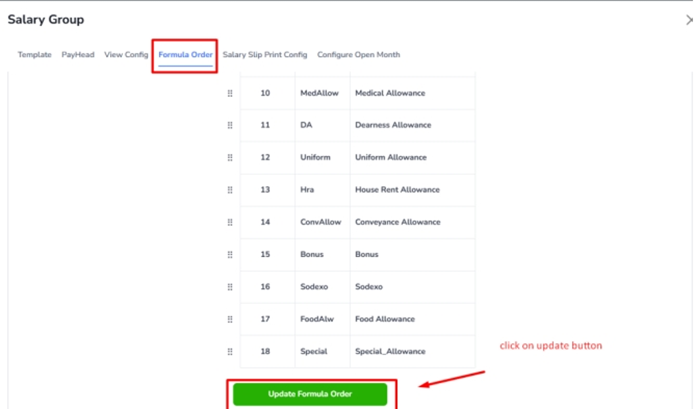
This configuration is used to define the sequence in which pay heads and payroll formulas are calculated.
Example: For the PF Employer PayHead, the formula is:
CASE WHEN ([MGross]-[HRA]) > 15000 THEN 1800 ELSE ([MGross]-[HRA]) * 12 / 100 END
To ensure the calculation works correctly, verify the formula sequence order. The MGross and HRA Pay Heads must be placed above PFEmpr, as they are used in the PFEmpr formula.
4. Salary Slip Print Configuration
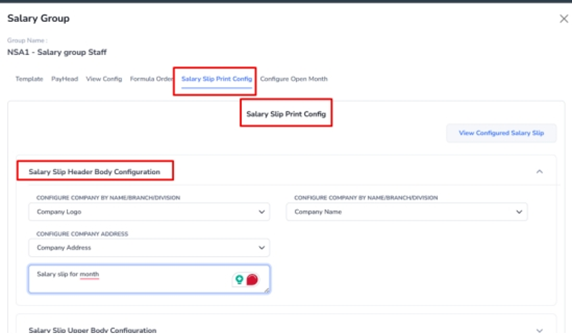
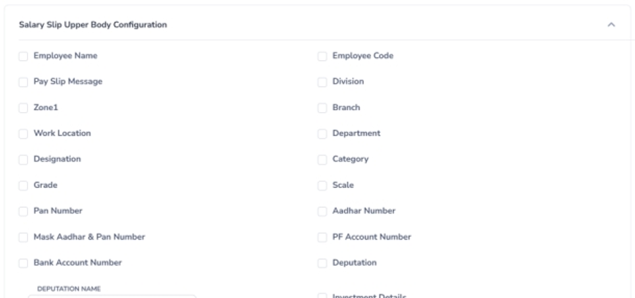
This configuration controls which details will appear on the employee salary slip.
Examples: You can choose to display
- Company Name & Logo
- Company Address
- Employee Bank Details
- Leave Details
- Earnings & Deductions
- Other payroll information
Note: Only selected options will be printed on the salary slip.
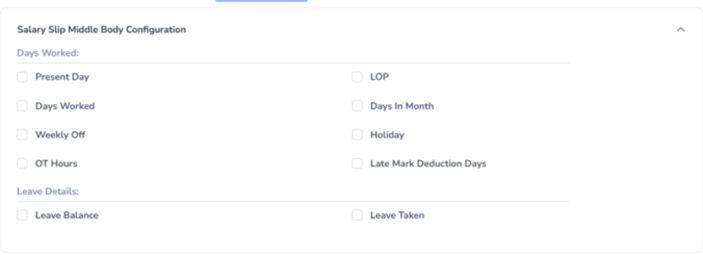
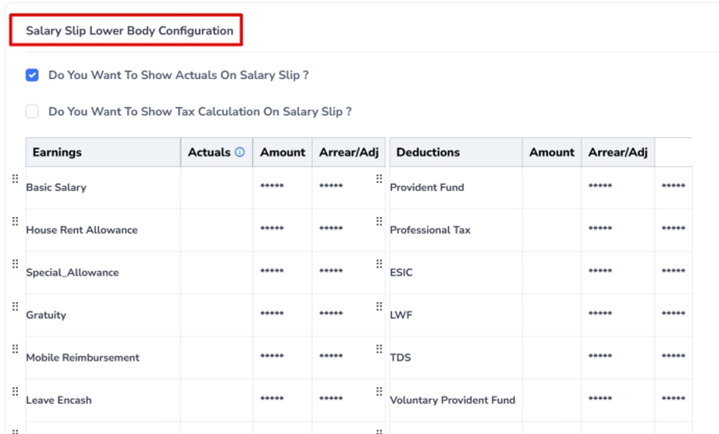
The Salary Slip configuration is divided into:
- Salary Slip Header Configuration
- Salary Slip Upper Body Configuration
- Salary Slip Middle Body Configuration
- Salary Slip Lower Body Configuration
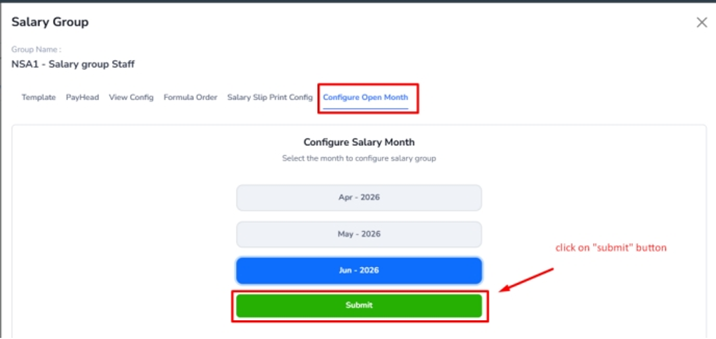
5. Open Month Configuration
This option is used to select the payroll month for which salary processing will be done.
Example: June 2026, July 2026, etc.
Once these settings are completed, payroll can be processed successfully for employees in that Salary Group.