
Template
Follow these simple steps to configure your payroll template and start salary processing.
Step 1: Select a Payroll Template
Choose one of the following payroll templates based on your salary structure.
Option A: Template Calculation on Gross
Select this option if salary components are calculated based on the employee’s Gross Salary.
Navigation:- Payroll–> Configuration–>Template
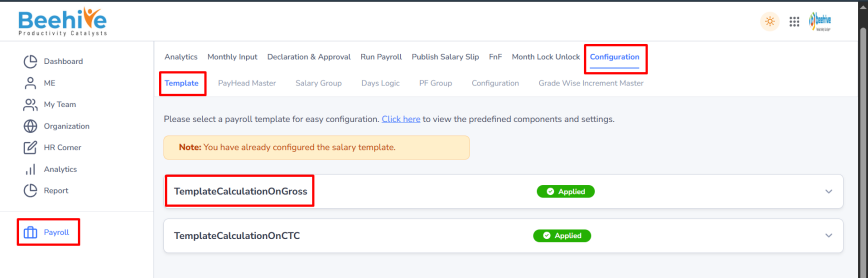
Example:
- Annual Gross Salary = ₹24,000
- Monthly Gross Salary (MGross) = ₹24,000 ÷ 12 = ₹2,000
The system uses the Monthly Gross Salary (MGross) to calculate all earnings and allowances configured with the [MGross] variable.
Note: Any component linked to [MGross] will be calculated using the monthly gross salary amount.
Option B: Template Calculation on CTC
Select this option if salary components are calculated based on the employee’s CTC (Cost to Company).
Navigation:- Payroll–> Configuration–>Template
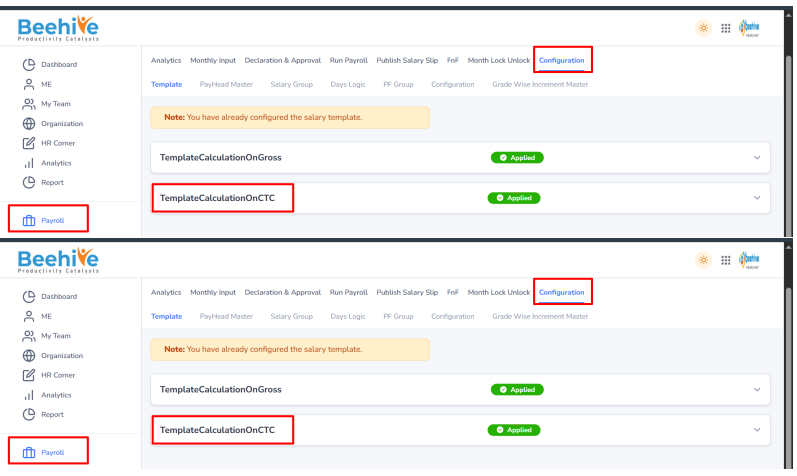
Example: Annual CTC = ₹2,46,000
The system automatically calculates the monthly CTC and uses it to calculate all salary components according to the configured formulas.
Note: The Annual CTC is the base value used for all salary calculations in this template.
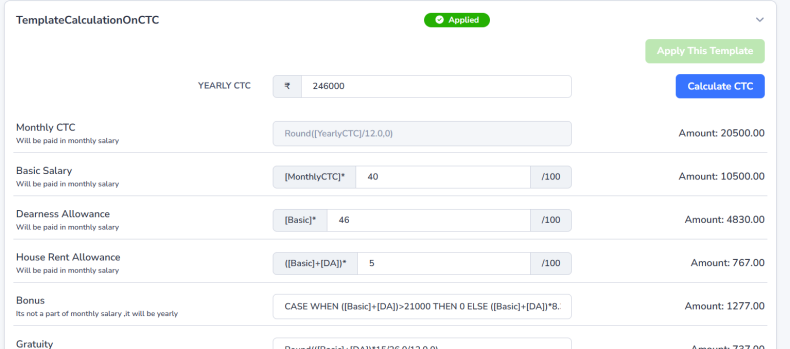
Step 2: Calculate Salary Structure
Click the Calculate CTC button to calculate all salary components based on the selected template and configured formulas.
Why is this required?
- Ensures all salary components are updated correctly before applying the template.
- Calculates earnings, deductions, and allowances automatically.
Step 3: Apply the Template
Click Apply Template to complete the payroll setup.
- Create/Configure AllEmployeeGroup.
- Apply the selected template configuration.
- Automatically configure the payroll period
- Enable salary processing for the employee without any manual setup.
Example: If the template is applied in June 2026, the system will:
- Create or update AllEmployeeGroup.
- Apply the selected template configuration.
- Configure the payroll period for June 2026.
- Enable salary processing for employees in June 2026.
Result: Your payroll setup is now complete and ready for salary processing, with no additional manual configuration required.