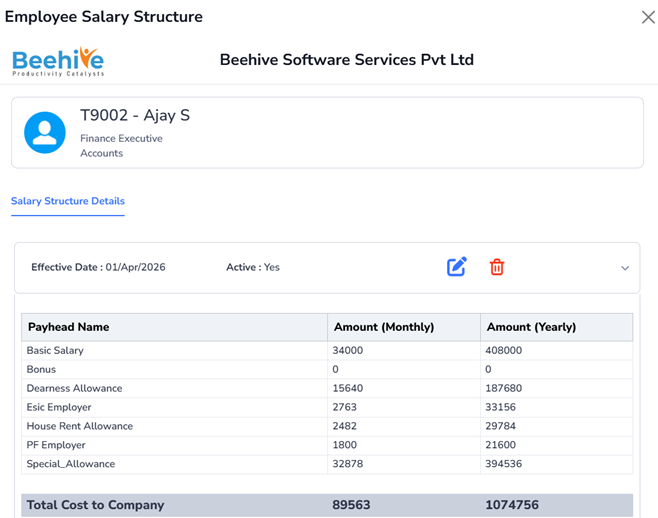
Employee Salary Structure
The Employee Salary Structure form is used by the HR/Payroll Admin to define or update an employee’s CTC (Cost to Company) in the system.
How to Add a New Employee Salary Structure
- Click Menu from the primary navigation bar.
- Click Payroll from the secondary navigation bar.
- Click Monthly Input from the third navigation bar.
- Select Employee Salary Structure.
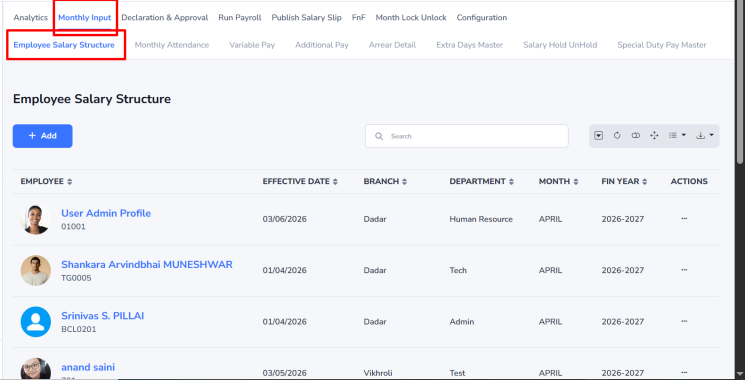
Add a New Salary Structure
- Click the Add button.
- A salary structure window will open.
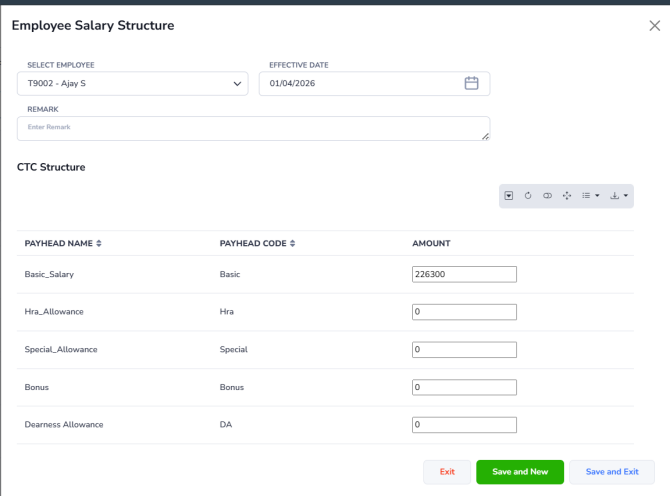
Field Details
- Select Employee – Search and select the employee by Name or Employee Code.
- Effective Date – Enter the date from which the salary revision becomes effective. For new employees, this should be the Date of Joining.
- Remarks – Enter any additional comments, if required.
After selecting the employee and entering the effective date, the employee’s salary structure will be displayed.
Click Save & New to save and add another record, or Save & Exit to save and close the window.
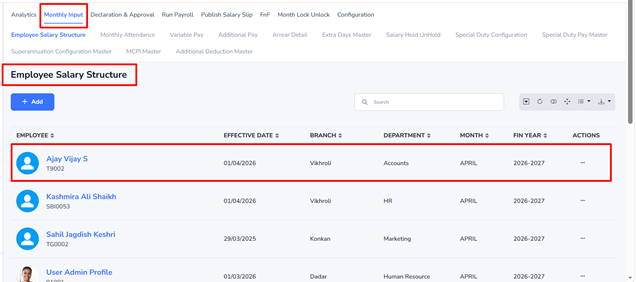
Click on the Employee Name to view the employee’s CTC (Cost to Company) details.