Process Payroll
How to Process Salary
Note:- You can process salary using any of the following options:
- Payroll Process – Process salary by selecting a payroll process. The system will create a new batch automatically if required.
- Existing Batch – Process salary using a batch that has already been created.
- Individual Employee – Process salary for a specific employee.
Note: When processing salary using organizational criteria, the system automatically creates a new batch.
Steps to Process Salary
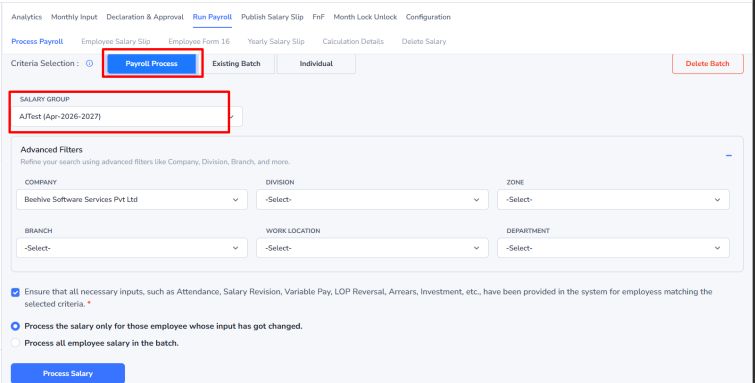
- Select the Salary Group.
- Use the Advanced Filter to filter salaries based on specific organizational criteria.
- Click on the checkbox & choose a Processing radio button (Key Difference below).
a] Process Salary Only for Employees with Changes:–Use this option to process salary only for employees whose payroll-related data has changed since the last salary run.
b] Process Salary for All Employees in the Batch:–Processes payroll for all employees in the batch, even if no data has changed. - Click on the Process Salary Button
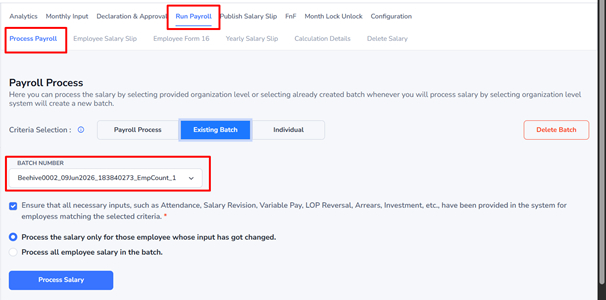
Existing Batch – Process salary using a previously created payroll batch.
Example: If a payroll batch for June 2026 has already been created, you can select that batch and process salaries without creating a new one.
Individual Employee – Process salary for a single employee only.
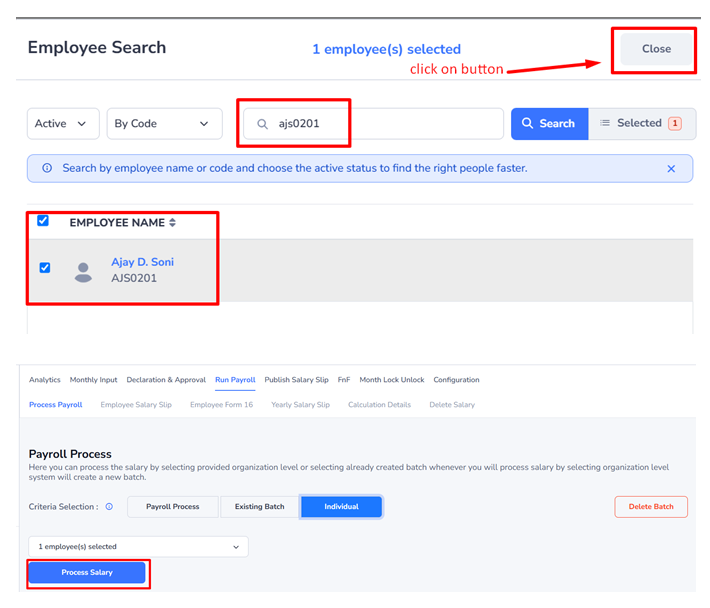
- Search for the employee using their Name or Employee Code.
- Select the employee and click Close.
- Click Process Salary.
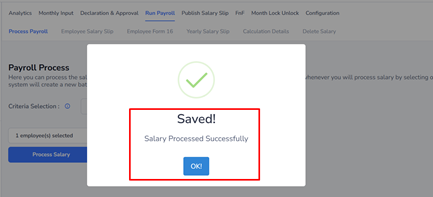
- A “Salary Processed Successfully” message will appear on the screen.