
Arrear Detail
This form is used when an employee’s salary is revised. It helps HR/Payroll define and process arrears (the revised difference amount) for the updated salary.
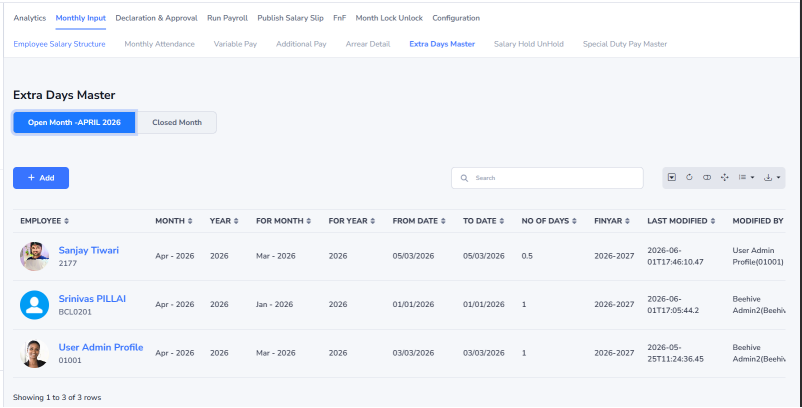
Steps to Add Arrear Details
- Click Add to create a new arrear entry.
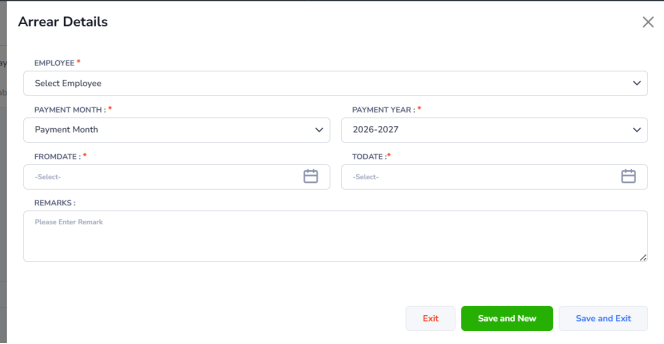
- The Arrear Details form will open in a pop-up window.
- Enter the required information:
- Employee – Select the employee by name or employee code.
- Payment Month – Select the month for arrear payment (e.g., March).
- Financial Year – Select the financial year (e.g., 2026–2027).
- From Date – Select the start date for arrear calculation.
- To Date – Select the end date for arrear calculation.
- Remarks – Add optional comments, if needed.
- Click:
- Save & Exit – To save the entry and return.
- Save & New – To save and add another employee.
- Cancel/Exit – To close without saving.
Example
If an employee’s salary is revised starting from 01 April 2026, select: From Date: 01-04-2026 to To Date: 31-03-2027, and the system will calculate arrears for this period based on the revised salary.