Backdated Shift Assignment Process
Back Dated Shift Assignment is used when employee shift details need to be changed or corrected for past dates. This helps the system recalculate attendance based on the updated shift timings.
This feature is mainly used in below situations-
– Wrong shift was assigned to employees.
– Shift change was missed earlier.
– Employees worked in a different shift temporarily.
– New shift roster was updated late.
– Attendance shows incorrect late in, early out, or absent status due to wrong shift timing.
Using this feature ensures that employee attendance, working hours, overtime, and payroll calculations are generated correctly based on the updated shift details.
Navigation –
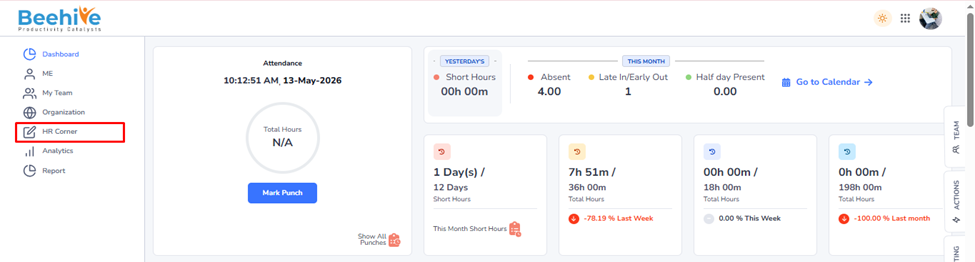
Dashboard → HR Corner → Attendance → Back dated Shift Assignment
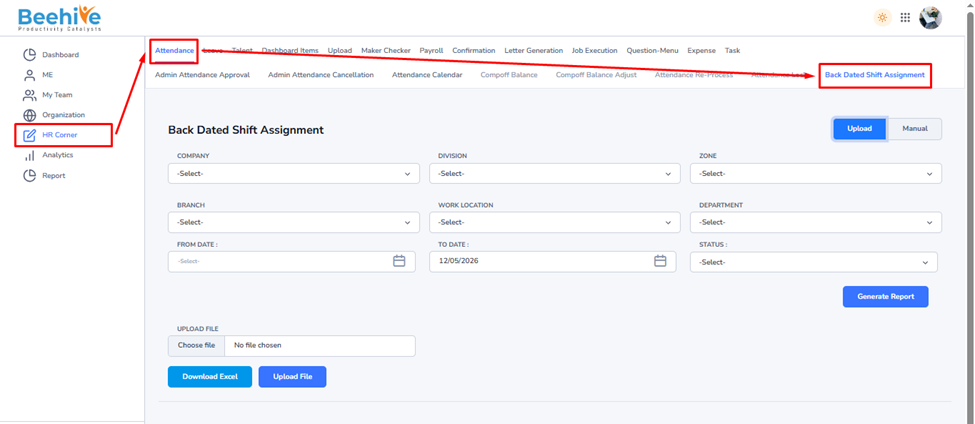
1. Upload –
Using upload you can assign the shifts of multiple employees at a time.
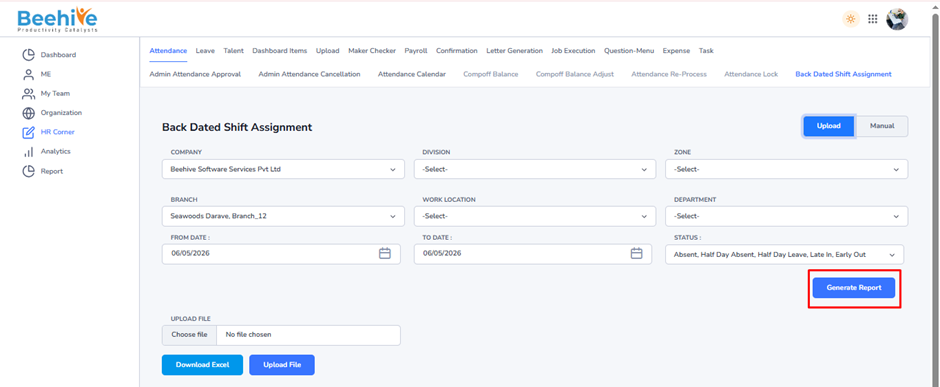
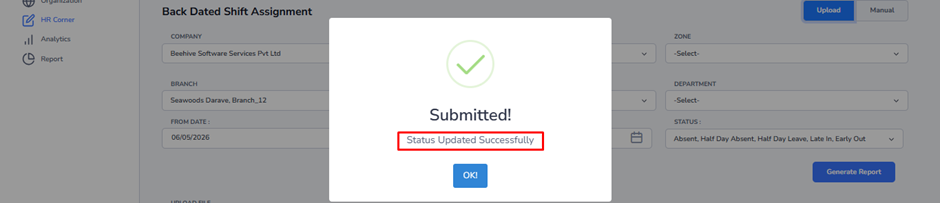
So first you need to generate the report (Excel sheet) according to the From date, To date, and Status (Absent, Half Day Absent, Half Day Leave, Early Out, Late In).
The status you select only those status’s employees will appear in generated excel report.
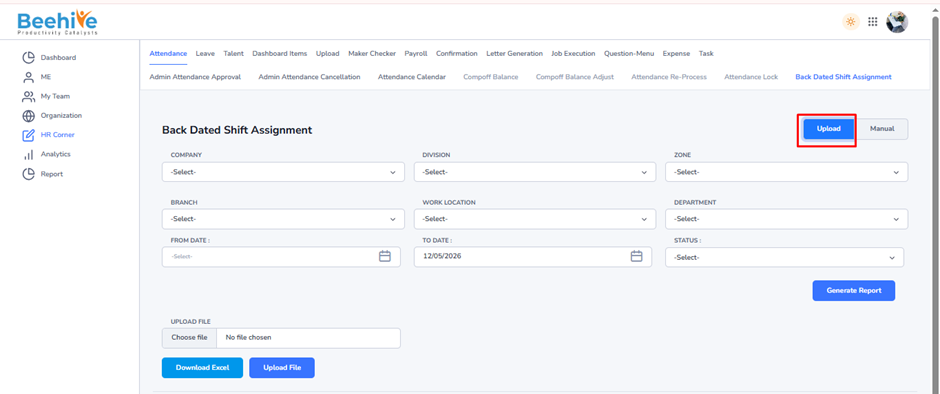
The Status filter helps users select attendance statuses for which back dated shift assignment needs to be done.
Users can select one or multiple statuses such as –
1. Absent
2. Half Day Absent
3. Half Day Leave
4. Late In
5. Early Out
This helps identify only those employees whose attendance is affected and requires shift correction.

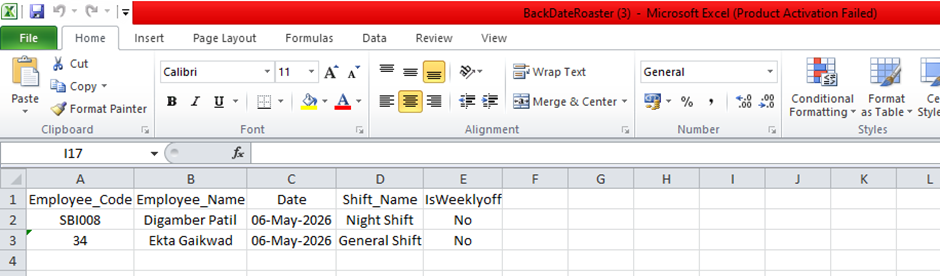
After making changes in the Excel file, updated Shift and Weekly Off details will be applied to the selected employees once the file is uploaded successfully.
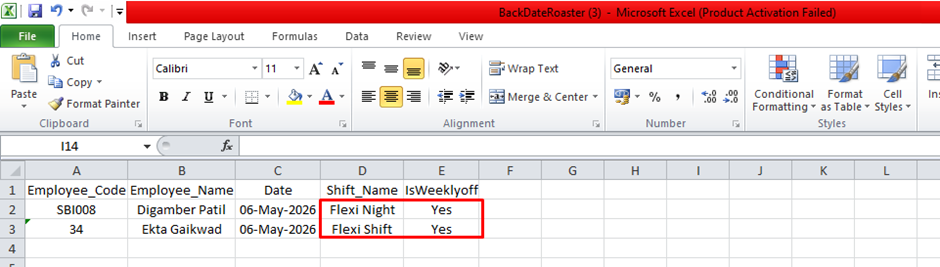
Uploaded the Excel report and clicked on the Upload File button.
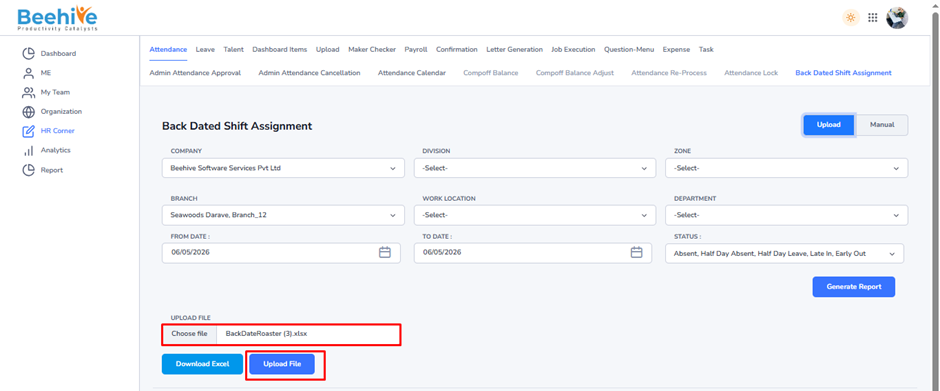
After that all the employee data getting fetched below here you can see the revised Shift and weekoff.
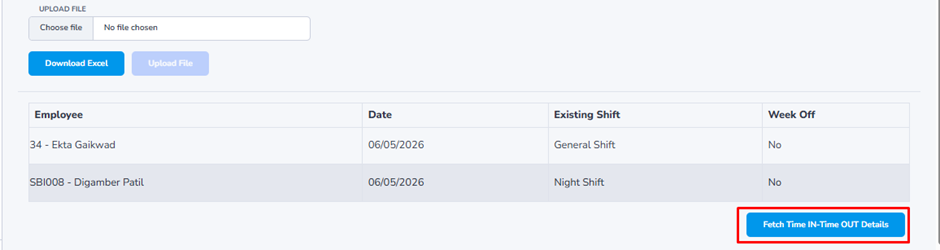
Then click on Fetch Time IN –Time Out Details, GetRevised Status,and Process Attendance buttons respectively.
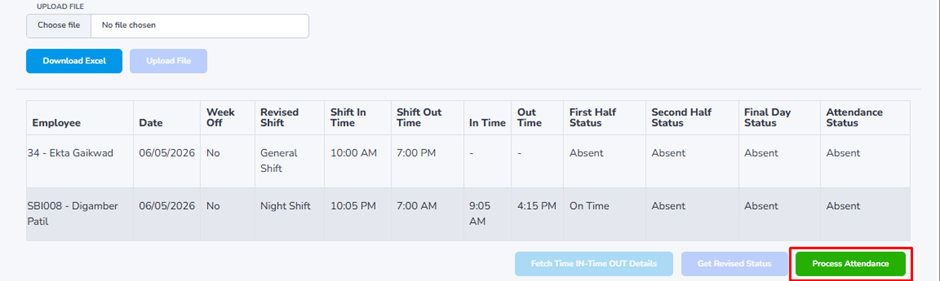
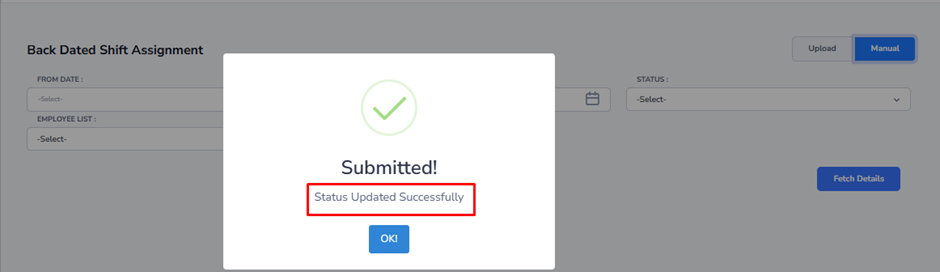
Final popup. After this, changes get visible immediately on daily attendance page.
2. Manual Backdate –
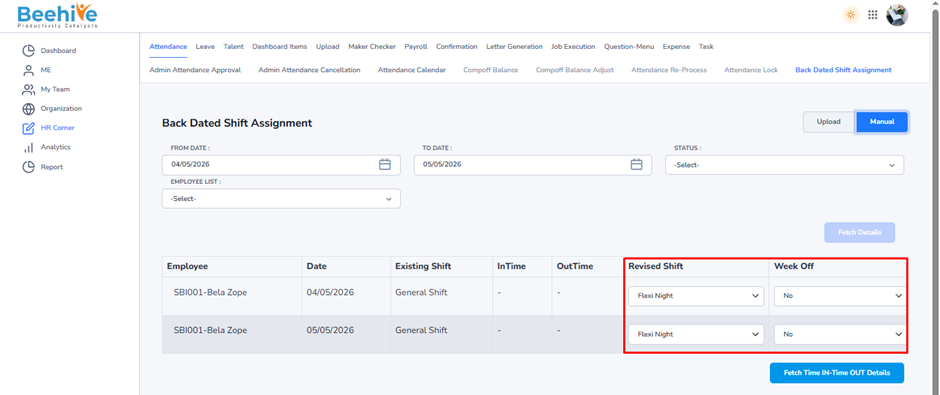
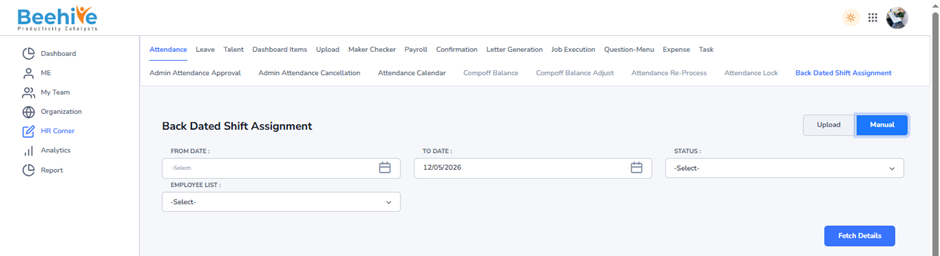
Here you can assign shifts to the selected employee. 1st you can select the employees and then click on the Fetch Details button. Then the employee data get fetched below so do the changes for shift or week offs.
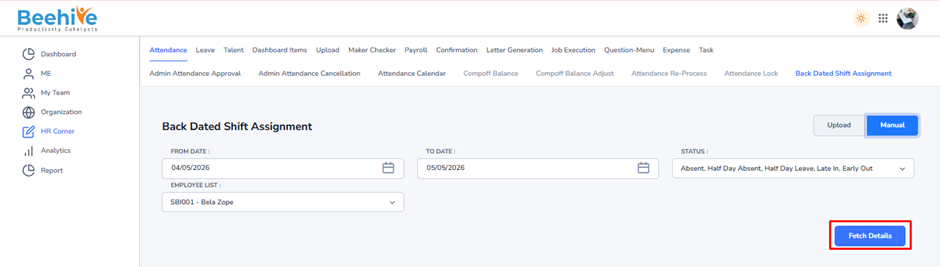
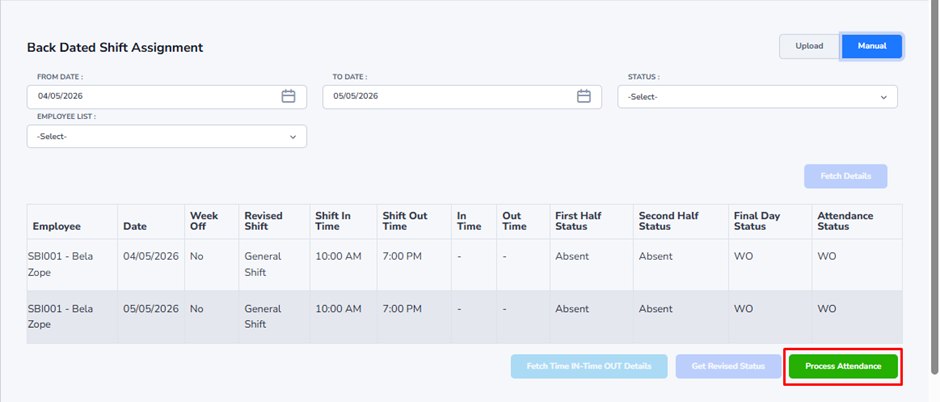
Then click on Fetch Time IN –Time Out Details, Get Revised Status, and Process Attendance buttons respectively.
In Manual mode, users can directly update the employee’s Revised Shift and Weekly Off for the selected dates.
Revised Shift – Select the new shift to be assigned.
Weekly Off – Select whether the selected date should be treated as Weekly Off or not.
This helps correct employee attendance for past dates without using Excel upload.