Attendance Locking Process
The Attendance Lock feature is used to freeze attendance records after attendance verification or payroll processing is completed. This ensures that attendance data remains accurate and no unnecessary changes are made later. It is especially useful for HR and payroll teams while finalizing salaries, overtime, leave deductions, and attendance reports.
Using this feature, organizations can lock attendance branch-wise from a specific date. Once locked, employees cannot apply for attendance-related requests such as regularization, leave changes, or punch corrections for the locked period. Managers and admins are also restricted from making changes unless special permissions are enabled.
Navigation –
Dashboard → HR Corner → Attendance → Attendance Lock

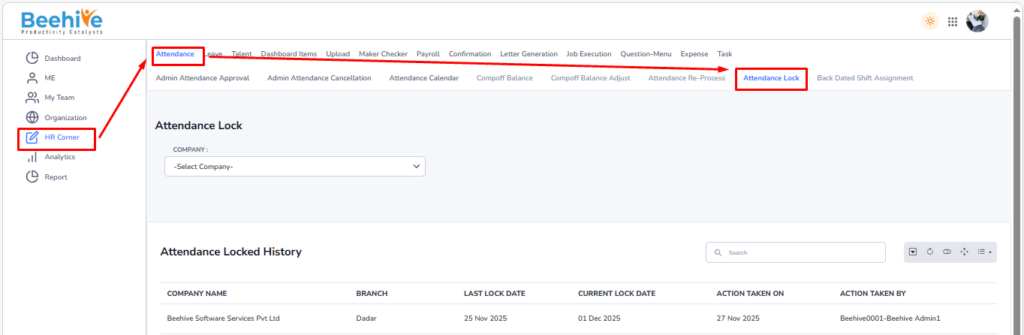
The page also provides separate options like –
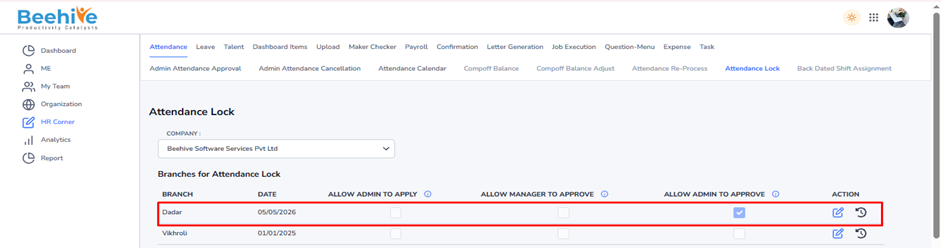
1. Allow Admin to Apply – Admin can still apply attendance requests after lock
2. Allow Manager to Approve – Managers can approve pending requests
3. Allow Admin to Approve – Admin can approve attendance requests even after lock
Key advantages of Attendance Lock –
– Prevents accidental or unauthorized attendance changes
– Helps maintain accurate payroll calculations
– Reduces attendance disputes and confusion
– Ensures finalized attendance data remains secure
– Improves transparency and control in attendance management
This feature helps organizations maintain discipline and accuracy in attendance processing.
The branch list displayed in the Attendance Lock page is shown based on the branches mapped to employees under the selected company. If no employees are mapped to a particular branch, that branch will not be displayed in the list.
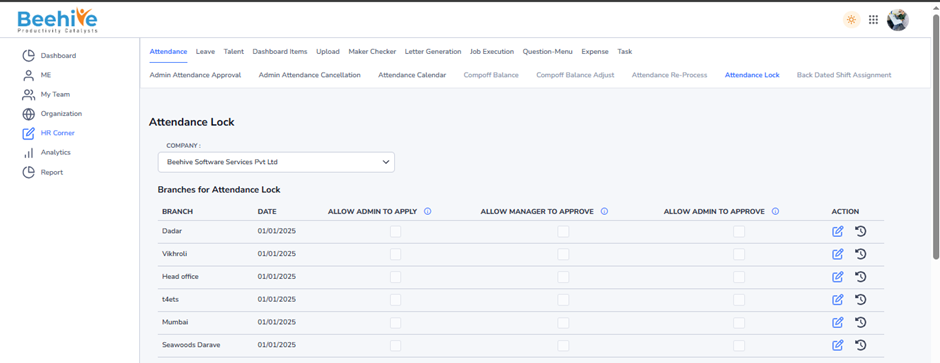
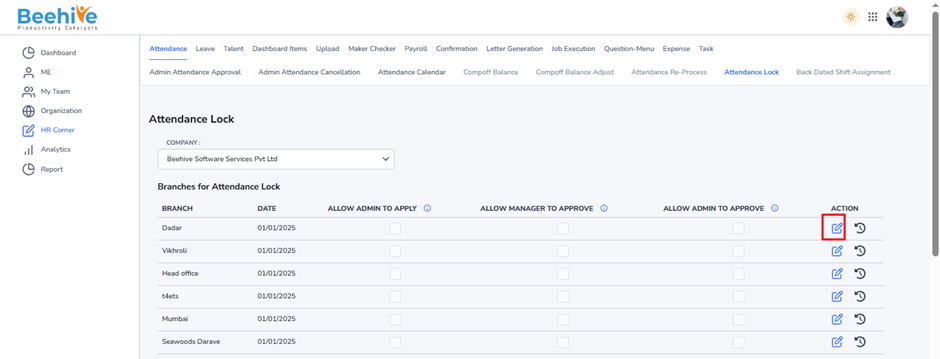
Click on the Edit button under the Action column to modify the attendance lock settings for the selected branch.
Select the Attendance Lock Date for the branch.
After this date is locked –
– Employees cannot raise previous month attendance-related applications.
– Managers cannot approve requests beyond the selected lock date.
– HR/Admin will also not be able to process or modify attendance records after the lock date.
This helps in finalizing attendance and payroll data without further changes.
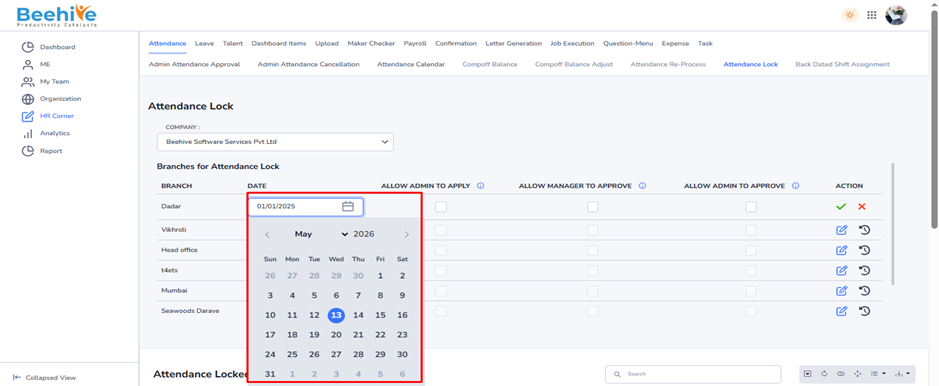

Example:
If the Attendance Lock Date is set as 05/05/2026, then the system will allow employees to apply for previous month attendance requests only till 5th May 2026.
After 05/05/2026 –
– Employees cannot raise previous month applications.
– Managers cannot approve pending requests for the previous month.
– HR/Admin cannot make attendance changes or approvals for the locked period.
This ensures attendance and payroll data are finalized after the lock date.
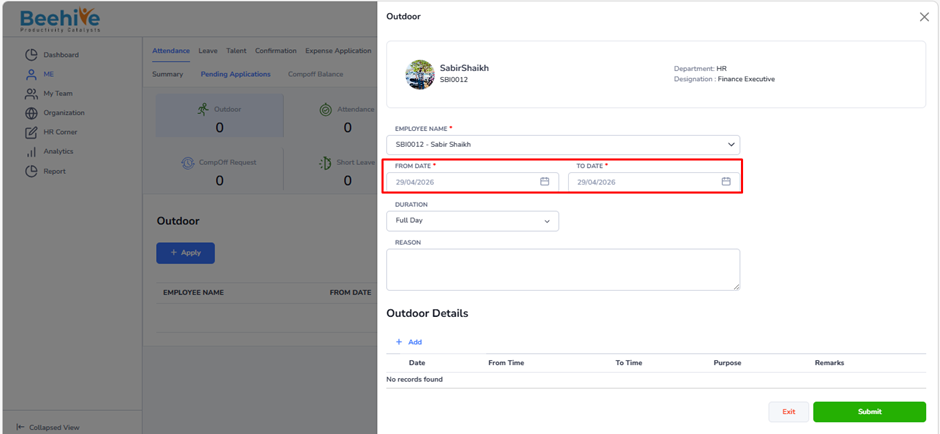
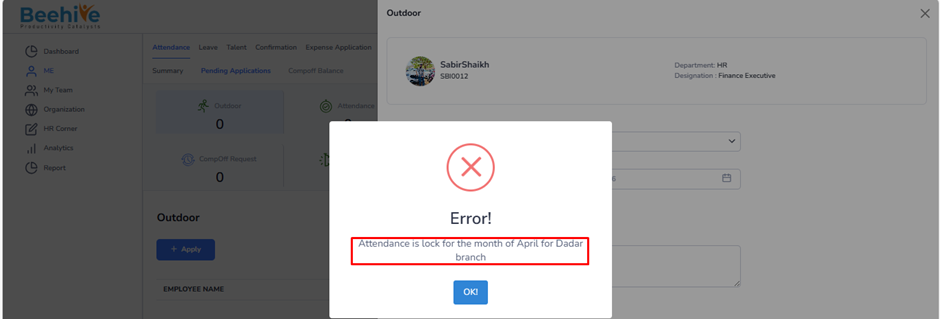
Note – The system checks the employee’s branch for attendance lock restrictions, not the Manager’s or Admin’s branch.
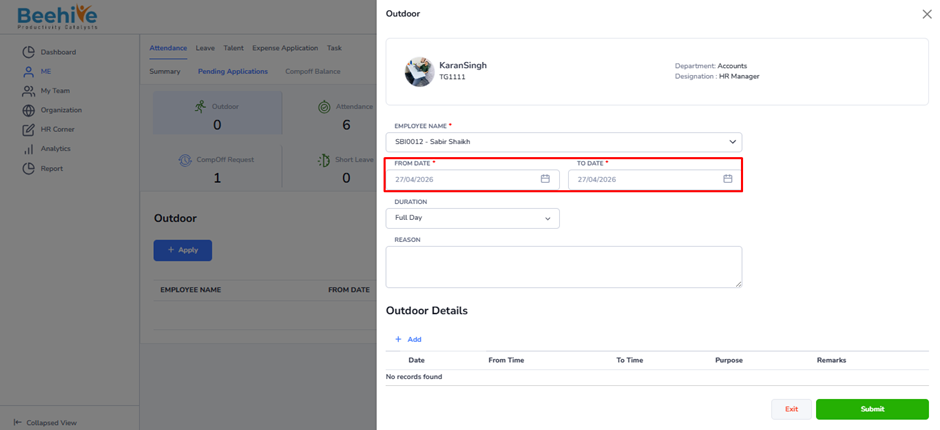
1. Allow Admin to Apply – Admin can still apply attendance requests after lock
Configuration – Disabled
Admin/HR can raise an Attendance Application on behalf of an employee when required.
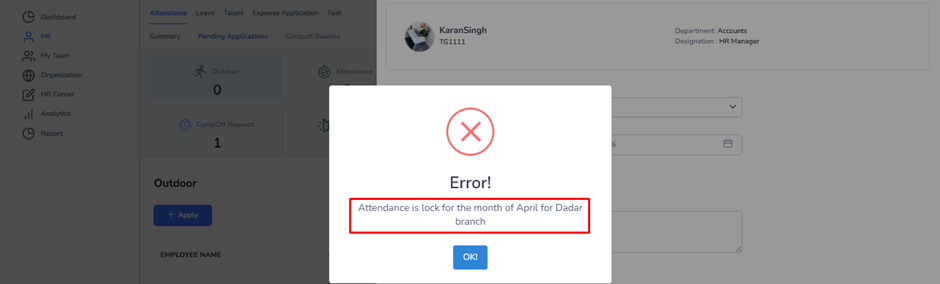
Configuration – Enabled

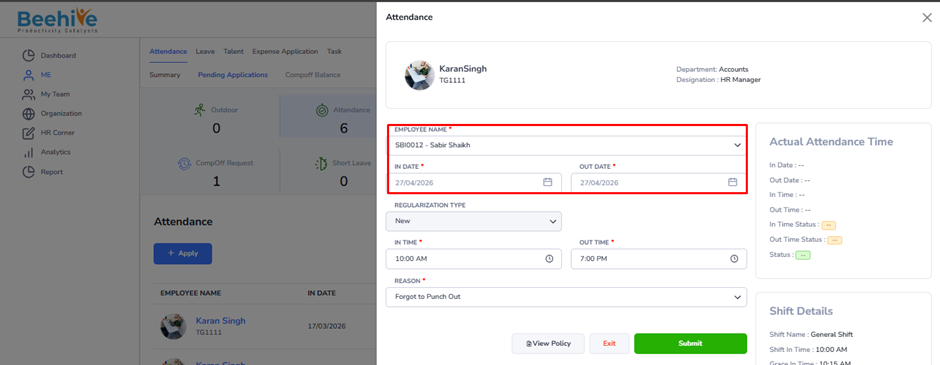
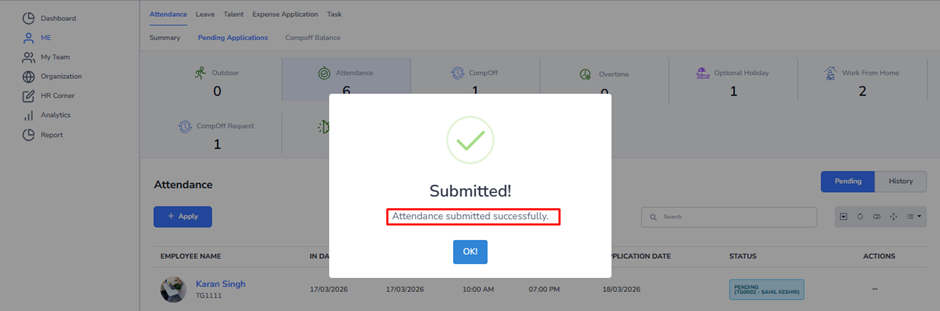
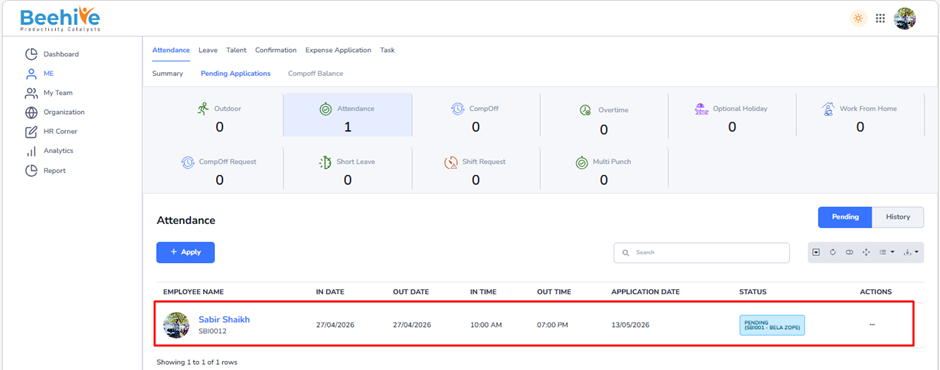
After HR clicks on the Submit button, the Attendance Application becomes visible on the employee side for reference and tracking of the application status.
2. Allow Manager to Approve – Managers can approve pending requests
Configuration – Disabled
system restricts manager to approve application of Employee
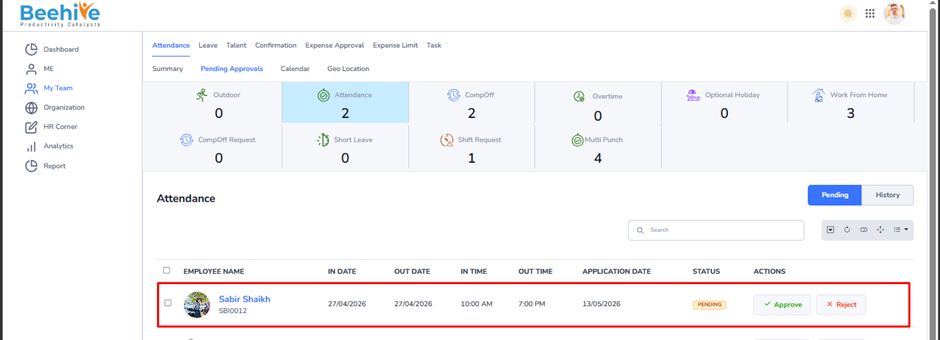
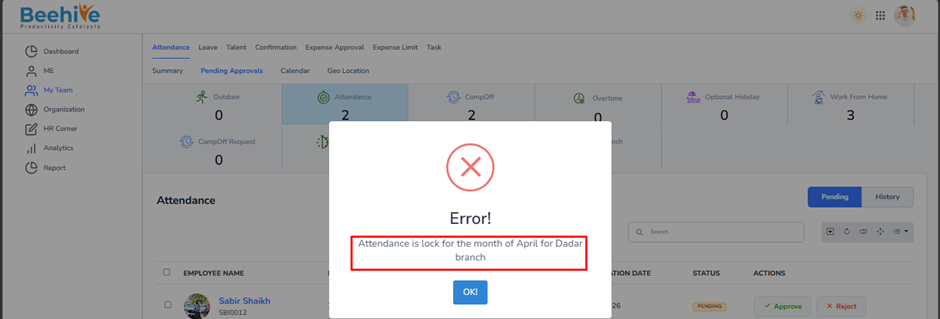
Configuration – Enabled

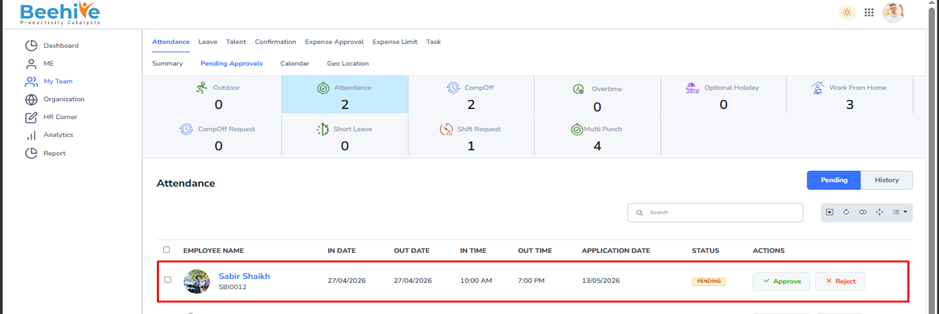
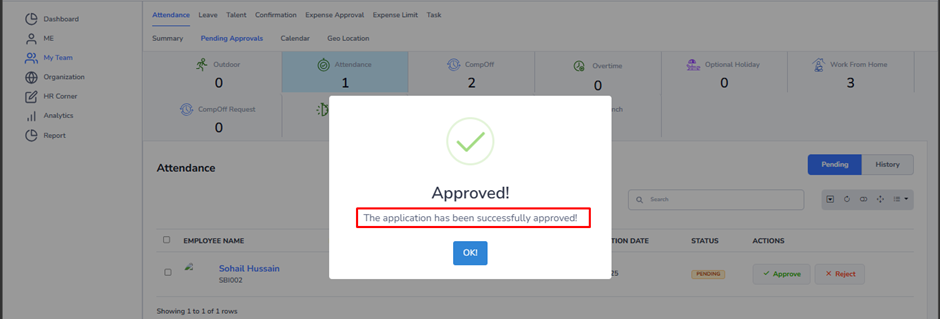
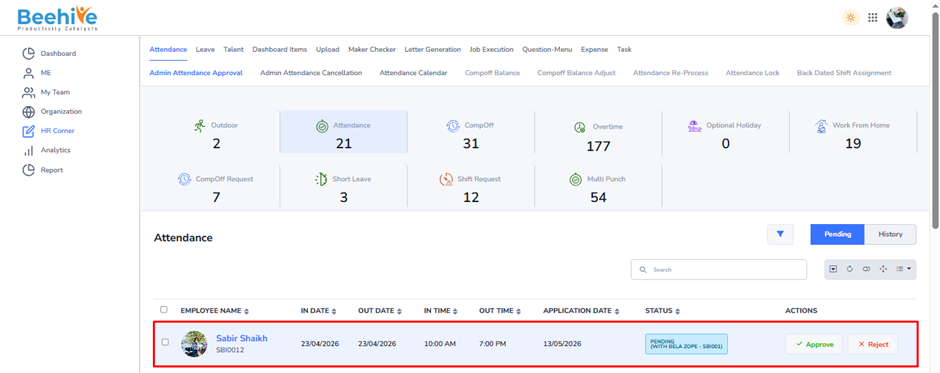
3. Allow Admin to Approve – Admin can approve attendance requests even after lock
Configuration – Disabled
system restricts HR to approve application of Employee
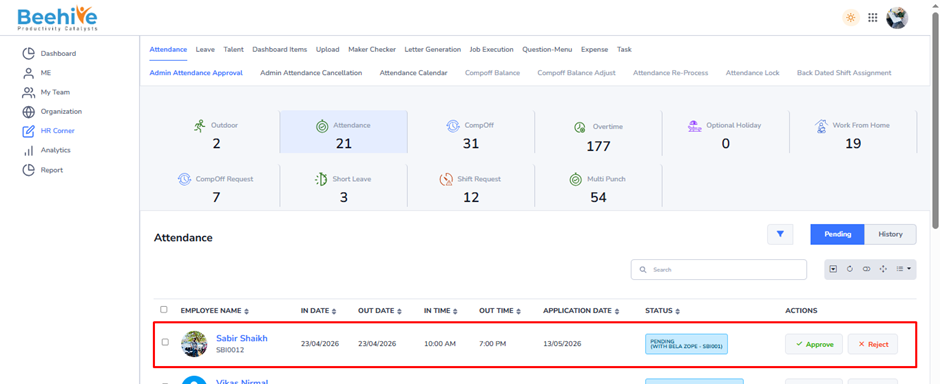
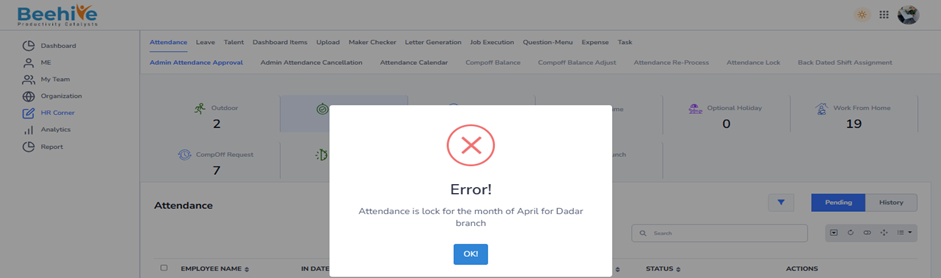
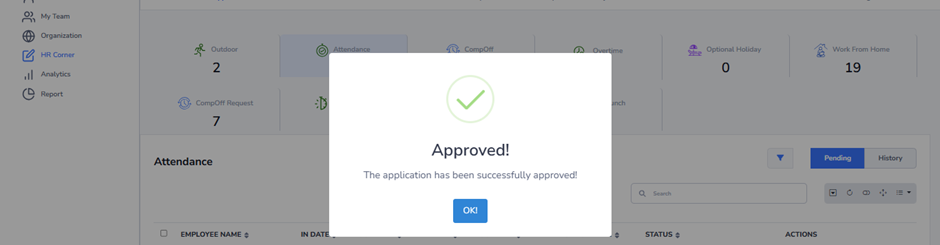
Configuration – Enabled