Attendance Status
The Attendance Status Upload feature allows HR or authorized users to update employee attendance status in bulk using a predefined template. This functionality is used to mark attendance status (such as Present, Absent, Week Off, Holiday, etc.) for multiple employees for specific dates without entering detailed in-time and out-time. The upload template consists of fields like Employee Code, In Date, and Status. Once uploaded, the system processes the data and updates the attendance records accordingly, ensuring accurate reflection in employee calendars and reports.
Benefits –
– Enables quick bulk update of attendance status.
– Reduces manual effort and saves time.
– Minimizes errors in attendance marking.
– Ensures consistency across employee records.
– Useful when only status update is required without time details.
Uses –
– Used to mark attendance during system implementation.
– Helpful for bulk updates like holidays, week-offs, or mass absences.
– Applicable when time data is not required or unavailable.
– Supports correction of incorrect attendance status.
– Ensures accurate attendance records for payroll and reporting.
Note –
– Only the following values are allowed in the Status field while uploading the Attendance Status sheet –“Present”, “WeeklyOff”, “Absent”, “Outdoor”, “Half Day Present”, “FirstHalf-OD”, “SecondHalf-OD”, “WFH”.
– Any other status value apart from the above will not be accepted by the system and may result in upload failure or data rejection.
– After uploading the Attendance Status sheet, the Attendance Job must be executed to reflect the changes in the employee’s calendar.
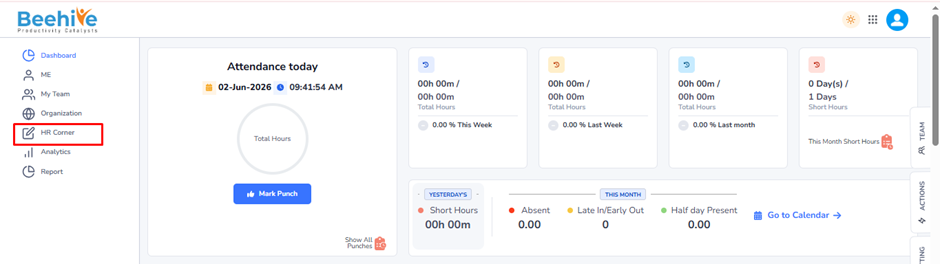
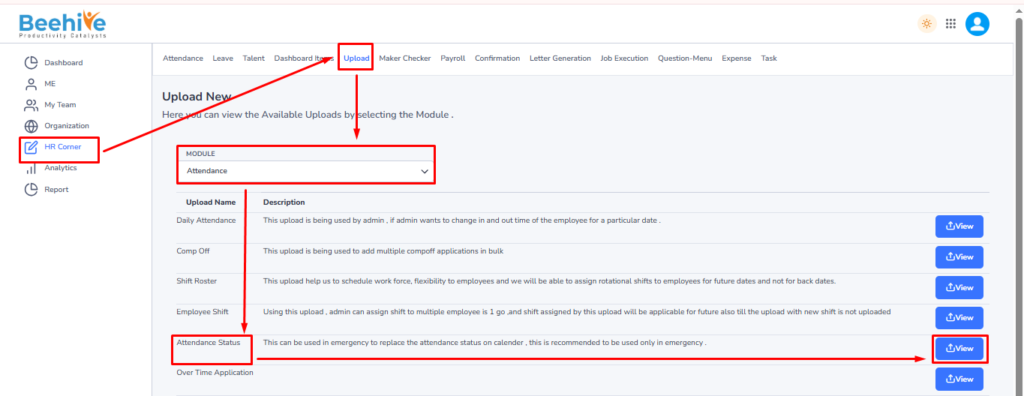
Navigation – Click on HR Corner –> Click on Upload tab –> Select Attendance Module –> Select File to Upload –> Click on View Button –> Upload File.
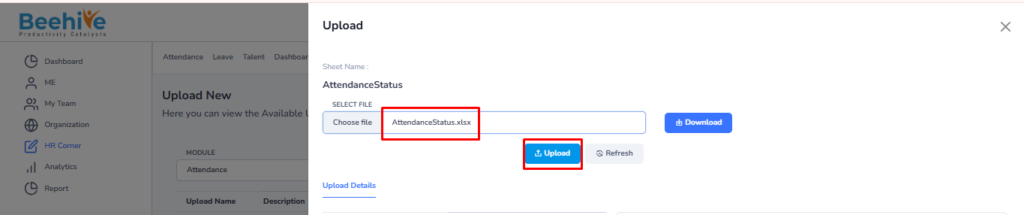
Click on Upload button and then select Attendance Module “Attendance Status” upload and then click on View button to perform the upload Functionality.
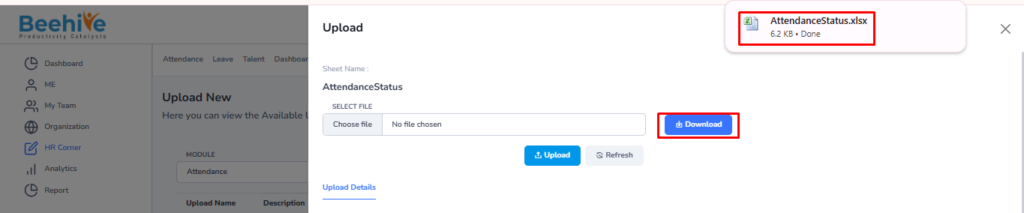
Click on Download button to download blank sheet for the Attendance Status upload.
Fill the Valid data in the Sheet.
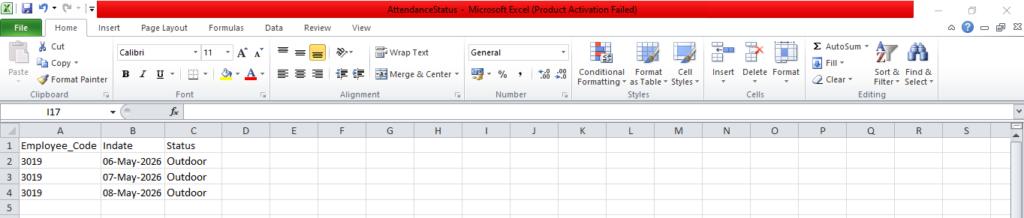
Save and Upload the File.
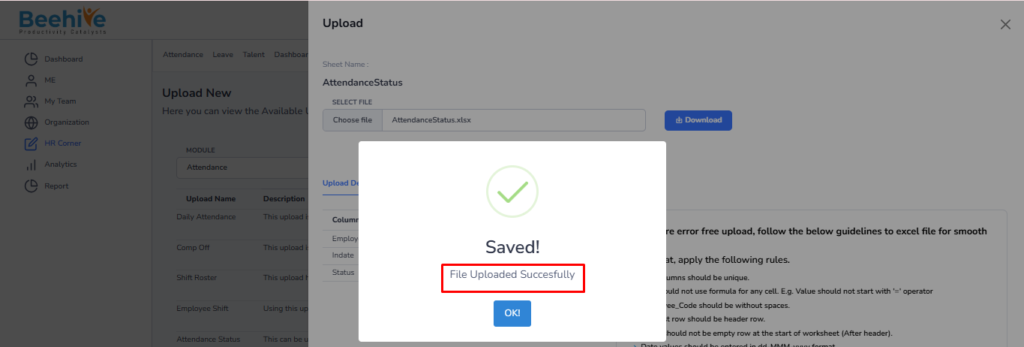
File Uploaded Successfully.
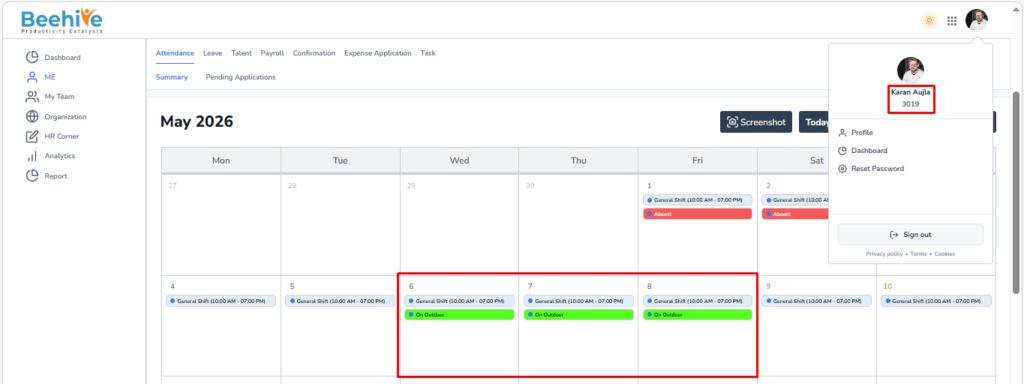
Employee’s Calendar Before Uploading Daily Attendance Upload
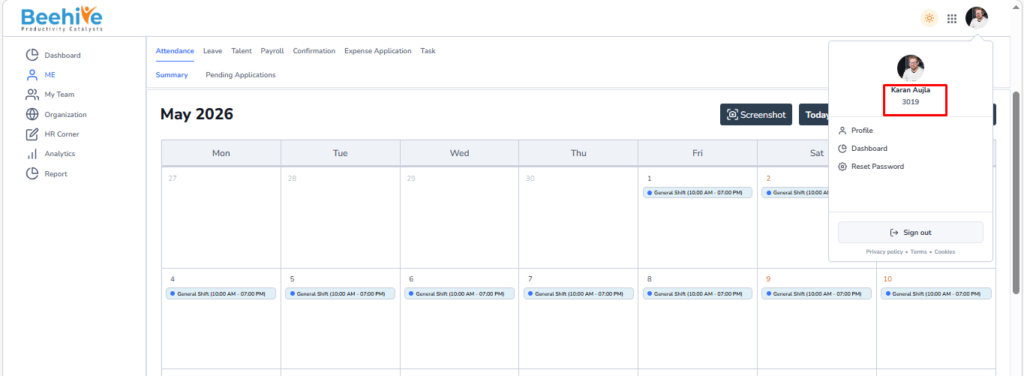
Impact on Employee’s Calendar after Uploading Daily Attendance Upload