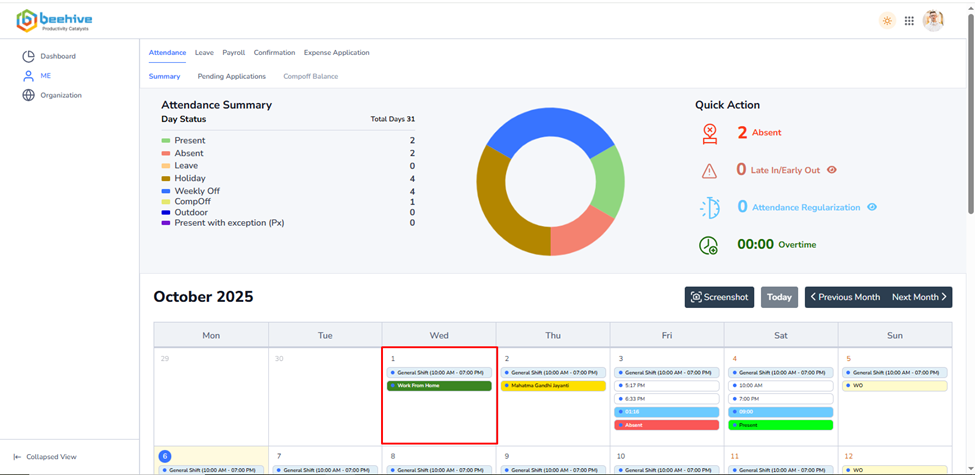
How to Approve for Work From Home?
From Where Manager can Approve?
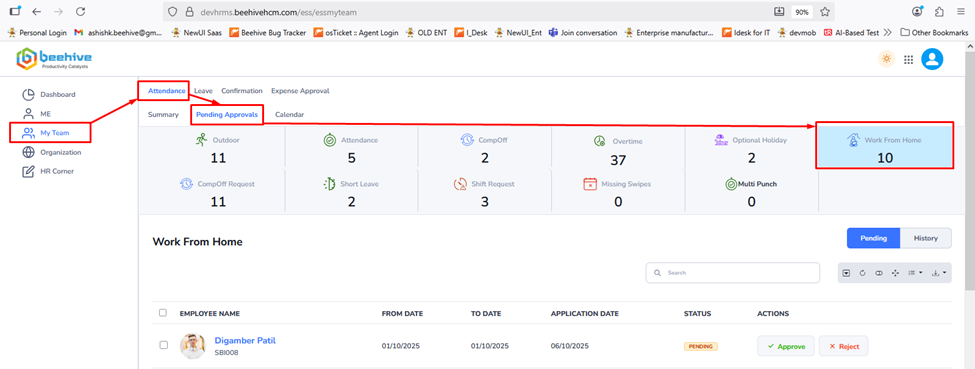
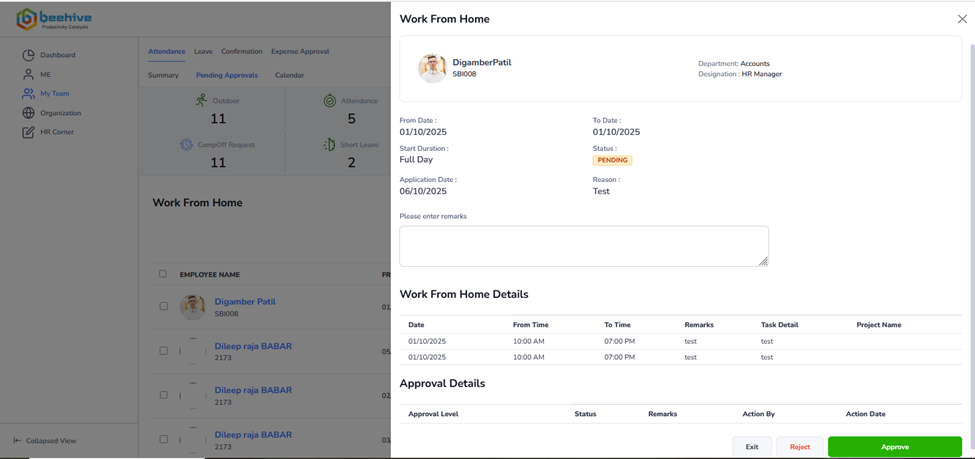
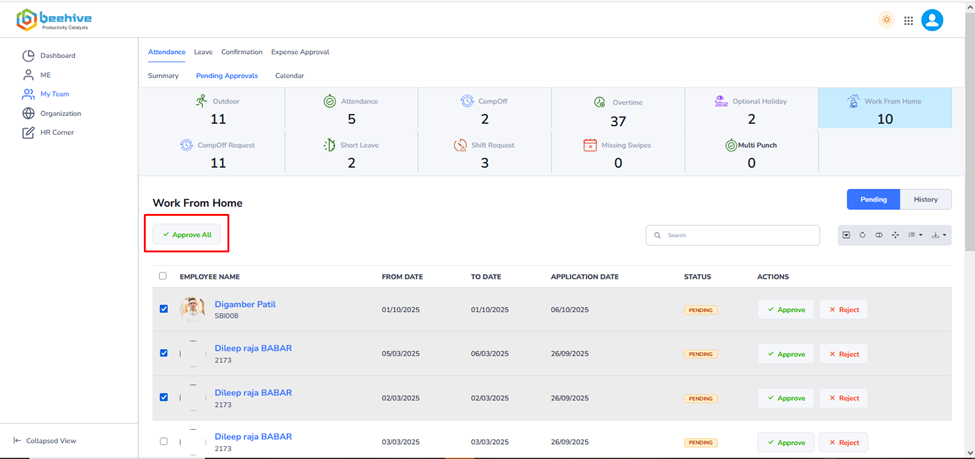
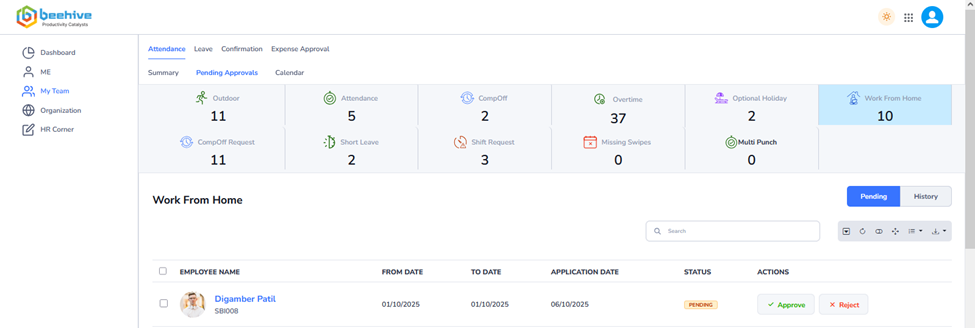
To manage attendance approvals, navigate to the My Team tab and select the Attendance module. Within this module, click on the Pending Approvals tab and then select Work From Approval. Here, the manager can view a comprehensive list of all applications awaiting their approval. Managers have the option to approve or reject applications directly from the index view or by opening and reviewing each application in detail.
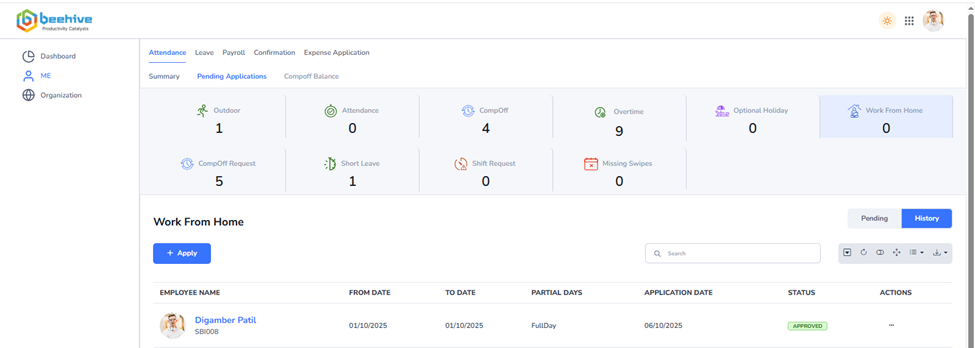
Once an application is either approved or rejected, it is automatically moved to the History section for record-keeping. In cases where there are two reporting levels, and the second level is the final approver, any application approved by the first reporting manager will then be displayed to the second-level manager for final approval. After the final reporting manager approves the application, the regularized attendance punches and the updated status will be reflected on the employee’s calendar once the Attendance Job is executed. This structured workflow ensures accurate attendance tracking and proper approval hierarchy.
Also, when Reporting manager Approves the application then E-mail gets triggered to the next level reporting manager. Or when final reporting manager approved the application, E-mail gets triggered to the Employee. When Reporting manager Rejects the application, E-mail gets triggered to the Employee.
Navigation –
Login -> MyTeam -> Attendance ->Pending Approvals -> Work From Home
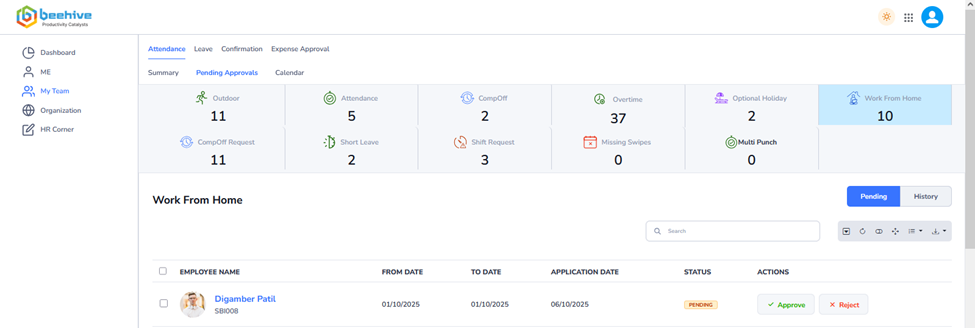
Managers also have the option to approve multiple WFH applications at once using the bulk approval feature. To use this functionality, the manager can select two or more application records from the Pending list. Once multiple applications are selected, the Approve All button becomes visible, allowing the manager to process all selected applications simultaneously.
By clicking the Approve All button, all chosen applications are approved in a single action, eliminating the need to open and approve each application individually. This not only saves time but also streamlines the attendance management process, especially when dealing with a large number of applications. Additionally, the system ensures that all approved applications are properly recorded in the History section and that the updated attendance status and regularized punches are reflected on the employees’ calendars after the Attendance Job runs. This feature enhances efficiency, reduces manual effort, and ensures consistent and accurate processing of attendance approvals across the team.
After attendance application Approved by Final Reporting Manager application is moved to history section on attendance application page.
Before final Approval.
After final Approval.
Additionally, once the Attendance Job is executed, the resulting updates and changes will be reflected on the employee’s attendance calendar.