How to Apply leave?
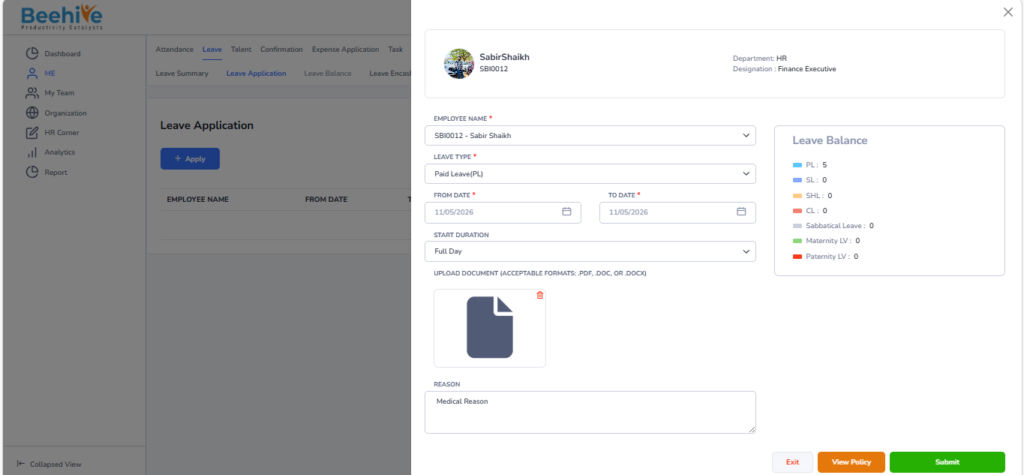
If an employee needs to take leave for a few days, they can apply through the Leave Application page. As shown below, the employee selects the leave type, From Date, To Date, and duration. The Leave Balance section shows the available balance for each leave type, helping the employee choose accordingly.
Prerequisites for Leave Balance Adjust –
1. Leave Group must be assigned to Employee
2. Leave Type must be configured for Assigned leave Group
3. Leave Period must be Active.
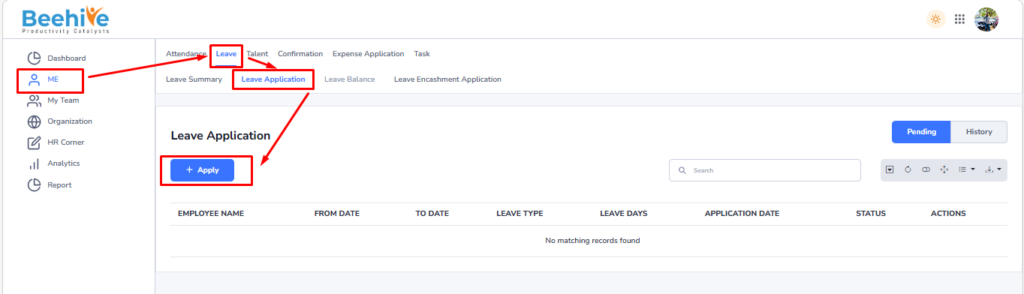
From Where Employee can Apply?
From this list, locate the specific Leave Application you want to apply and click on it.
After selecting the application, click on the Apply button to open the application page. This page will allow you to enter all necessary details, such as the Leave type, Date and reason for the request. This step-by-step navigation ensures that you can efficiently access, review, and submit your attendance application.
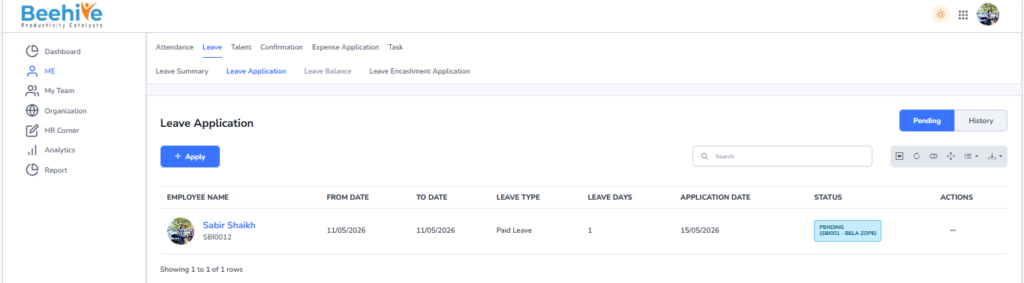
To View, Edit, or Delete an existing application, navigate to the Actions column and click on the Actions Menu icon. This menu provides various options to manage your submitted applications.
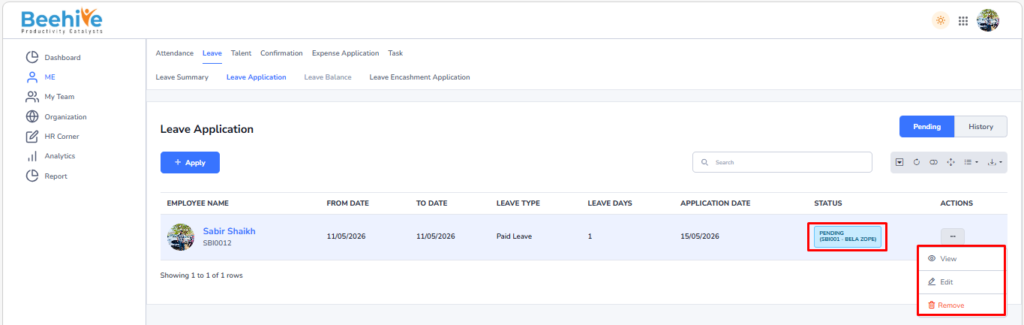
If the application status is Pending, you will see the Remove & Edit option available in the menu. This allows you to delete or edit the application before it is reviewed or approved by the concerned authority.
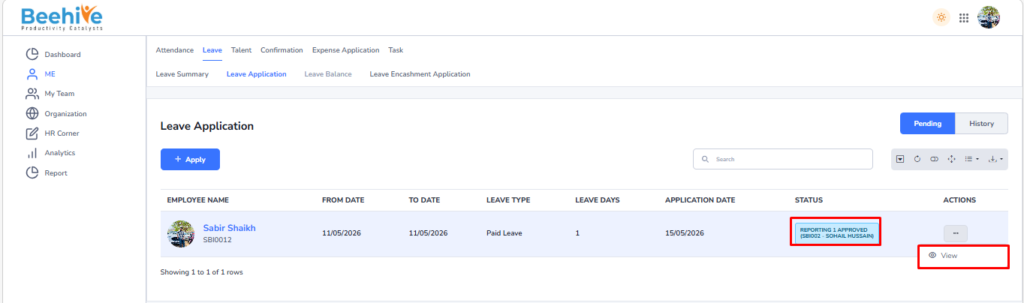
However, once the application has progressed to the Reporting 1 Approved or Reporting 2 Approved status, the Remove & Edit option will no longer be visible. At this stage, the application is already under review or approved, and hence, it cannot be deleted or modified.
This feature ensures that users can manage their applications efficiently while maintaining data accuracy and approval integrity within the system.