How to Apply for Work From Home?
The Work From Application allows employees to apply for working remotely from home or another location. It helps record and track remote work requests, ensures proper approval from reporting managers, and maintains accurate attendance and productivity records.
From Where Employee can Apply?
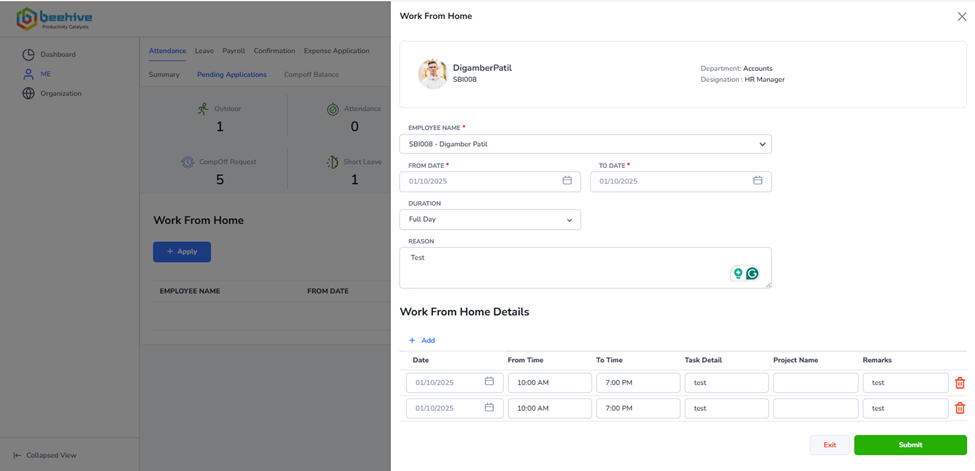
To apply and submit an attendance application, first navigate to the Me tab in our portal. Within this section, click on the Attendance module, which provides access to all attendance-related menus. Once inside the Attendance module, select the Pending Applications tab to view various application pages which you have access.
From this list, locate the specific Work From Home Application you want to apply and click on it. After selecting the application, click on the Apply button to open the application page. This page will allow you to enter all necessary details, such as the date, WFH details, reason for the request etc.
Navigation –
Login -> Me -> Attendance ->Pending Applications -> Work From Home-> Apply
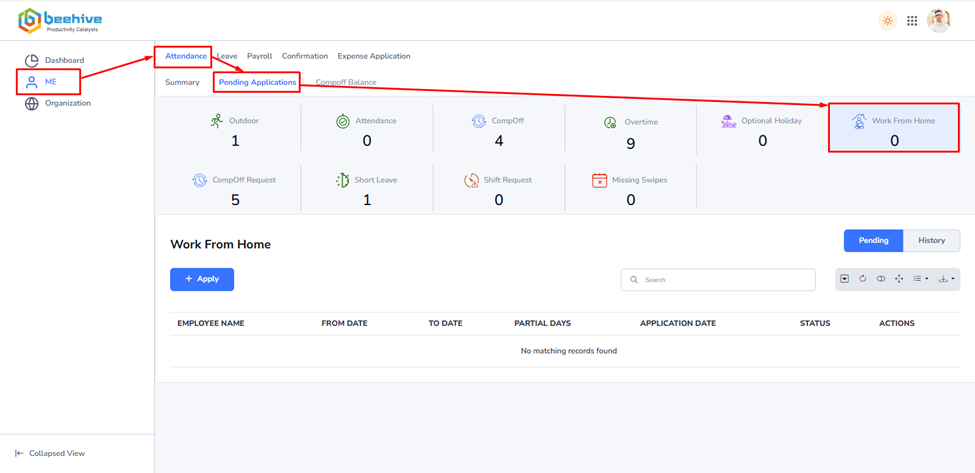
To submit an application, employees need to enter the From Date and To Date, which define the overall period for the WFH activity.
The Duration field allows selection of either a Full Day or Half Day for each date, while the Reason field is used to provide a brief explanation of the purpose of the activity.
Detailed information for each day is captured in the WFH Details Table, where employees can enter the Date, From Time, To Time, Task Detail, Project Name and any Remarks.
Multiple WFH entries can be added for the same date to record different activities or tasks. It is important to note that all WFH details must fall within the selected From Date and To Date; if any entry is outside this range, the system will prevent submission until corrected.
You can apply WFH for past or future days too, the system will allows you to apply for any time.
After entering all required information, the employee can click Submit, at which point the system validates the data and forwards the application to the reporting manager or Admin for approval. Once approved, the attendance record is updated accordingly. This structured process ensures transparency, accurate tracking of offsite work, and efficient approval workflows.
When an employee submits an application, an automated email notification is immediately triggered and sent to the respective Reporting Manager to inform them about the new request. At the same time, the submitted application becomes visible on the Work From Home Approval Page, where the manager can review all the relevant details, such as the employee’s name, date, reason, and WFH details. From this page, the Reporting Manager has the authority to either approve or reject the application. This process ensures that every application follows a structured approval workflow, maintaining transparency, accountability, and proper communication between the employee and their Reporting Manager.
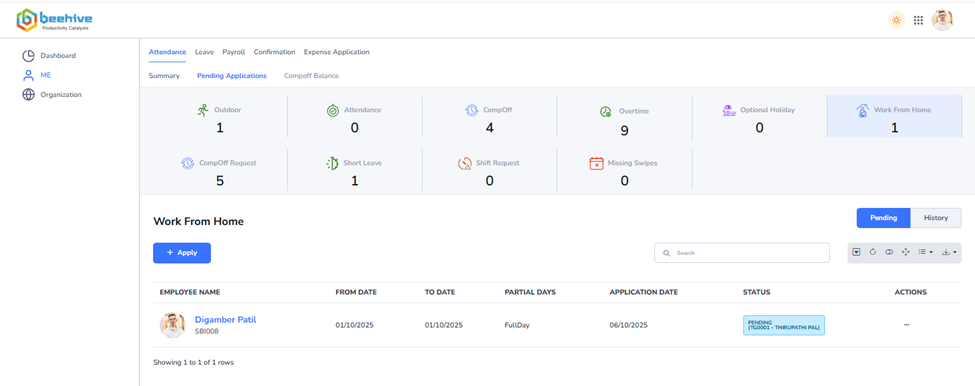
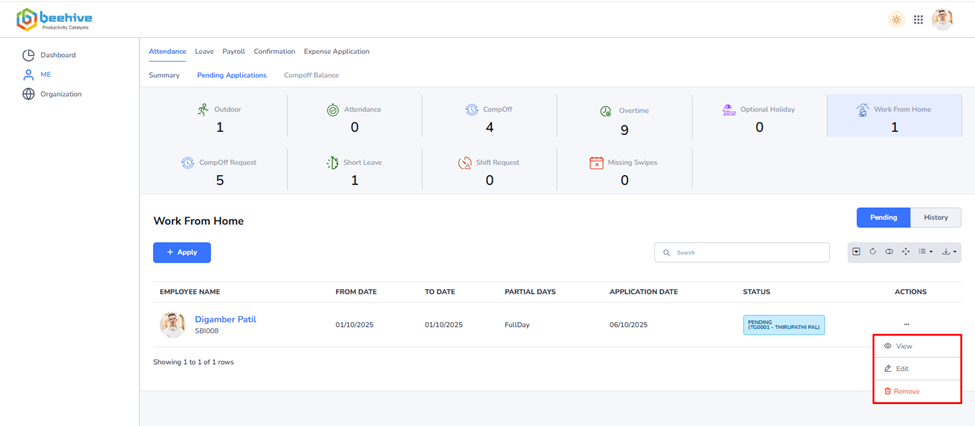
To View, Edit, or Delete an existing application, navigate to the Actions column and click on the Actions Menu icon. This menu provides various options to manage your submitted applications.
If the application status is Pending, you will see the Remove and Edit option available in the menu. This allows you to delete or an edit the application before it is reviewed or approved by the concerned authority.
However, once the application has progressed to the Reporting 1 Approved or Reporting 2 Approved status, the Remove and Edit option will no longer be visible. At this stage, the application is already under review or approved, and hence, it cannot be deleted or modified.
This feature ensures that users can manage their applications efficiently while maintaining data accuracy and approval integrity within the system.
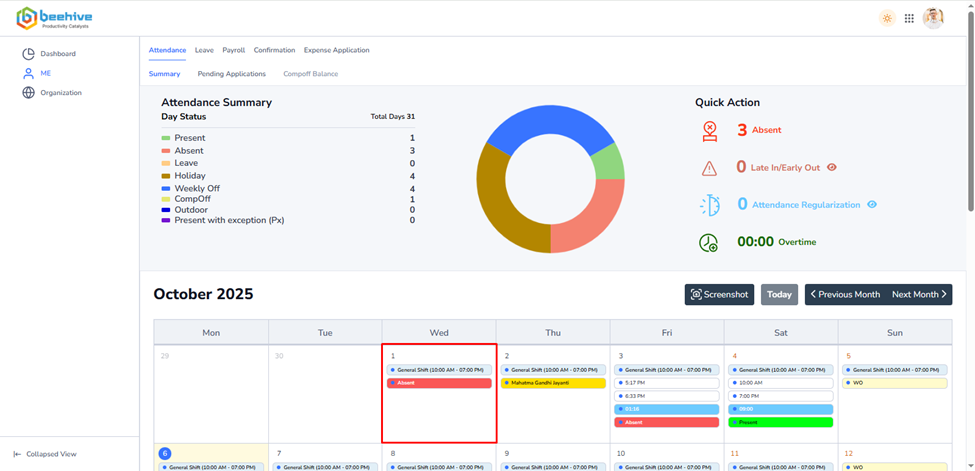
Daily Attendance status for the selected day.