How to Approve CompOff Application?
From Where Manager can Approve/Reject?
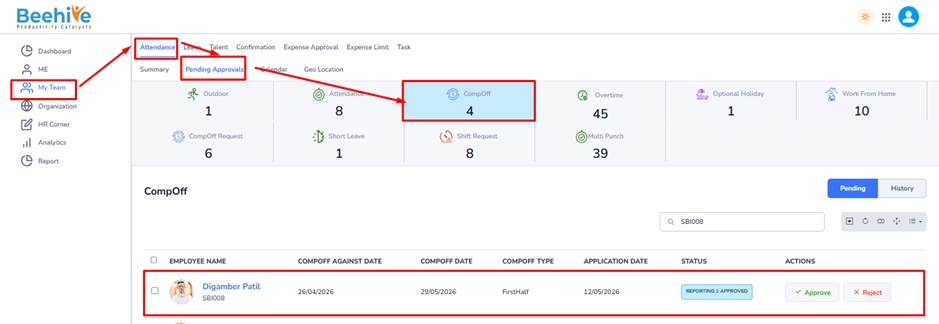
To manage Compoff approval, got to MyTeam tab and select the Attendance module. Then click on the Pending Approvals tab and select the Compoff Approval. This section displays a complete list of Compoff applications that require you action.
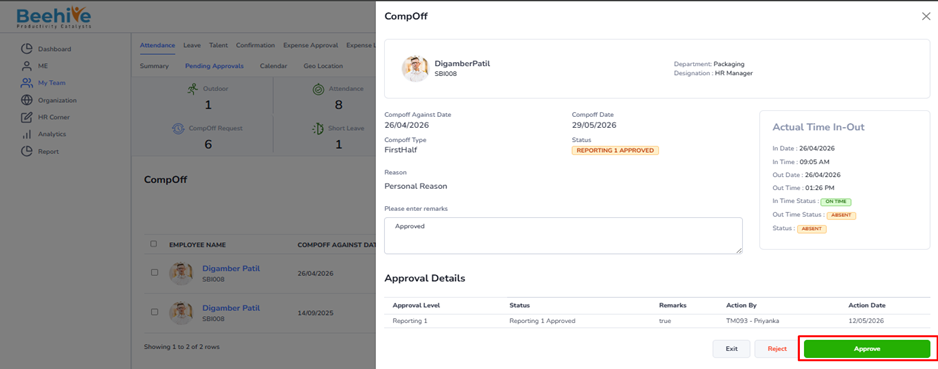
Managers can either approve or reject Compoffs directly from the list view or by opening each application to review the details.
Once an application is approved or rejected, it is automatically moved to the History section for record-keeping.
If your organization has a two-level approval process –
– After the first-level manager approved a request, it is routed to the second-level(final).
– Once the final approver approves the Compoff, the Compoff status is updated on the employee’s calendar after the Attendance Job runs.
Email Notification –
– When a reporting manager approves an application, an email notification is sent to the next-level reporting manager.
– When the final approver approves the application, an email is sent to the employee.
– If a reporting manager rejects the application, the employee also receives an email notification.
Navigation –
Login -> MyTeam -> Attendance ->Pending Approvals -> CompOff Application
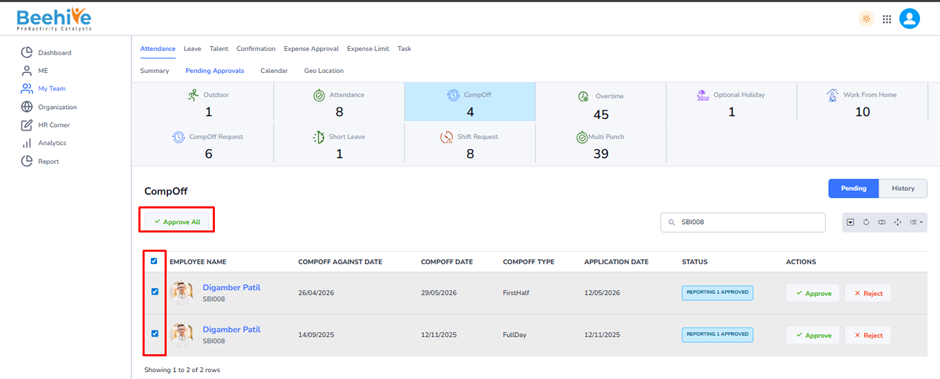
The Bulk Approval feature enables managers to approve multiple Compoff applications simultaneously, streamlining the approval process and saving time
How to Use the Bulk Approval –
– Navigate to the Pending Approvals List.
– Select two or more Compoff applications that require approval.
– Once multiple applications are selected, the Approve All button will become visible.
– Click Approve All to approve all selected applications in one action.
Benefits-
– Eliminates the need to open and approve each application individually.
– Simplifies attendance management, especially when processing a large number of requests.
– Ensures consistent and accurate Compoff approvals.
Post-Approval process –
All approved applications are logged in the History section.
– The system updates the Compoff status on each employee’s calendar automatically after the Attendance Job runs.
This feature supports efficient and accurate Compoff management with minimal manual effort.
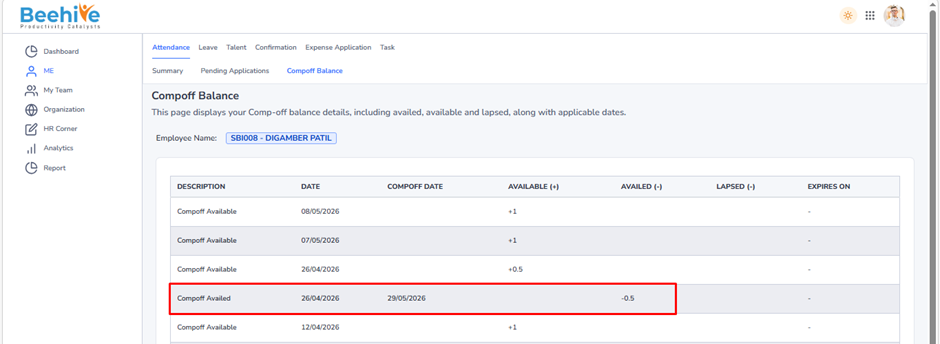
Once the CompOff application is approved, the applied CompOff status is reflected in the employee attendance calendar for the selected CompOff Date.
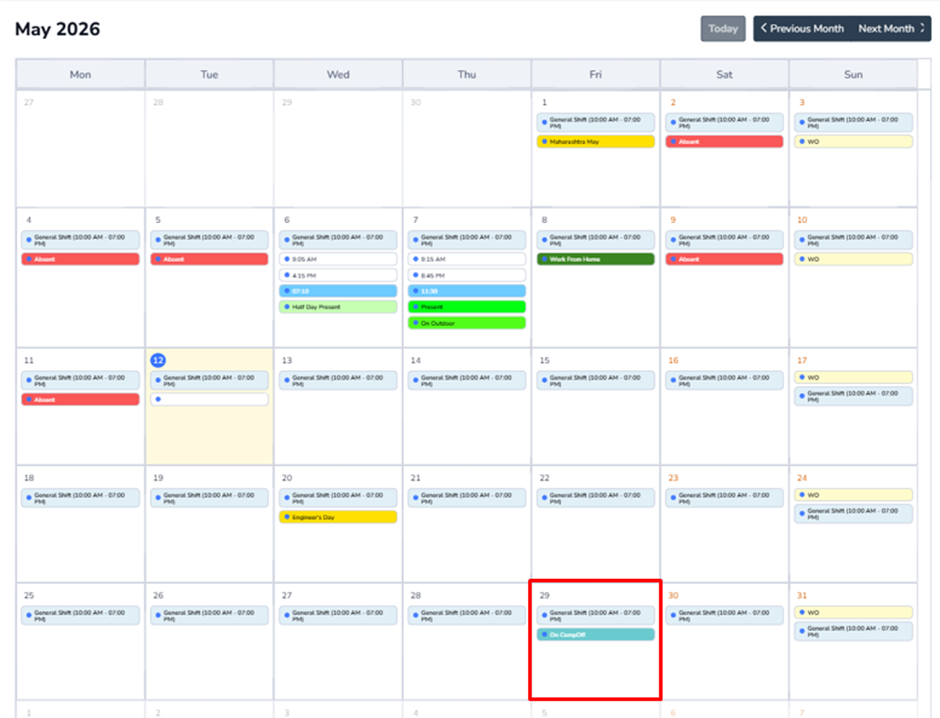
Note – After approval of the CompOff application, the applied CompOff balance will be deducted from the employee’s available CompOff Balance.