Geo Fencing & Tagging
Geo Location Configuration is used to create a Geo Fence for office or work locations. A Geo Fence is a virtual boundary created around a selected location on the map. Employees can mark attendance only when they are inside the allowed geo radius.
This feature helps organizations manage location-based attendance and prevents employees from marking attendance from unauthorized locations.
How It Works–
– Open the Geo Location Configuration page.
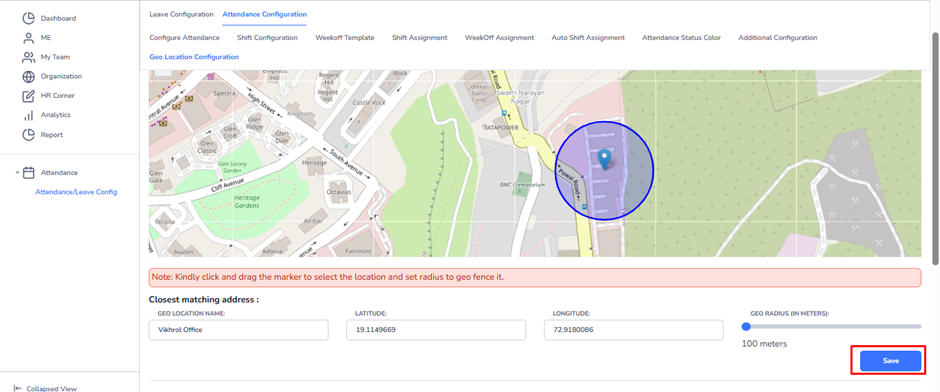
– Drag and place the marker on the required office or work location in the map.
– Enter the Geo Location Name for easy identification.
– Latitude and Longitude values will be captured automatically based on the selected location.
– Set the Geo Radius using the slider option.
– Click Save to create the Geo Fence.
Navigation –
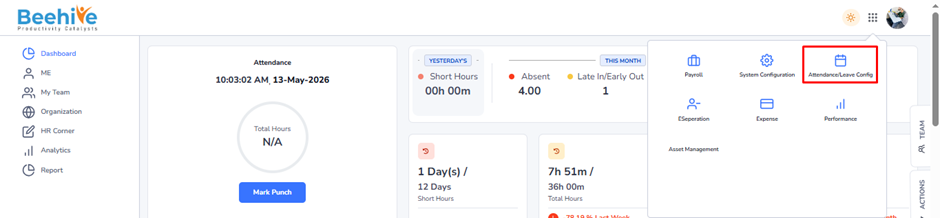
Module Box → Attendance → Attendance/Leave Config → Attendance Configuration →
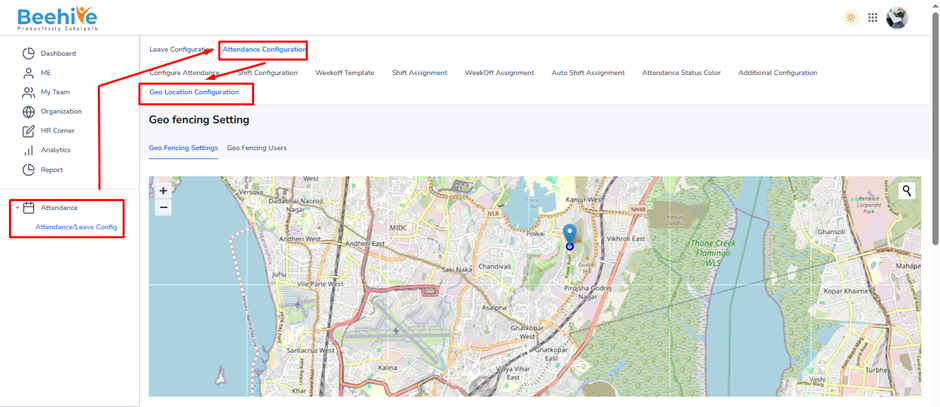
1. Geo Configuration –
Set up the Geo Location by selecting the office location on the map and defining the allowed attendance radius.
Geo Radius Limit –
Minimum Radius – 100 Meters
Maximum Radius – 1000 Meters
Purpose & Benefits –
– Restricts attendance marking outside the office area.
– Ensures employees mark attendance from valid work locations only.
– Useful for Head Office, Branches, Sites, Warehouses, and Client Locations.
– Helps improve attendance accuracy and tracking.
– Reduces fake or proxy attendance entries.
– Supports mobile-based attendance systems using GPS location.
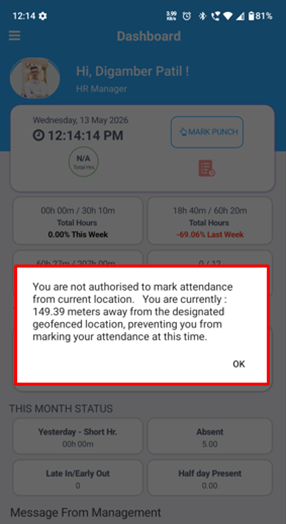
If an employee is outside the configured geo radius, attendance marking may not be allowed in the mobile application.
After selecting the location and setting the required Geo Radius, click on the Save button to save the Geo Fencing configuration successfully.

2. Geo Fencing Users –
The Geo Fencing Users section is used to assign configured Geo Locations to employees based on Company, Branch, Division, Work Location, Zone, or Department. Employees mapped here can mark attendance only within the assigned geo-fenced radius and validity period.
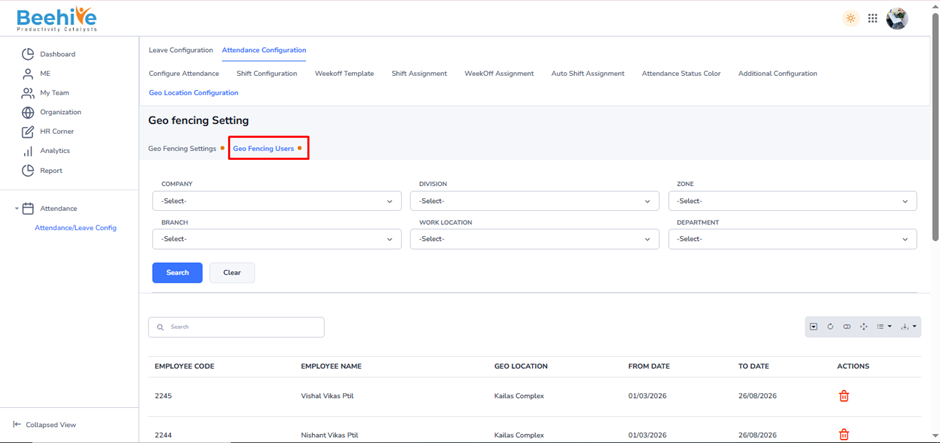
HR can filter employees using organization details such as –
1. Company
2. Division
3. Zone
4. Branch
5. Work Location
6. Department
After selecting the required filters, click on the Search button.
Result – The system will display all employees matching the selected organization criteria in the employee list section below.
HR can then –
– Select employees
– Assign Weekly Off Template
– Apply effective date for weekly off assignment
Select the employee, choose the required Geo Location, and define the From Date and To Date to assign the geo-fenced location for attendance marking within the selected period.


Before enabling Geo Fencing, employees can mark attendance punches from any location without location restrictions.
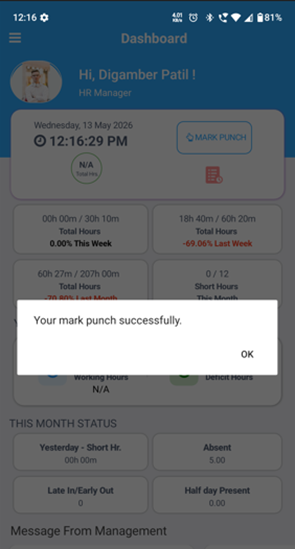
After enabling Geo Fencing, the system restricts employees from marking attendance punches unless they are within the assigned geo-fenced location and allowed radius.