
Overtime (OT) Configuration
Overtime (OT) configuration in an HRMS system is used to manage and calculate extra working hours done by employees beyond their regular shift time. This setup helps ensure that employees are properly compensated or tracked for working additional hours.
HR can also configure how OT is calculated (fixed rate or multiplier), and whether it applies on weekends or holidays. An approval workflow is usually set so managers can review and approve requests.
Once configured, employees can apply for OT through the system. After approval, the OT hours are recorded and included in payroll, ensuring accurate payment and compliance with company policies.
To begin, HR must enable the OT feature and ensure that “Overtime Applicable” is set to “Yes” in the employee’s remuneration details. Then, rules are defined such as when OT starts (before or after shift), minimum eligible duration, and maximum allowed hours.
Navigation Path –
Login → Module Box → Attendance/Leave Config → Attendance Configuration → Shift Configuration → Action → OT Configuration
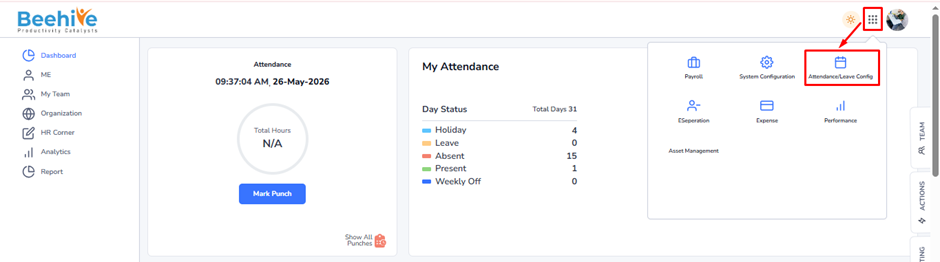
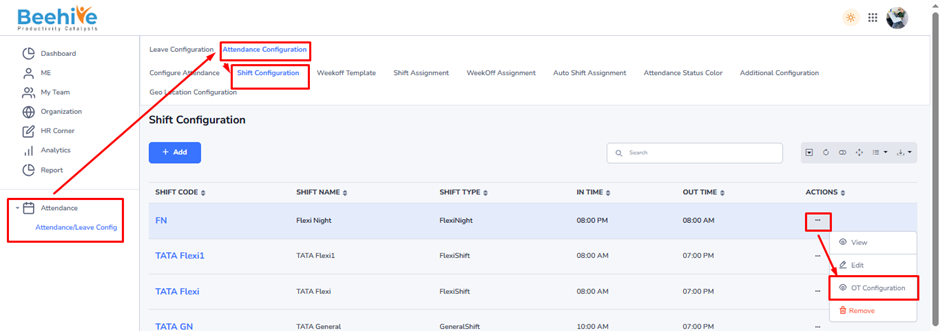
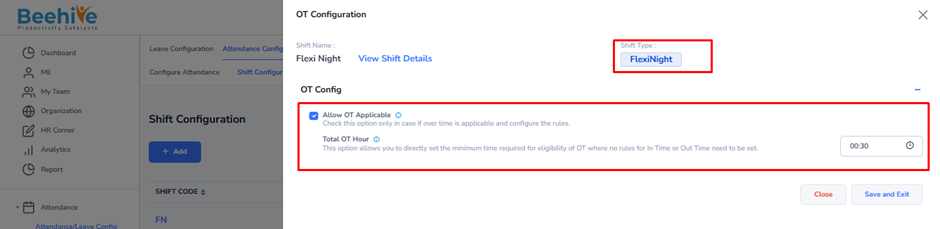
1. OT Configuration for Flexi & Flexi Night Shift –
Allow OT Applicable – Enable this option to allow overtime for employees in Flexi & Flexi Night shifts.
Total OT Hour –
– Defines the minimum extra time required to qualify for OT.
– Example: If set to 00:30, OT is counted only if extra work ≥ 30 minutes.
No strict In/Out time rules are used since the shift is flexible.
OT eligibility is based on total extra working duration.
Use –
– Suitable for organizations with flexible working hours.
– Helps track extra effort without strict shift timings.
– Used in IT, consulting, remote teams.
Benefits –
– Simple OT calculation (no complex rules)
– Fair tracking of extra work
– Reduces disputes on OT eligibility
– Easy to manage for HR and employees
– Ensures accurate payroll processing
Example –
Employee works in Flexi Shift
Expected working hours – 8 hours
Actual working hours – 8 hours 20 minutes
OT setting – Minimum 30 minutes
Result –
– Extra time = 20 minutes → Not eligible for OT
If employee works 8 hours 45 minutes –
– Extra time = 45 minutes → Eligible for OT (45 minutes counted)
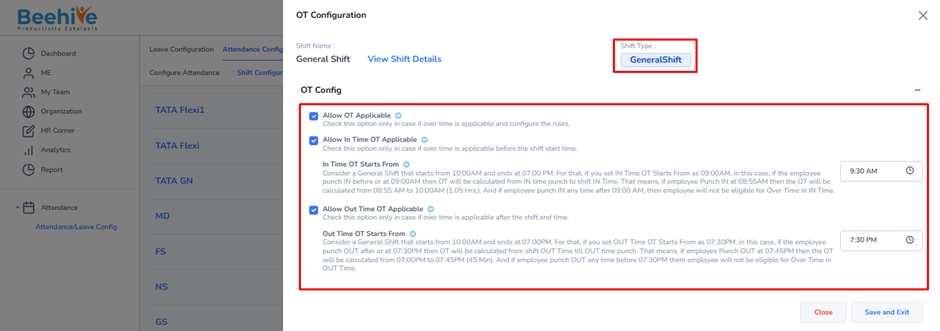
2. OT Configuration for General & Night Shift –
Allow OT Applicable – Enables overtime for employees in this shift.
Allow In Time OT Applicable – OT is calculated if an employee comes early before shift start.
In Time OT Starts From –
– Defines from what time early login will be considered as OT.
– Example – If set to 9:30 AM, only time before 9:30 AM is counted.
Allow Out Time OT Applicable -OT is calculated if an employee stays late after shift end.
Out Time OT Starts From –
– Defines from what time late working is counted as OT.
– Example: If set to 7:30 PM, OT is counted after this time.
Example –
Shift Timing: 10:00 AM to 7:00 PM
Case 1 – Early Login (In Time OT) –
– Employee logs in at 8:55 AM
– OT starts from 9:30 AM
OT = 8:55 AM to 10:00 AM = 1hr 5 mins
Case 2 – Late Logout (Out Time OT)
– Employee logs out at 7:31 PM
– OT starts from 7:30 PM
OT = 7:00 PM to 7:31 PM = 31 mins
Case 3 – Not Eligible
Logs in at 9:40 AM = No OT (after 9:30 AM)
Logs out at 7:20 PM = No OT (before 7:30 PM)