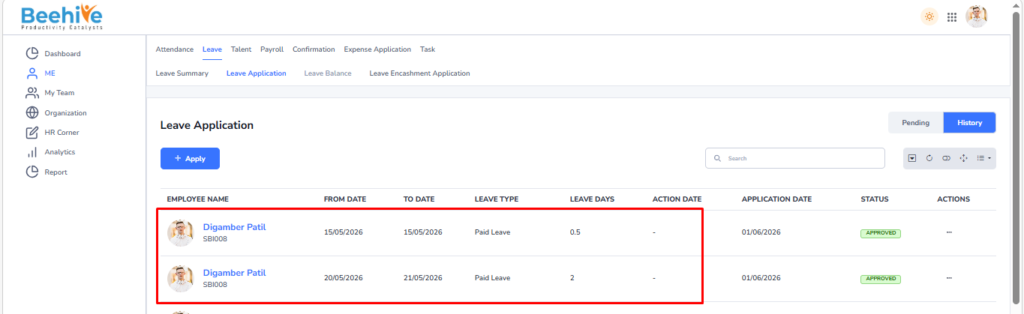
Bulk Leave Upload
The Bulk Leave upload feature allows HR or authorized users to apply leave for multiple employees in a single upload. This functionality is primarily used during the implementation phase or in exceptional cases where leave records need to be created in bulk. Using a predefined upload template, HR can input employee details, leave type, date range, and other required information to process multiple leave applications at once. It helps streamline the process of recording historical or mass leave data efficiently. However, it is generally not recommended for regular use once the system is live, as employees are expected to apply for leave individually through the HRMS portal.
Benefits –
– Enables bulk creation of leave applications in one upload.
– Saves time and effort during implementation or data migration.
– Reduces manual entry and administrative workload.
– Ensures uniform data entry across multiple employees.
– Helps in quick setup of historical leave records
Uses –
– Used during HRMS implementation to upload past leave data.
– Helpful for migrating leave records from legacy systems.
– Applicable in case of mass leave updates (e.g., company-wide leave).
– Useful for correcting or adding multiple leave entries at once.
– Supports HR in maintaining complete and accurate leave history.
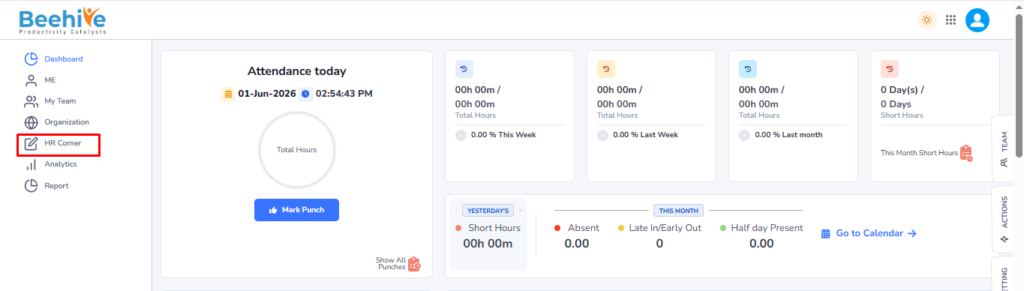
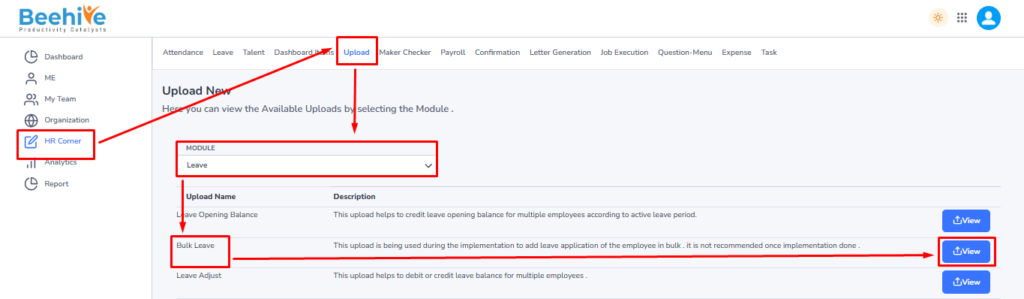
Navigation – Click on HR Corner –> Click on Upload tab –> Select Leave Module –> Select File to Upload –> Click on View Button –> Upload File.
Click on Upload button and then select Leave Module “Bulk Leave” upload and then click on View button to perform the upload Functionality.
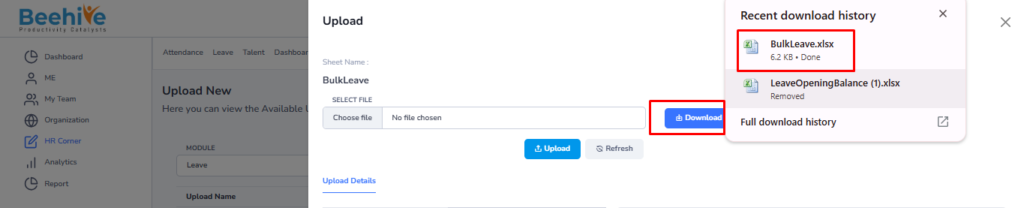
Click on Download button to download blank sheet for the Bulk Leave Upload.
Fill the Valid data in the Sheet.
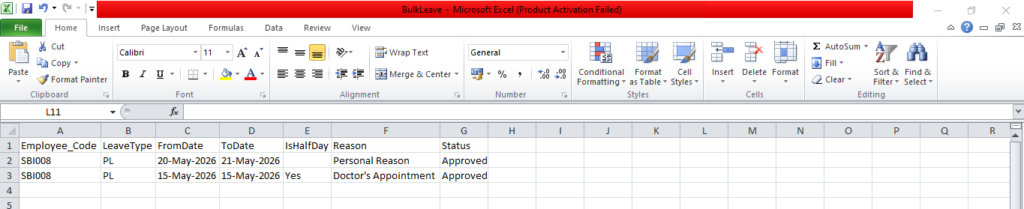
Note –
– The Status field in the Bulk Leave upload template can have only one value“Approved”.
– after Approved is selected, the leave will be auto-approved and directly reflected in the employee’s leave records.
Save and Upload the File.
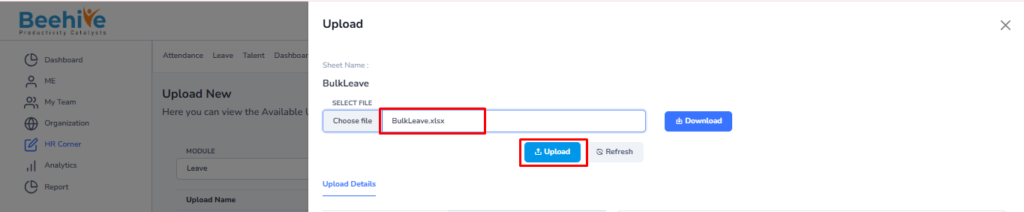
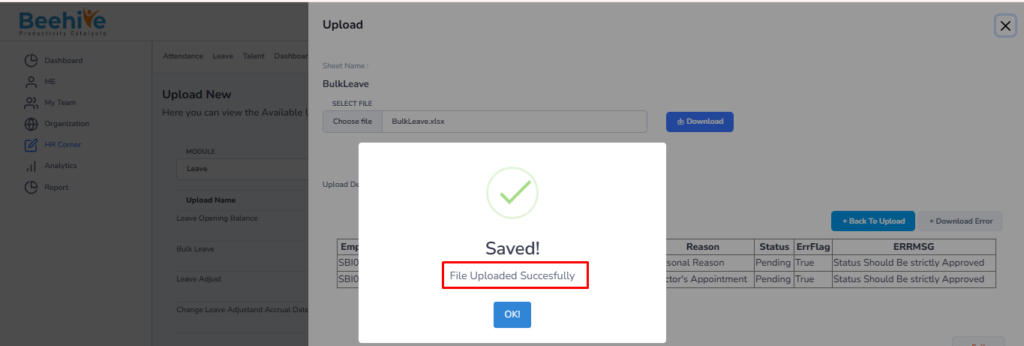
File Uploaded Successfully.
Uploaded Data visible in the Employees Leave Application.