Regularization Upload
The Regularization Upload feature allows HR or authorized users to update or correct employee attendance records in bulk by uploading regularization entries. This functionality is used when employees have missed punching in/out, incorrect timings are recorded, or attendance needs correction due to genuine reasons. The upload template includes fields such as Employee Code, In Date, In Time, Out Date, Out Time, Application Status, and Reason. Based on the provided status, the system processes the regularization request either as pending for approval or directly approved, ensuring accurate attendance records in the system.
Benefits –
– Enables bulk correction of attendance records.
– Reduces manual effort and administrative workload.
– Ensures accurate in-time and out-time records.
– Minimizes errors in attendance data.
– Supports streamlined approval workflow
Uses –
– Used to correct missed or incorrect attendance punches.
– Helpful during bulk attendance regularization requests.
– Applicable when biometric/system errors occur.
– Supports updating multiple employee records in one go.
– Ensures accurate attendance data for payroll and reporting
Note –
– The Application Status can be set as “Pending” or “Approved”.
– If marked as Pending, it will go through the approval workflow; if Approved, it will be auto-approved and updated in the system.
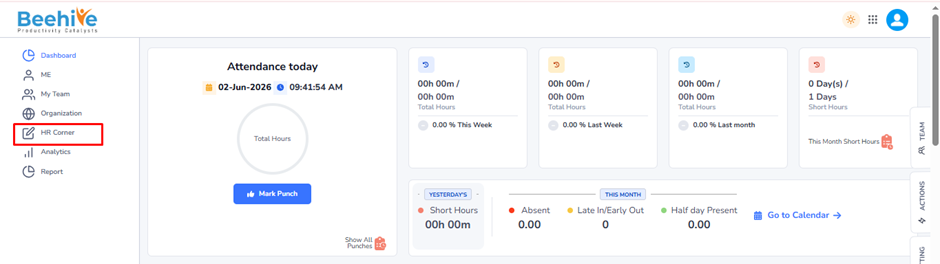
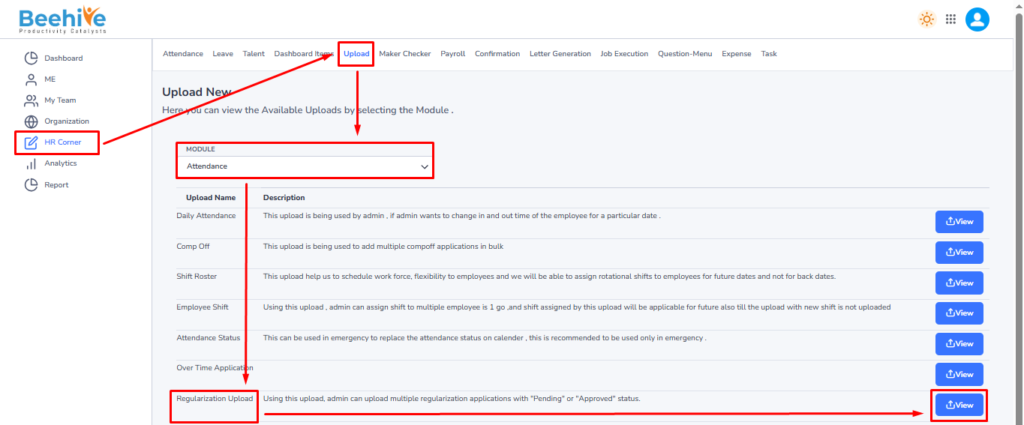
Navigation – Click on HR Corner –> Click on Upload tab –> Select Attendance Module –> Select File to Upload –> Click on View Button –> Upload File.
Click on Upload button and then select Attendance Module “Regularization Upload” and then click on View button to perform the upload Functionality.
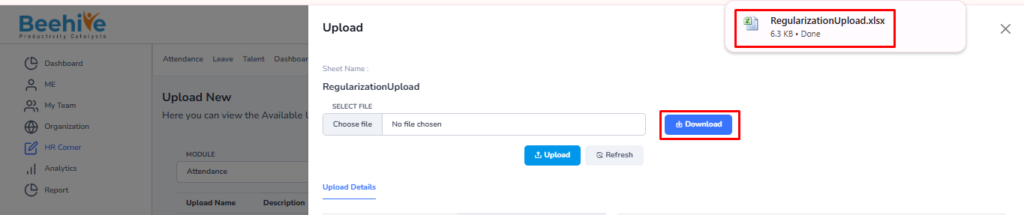
Click on Download button to download blank sheet for the Regularization upload.
Fill the Valid data in the Sheet.
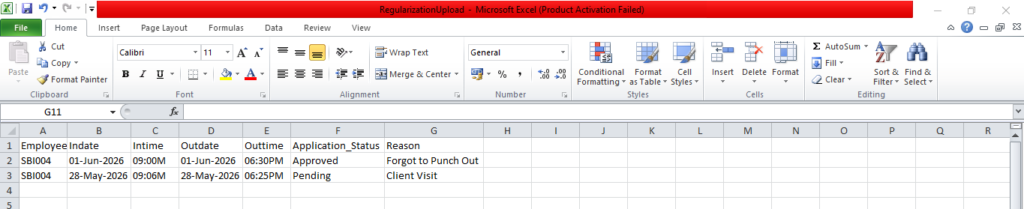
Save and Upload the File.
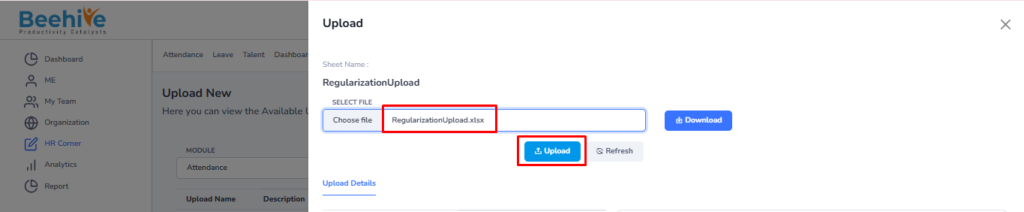
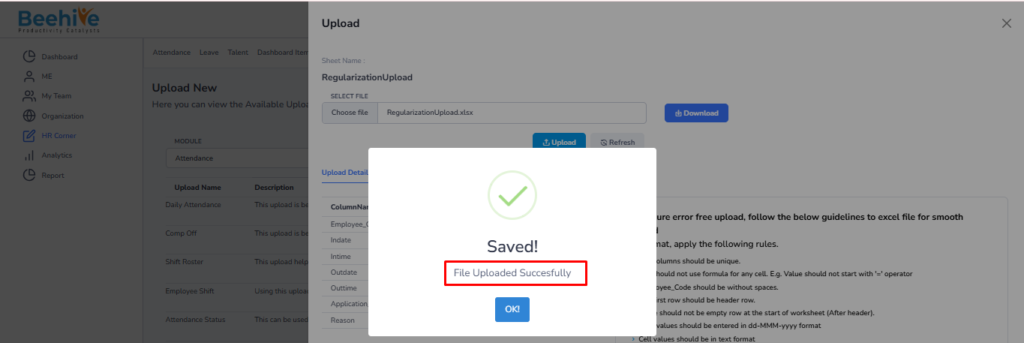
File Uploaded Successfully.
Employee’s Calendar Before Uploading Regularization Upload
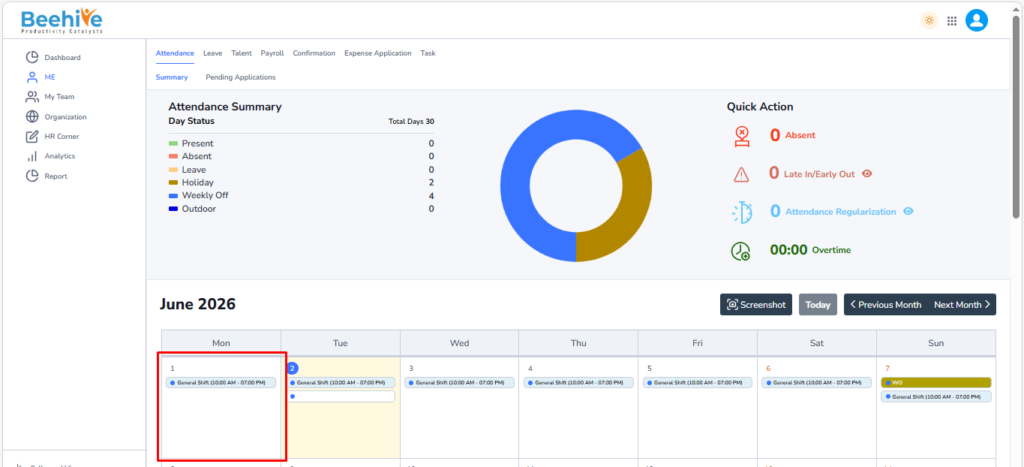
Employee’s Calendar After Uploading Regularization Upload
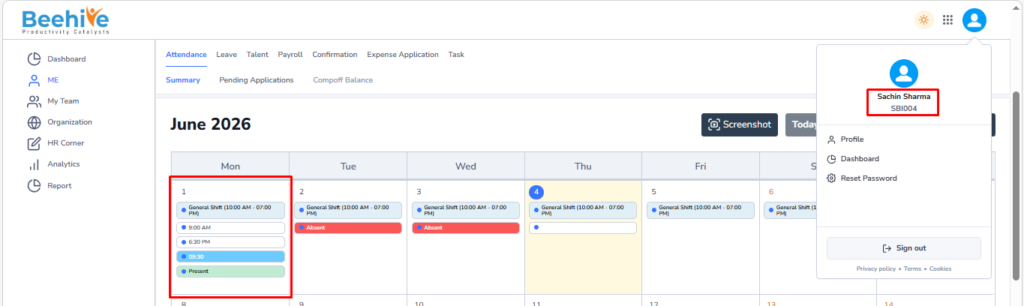
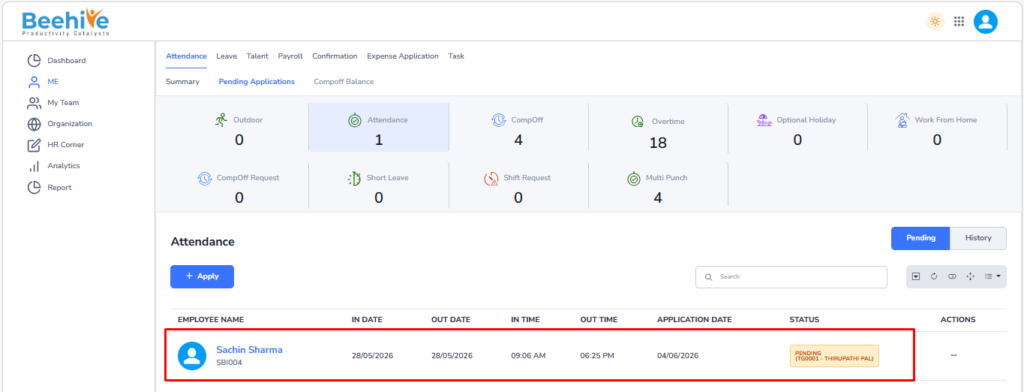
After uploading a Regularization request, if the attendance status is marked as “Pending”, the record will be displayed under the Attendance Application section, as shown below.