Multi Punch
Multi-punch Feature Works for Web, Biometric & Mobile Applications. There is no configuration page to provideaccess of the multi-punch feature for a particular profile, we will give access through module profile mapping. At time, only one feature will work, if we give access to multi punch then the “In time” and “Out time” buttons won’t bevisible on the “daily attendance page”,”dashboard”, “mobile application dashboard” and “mobile daily attendance”page for that profile.
The employee’s 1 st “In time” punch will be his In time for the day and the employee’s last “Out time” punch will be the final out time for the day. When we execute the attendance job then IN Time and Out Time will be fetched on the daily attendance page. We will define total working hours based on IN time Out time total hours.
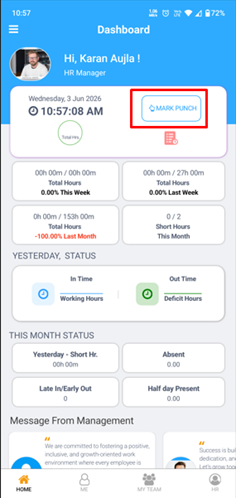
Mobile Application –
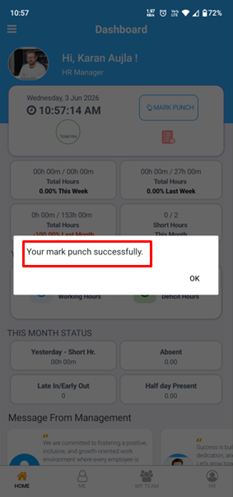
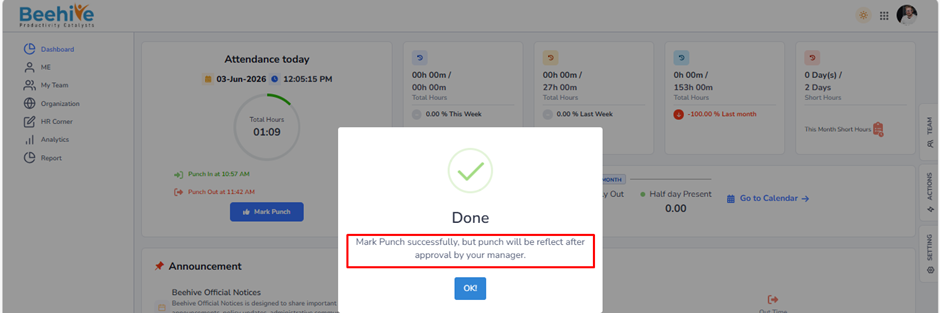
Pop-up is displayed after employee mark’s punch
After punching through the mobile application, the employee can view their punches by clicking on the “Punch Details” button.
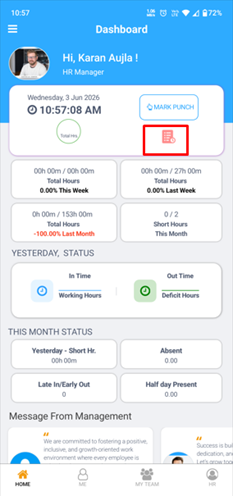
This section displays the employee’s punch details.
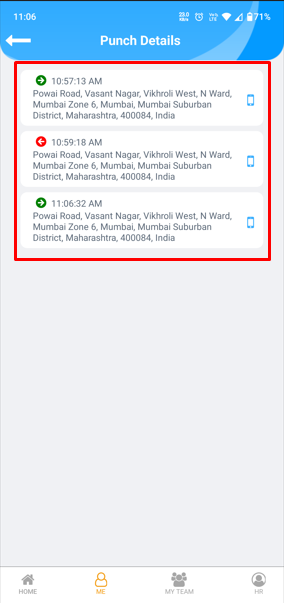
The same functionality is available on the Web Application.
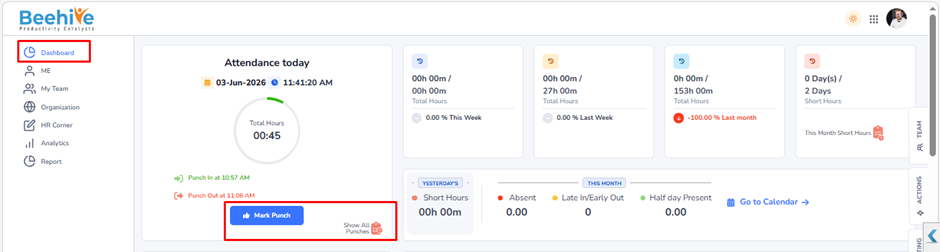
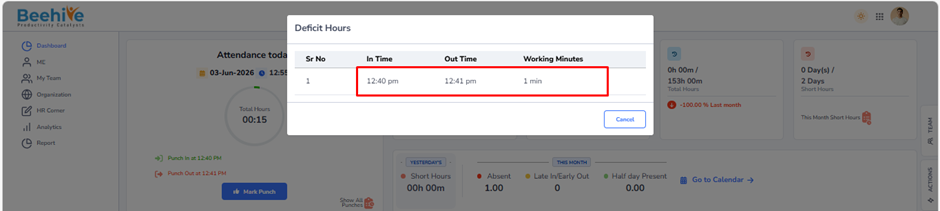
After punching through the web application, the employee can view punches by clicking on the “Show All Punches” button.
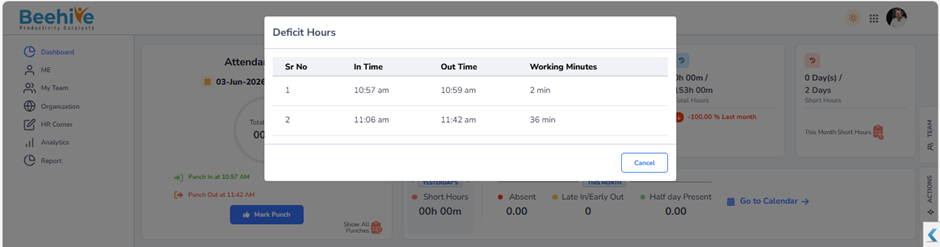
Multi Punch Approval flow –
For approval flow, 1st we need to set the value “Yes” for IsMultipunchApproval in the application setting. Then only all the punches will get displayed in the Multipunch Application menu. Otherwise, all the punches directly will get displayed in the Multipunch menu.
When an employee punches then all the punches will directly get visible on the multi-punch application page and similar punches will get displayed on the Multipunch approval page to the Reporting manager. Then Reporting manager Approves the In Out punches, so only those approved punches will get displayed on the multi-punch page as well as the calendar after the job run.
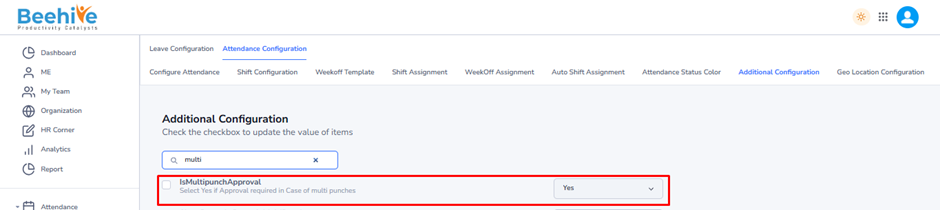
Message on Pop-up after employee click on Mark Punch button.
Multi Punch Application –
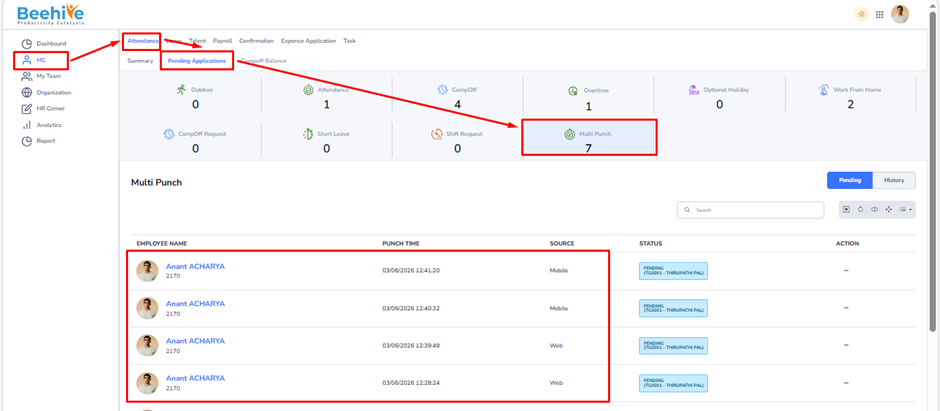
After marking punches, the records will be displayed in the Multi Punch Application.
Note – A new multi punch record is created and displayed for each punch entry.
Navigation –
Login -> Me -> Attendance ->Pending Application -> Multi Punch
Multi Punch Approval –
After multiple punch records are generated, they are displayed in the Multi Punch Approval section for review. The concerned approver can verify and take action on each punch entry. Once the records are approved, they are successfully processed and reflected in the system. After approval, all the finalized punch records become visible in the Punch Details section. This ensures proper validation and accuracy of punch data before it is considered for attendance calculations. The approval workflow helps maintain transparency and prevents incorrect or unauthorized punch entries from being recorded in the final attendance data.
Navigation –
Login -> My Team -> Attendance -> Pending Approvals -> Multi Punch
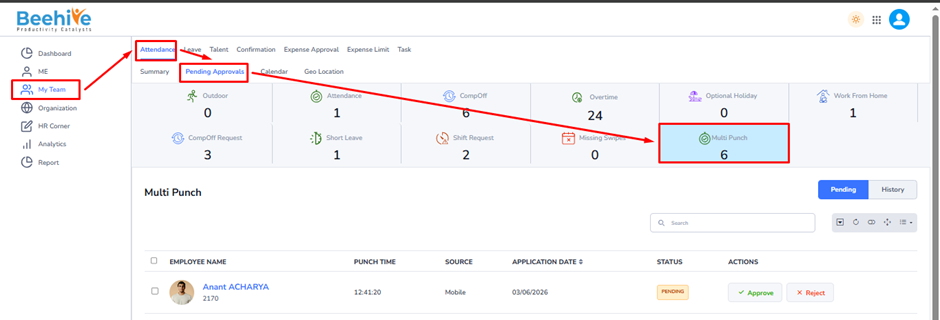
Managers have the ability to review employee punch entries through the Multi Punch Application.
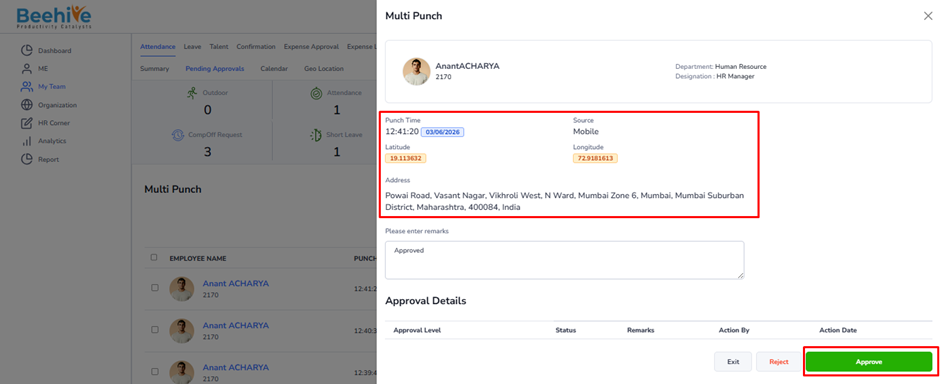
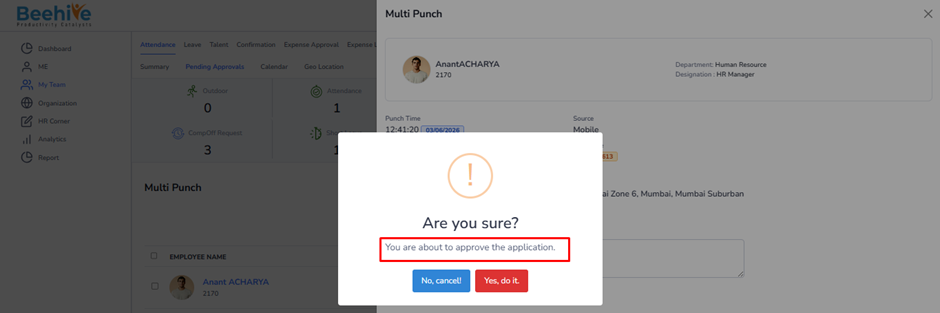
After selecting the “Approve” button, the system validates the action by requesting confirmation from the manager.
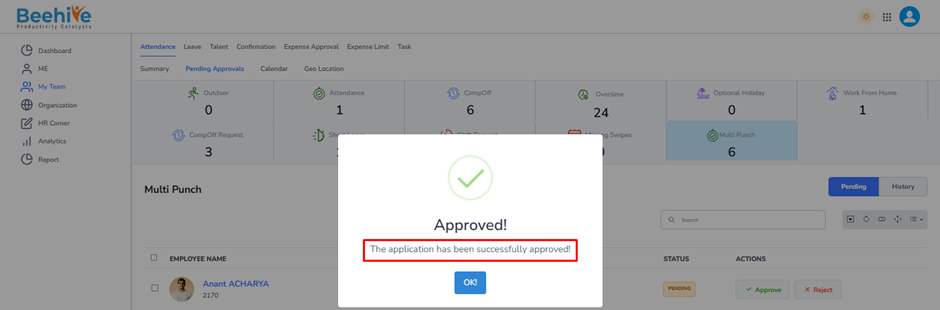
An “Approval Successful” pop-up is displayed.
Once the punch records are approved, they are displayed on the dashboard.
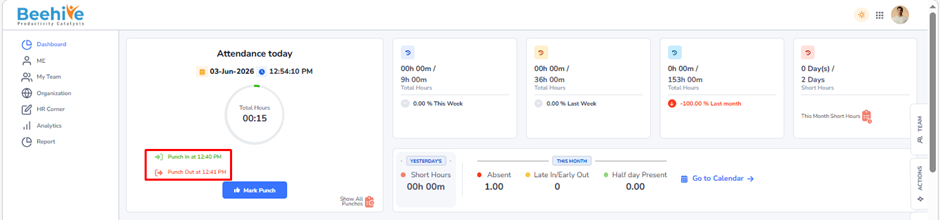
Note – Punch records will be displayed in “Show All Punches” only when both IN and OUT entries are approved. If either IN or OUT is pending or approved individually, the record will not be shown.