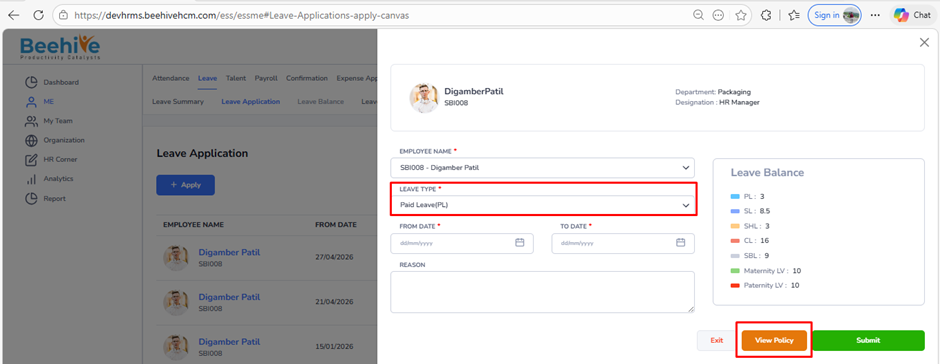
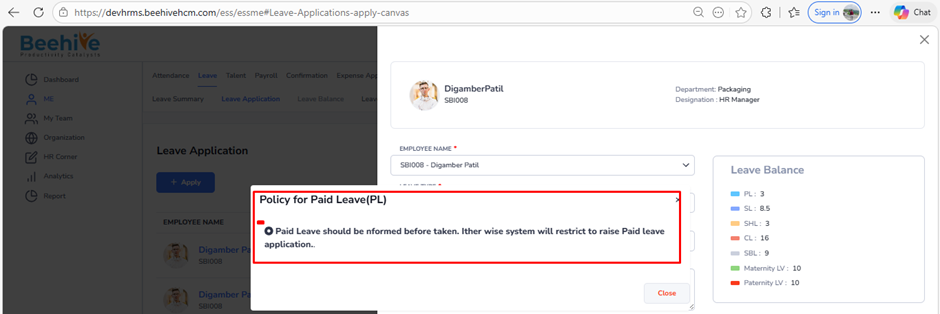
How to configure customized leave policy content in view policy for a particular leave?
Prerequisites –
1. Leave Group must be assigned to Employee
2. Leave Type must be configured for Assigned leave Group
3. Leave Period must be Active.
Navigation –
Login -> Module Box -> Attendance/Leave Config ->Leave Configuration -> Select Leave Period ->Configure -> Select Leave Type -> General -> Advanced Leave Configuration
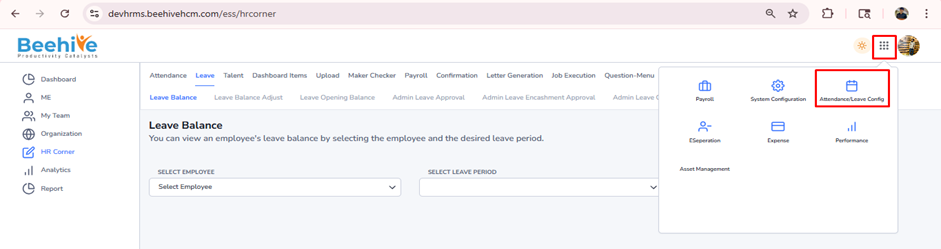
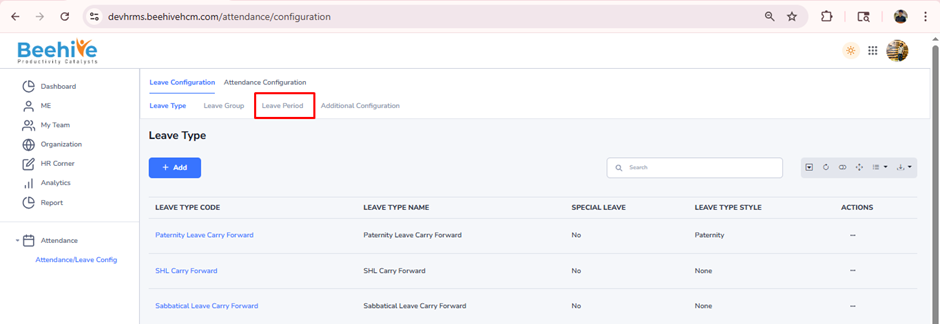
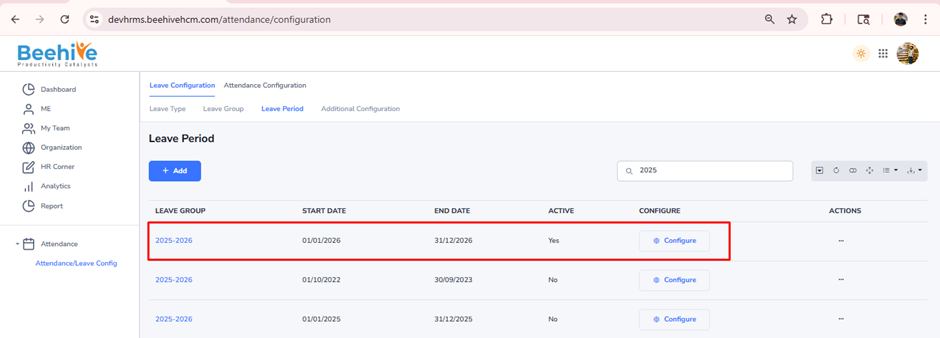
Click on Configure button for current active Leave Group Period
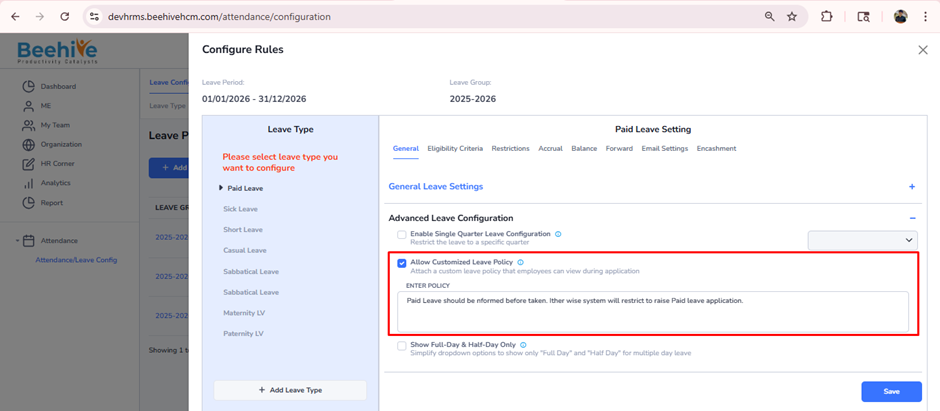
Select the leave type and enable the “Allow Customized Leave Policy” configuration.
Once enabled, a configuration box will be displayed where you can enter your customized leave policy.
Click the Save button to ensure the customized policy is saved.
Click on the View Policy button in the Leave Application section to view leave policy details.