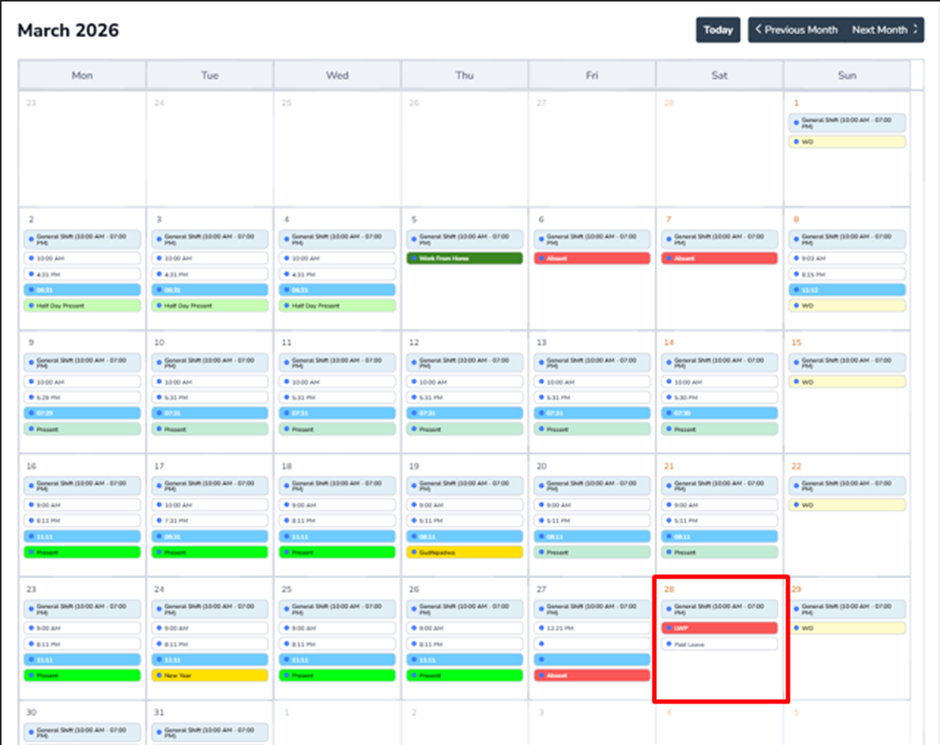
How to make Leave type as LWP(Leave Without Pay)?
Prerequisites –
1. Leave Group must be assigned to Employee
2. Leave Type must be configured for Assigned leave Group
3. Leave Period must be Active.
Leave Without Pay (LWP) is leave taken by an employee when they do not have sufficient paid leave balance. During this period, no salary is paid for the days of leave taken.
Navigation –
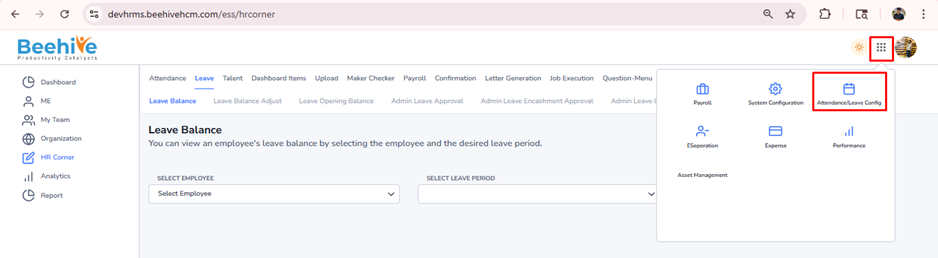
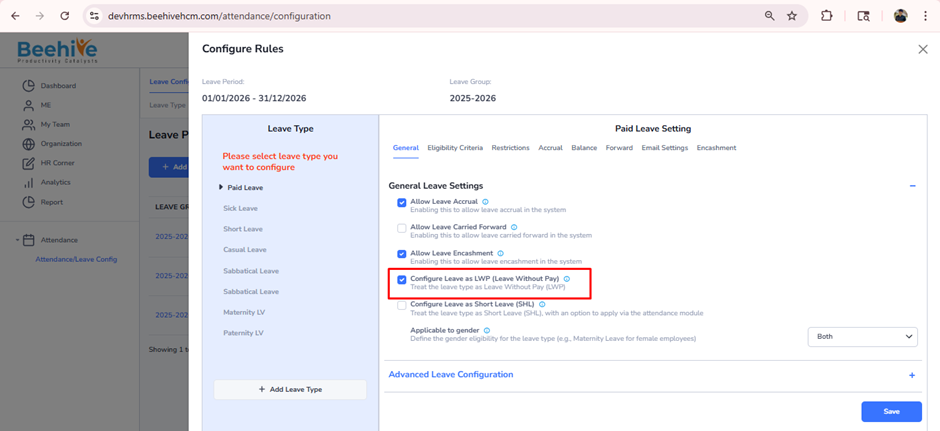
Login -> Module Box -> Attendance/Leave Config ->Leave Configuration -> Select Leave Period ->Configure -> Select Leave Type -> General-> General Leave Settings
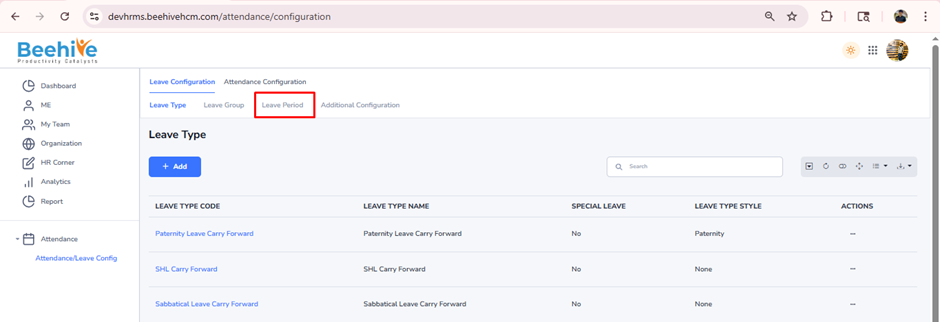
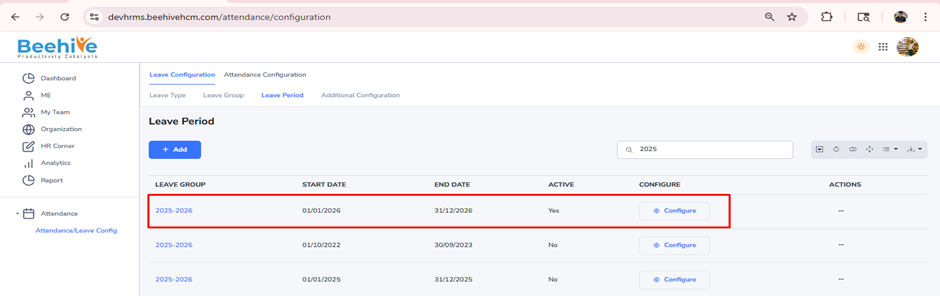
Click on Configure button for current active Leave Group Period
Enable “Configure leave as LWP (Leave Without Pay)” configuration to make elected leave type as LWP. Click on Save button.
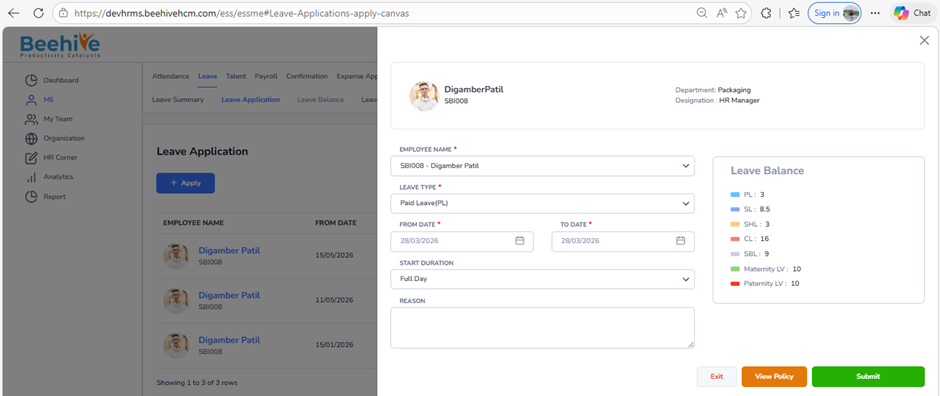
Employee raise LWP application
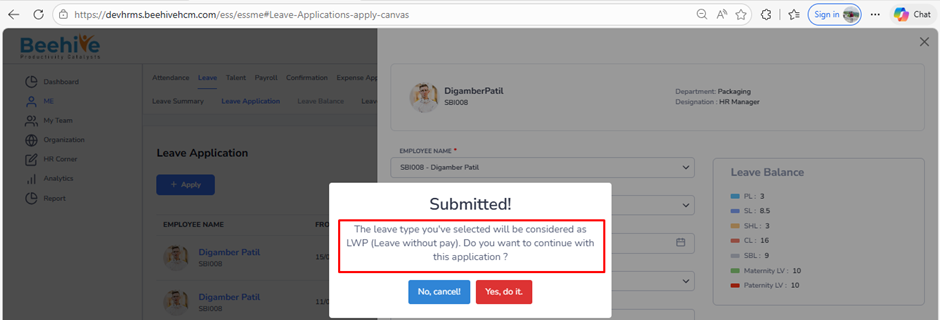
After the LWP application is approved and the attendance job is executed, the calendar status will be displayed as LWP