Assign Shift
The Shift Assignment feature is used to assign working shifts to employees based on company, branch, department, division, zone, or work location. This helps organizations manage employee working hours and attendance effectively.
Purpose of Shift Assignment –
– Assign different shifts to employees.
– Manage attendance according to shift timings.
– Simplify shift scheduling and workforce management.
– Ensure proper attendance and payroll processing based on assigned shifts.
Navigation Path –
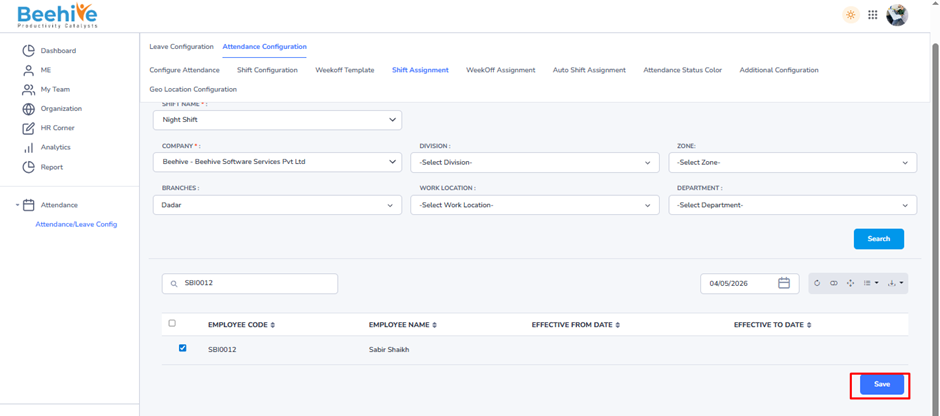
Go to -> Module Box ->Attendance/Leave Config ->→ Attendance Configuration ->Shift Assignment
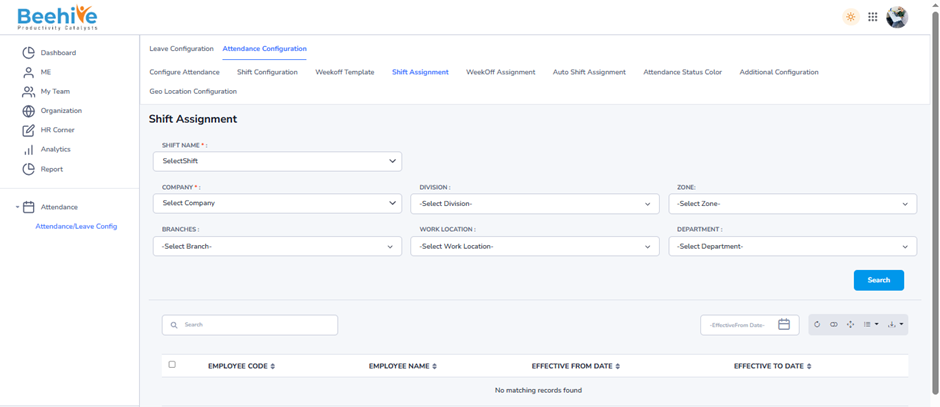
HR can filter employees using organization details such as –
1. Company
2. Division
3. Zone
4. Branch
5. Work Location
6. Department
After selecting the required filters, click on the Search button.
Result – The system will display all employees matching the selected organization criteria in the employee list section below.
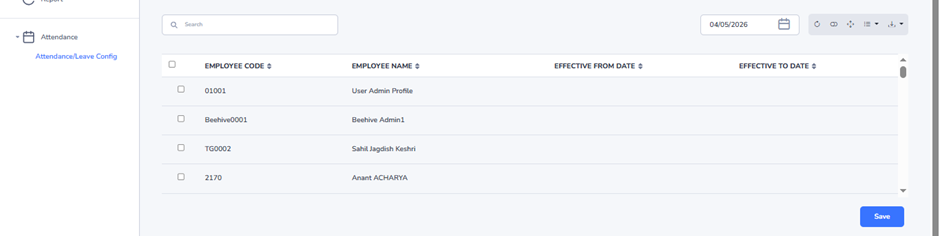
HR can then –
– Select employees
– Assign Shift
– Apply effective date for Shift assignment
Select the weekly off template you want to assign to employees.
Example Shift – Flexi Night
If HR selects – Flexi Night
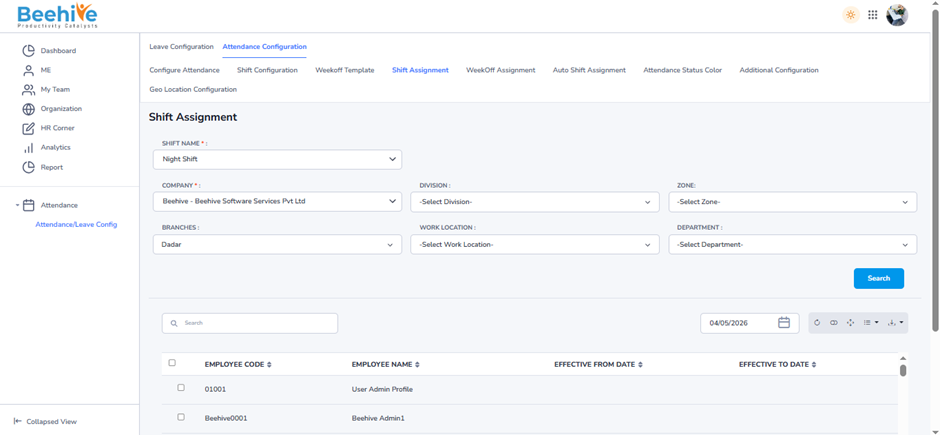
The Effective From Date defines from which date the assigned Weekly Off Template will start applying to employees.
Example –
If Effective Date – 04/05/2026
then the selected weekly off template will apply from –04 May 2026 onward.
Note –
If Effective Date is Past Date –
– Attendance Re-Process needs to be done
– Required attendance jobs need to be executed
This is required to update old attendance records as per the new weekly off configuration.
If Effective Date is Future Date –
– Only required jobs need to be executed
Attendance will automatically apply the weekly off from the future effective date onward.
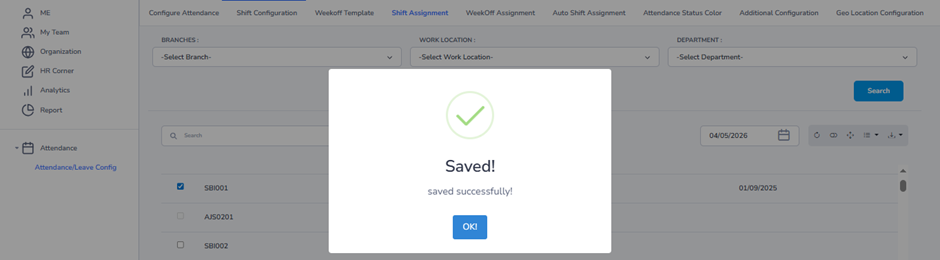
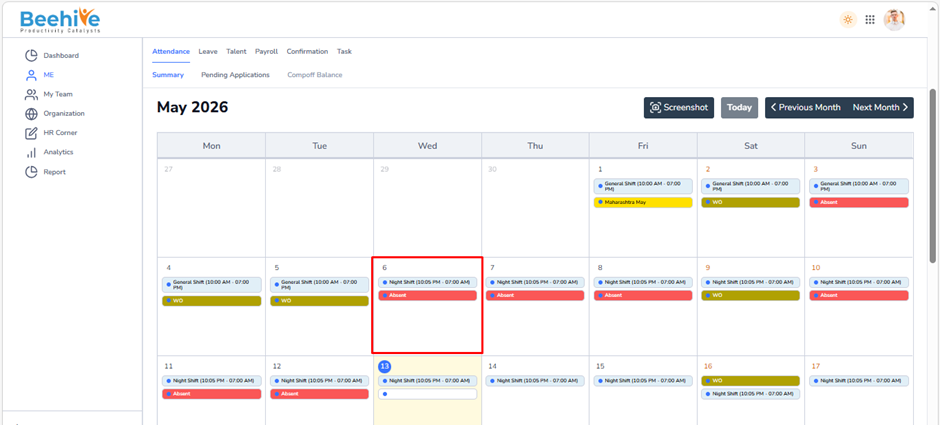
Impact on Employee calendar