How to Apply for Comp Off?
The CompOff module allows employees to apply for Compensatory Off against eligible attendance records such as extra working days, Outdoor duties, or Work From Home attendance. Employees can submit CompOff applications directly through the HRMS portal based on the available CompOff balance and organizational policies.
The system helps organizations efficiently manage CompOff eligibility, approvals, attendance validation, and balance tracking.
How to Apply for CompOff ?
Navigation –
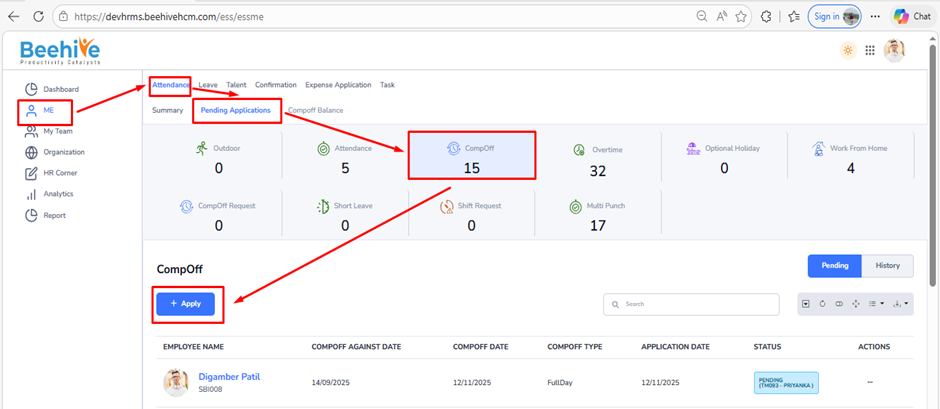
ME → Attendance → Pending Applications → CompOff Application
From the Pending Applications section, click on the CompOff module and then click on the Apply button to open the CompOff Application page.
Actual Attendance Time Details –
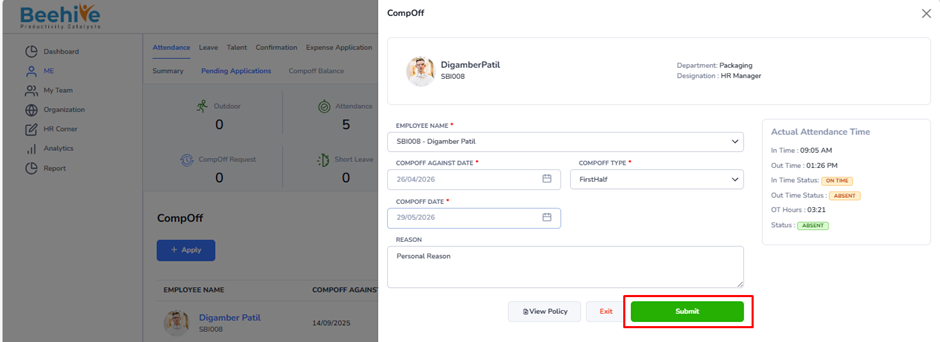
The Actual Attendance Time section displays attendance-related information for the selected CompOff Against Date.
This helps employees verify eligibility before submitting the application.
The following attendance details are displayed –
– In Time
– Out Time
– In Time Status
– Out Time Status
– OT Hours
– Attendance Status
– In Time: 09:05 AM
– Out Time: 02:26 PM
– CompOff Hours: 04:21
– Status: Present
Notes –
CompOff Eligibility – CompOff can be applied against –
– Daily Attendance
– Outdoor Attendance
– Work From Home Attendance
– Regularization
based on organizational configuration.
1. Through Daily Attendance –
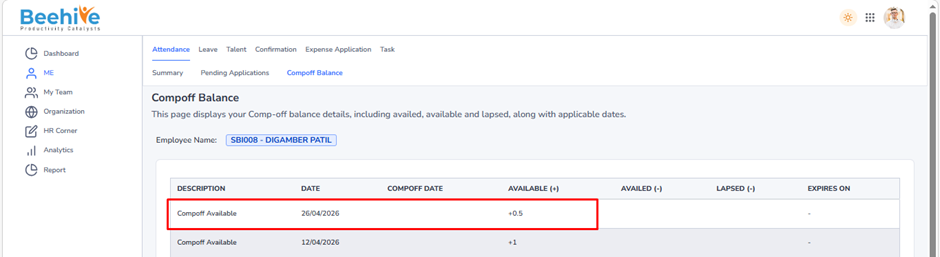
The CompOff Type selected during the CompOff application determines how much CompOff balance will be credited or utilized in the employee’s CompOff Balance.
Available CompOff Types
Employees can select the CompOff Type from the dropdown list based on eligibility and organizational policy.
Available options include –
– FirstHalf
– SecondHalf
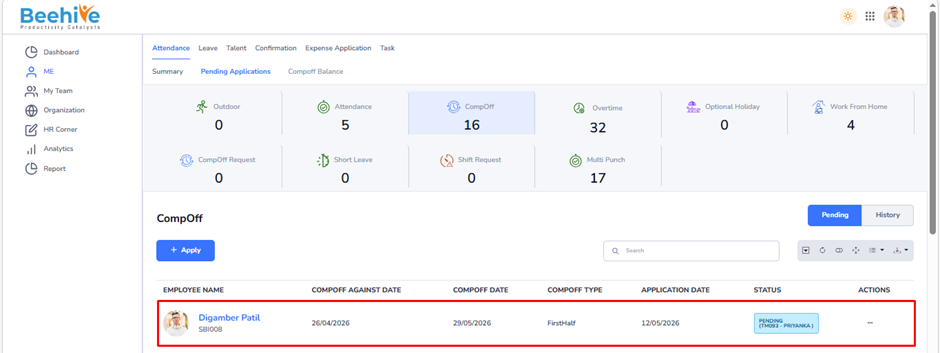
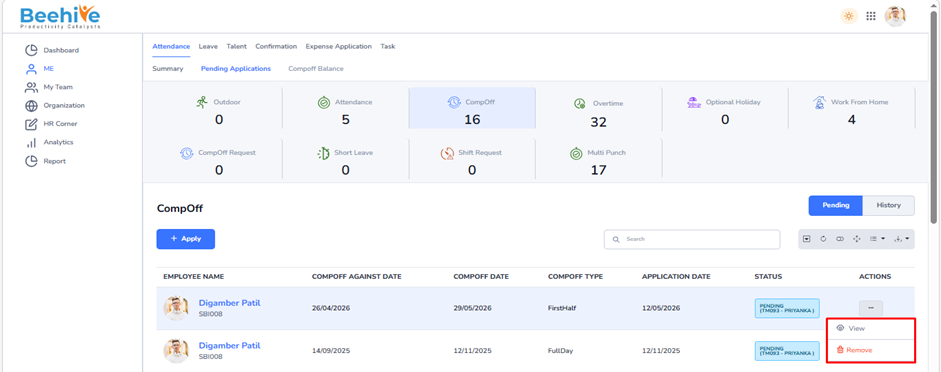
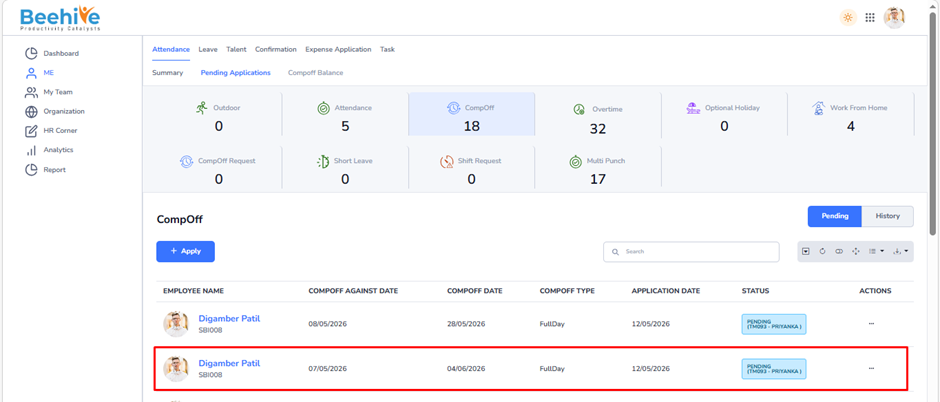
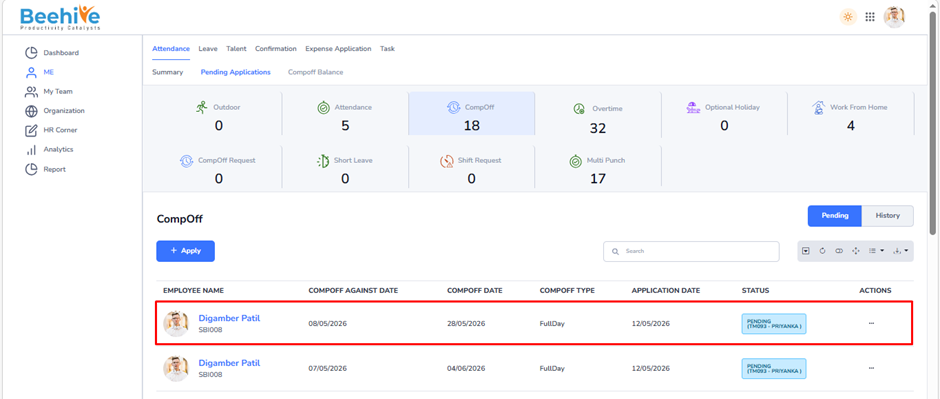
To View or Delete an existing application, navigate to the Actions column and click on the Actions Menu icon. This menu provides various options to manage your submitted applications.
If the application status is Pending, you will see the Remove option available in the menu. This allows you to delete or edit the application before it is reviewed or approved by the concerned authority.
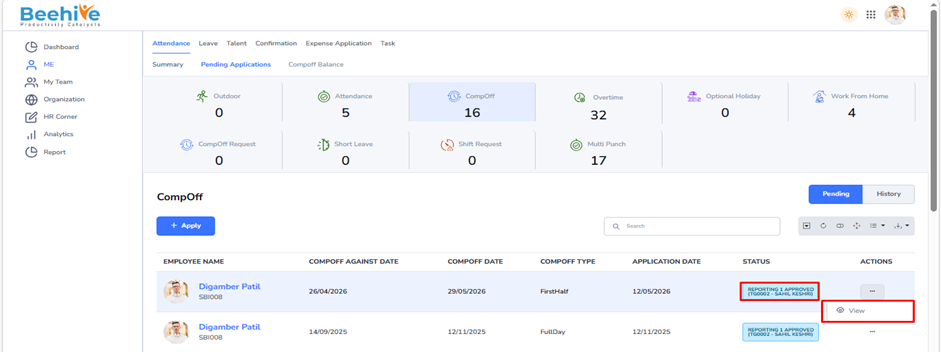
However, once the application has progressed to the Reporting 1 Approved or Reporting 2 Approved status, the Remove option will no longer be visible. At this stage, the application is already under review or approved, and hence, it cannot be deleted or modified. This feature ensures that users can manage their applications efficiently while maintaining data accuracy and approval integrity within the system.
2. Through Outdoor –
Employees can become eligible for CompOff balance against approved Outdoor Attendance records based on the organization’s CompOff policy and attendance configuration.
When an employee performs official work outside the office premises through the Outdoor module and fulfills the required working hours or overtime conditions, the system allows the employee to raise a Compoff against that Outdoor attendance entry.
3. Through Work From Home –
Employees can become eligible for CompOff balance against approved Work From Home (WFH) attendance records based on the organization’s CompOff policy and attendance configuration.
When an employee works on an eligible day through the Work From Home module and fulfills the required working hours or overtime conditions, the system allows the employee to raise a Compoff against that Work From Home attendance entry.
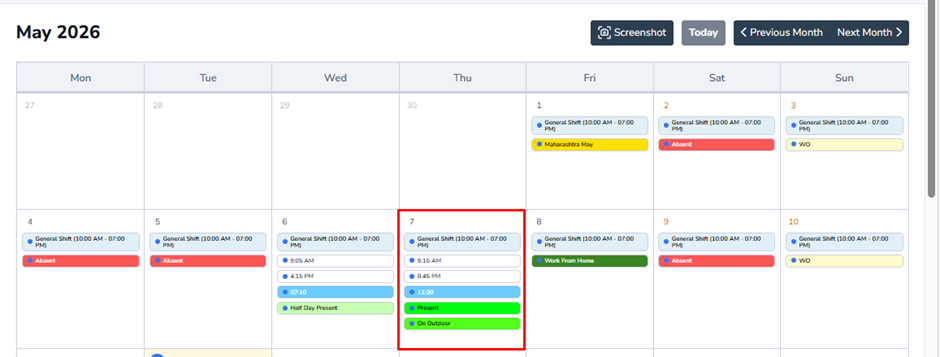
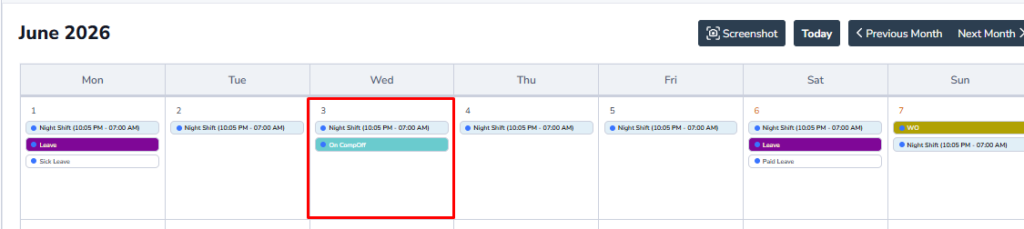
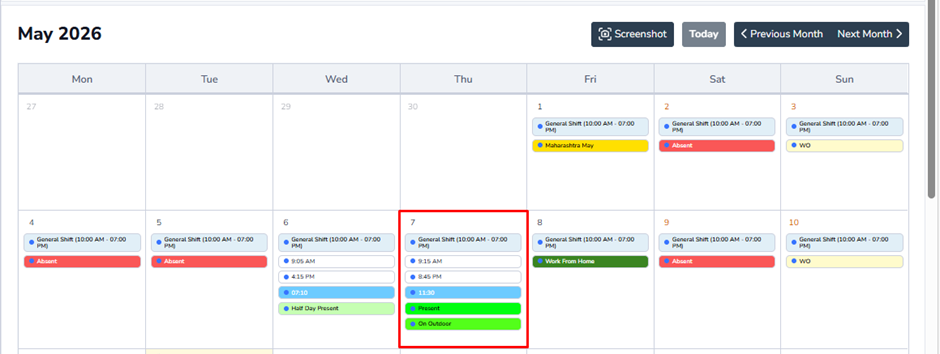
After Approval of Compoff Application “On Compoff” status will be displayed in Employee’s calendar